Chapter 3 Bluetooth
This chapter mainly introduces how to make simple data transmission through Bluetooth of ESP32-WROOM and mobile phones.
Project 3.1 is classic Bluetooth and Project 3.2 is low power Bluetooth.If you are an iPhone user, please start with Project 3.2.
Project 3.1 Bluetooth Passthrough
Component List
ESP32-WROOM x1 |
Type C Wire x1 |
|---|---|
|
|


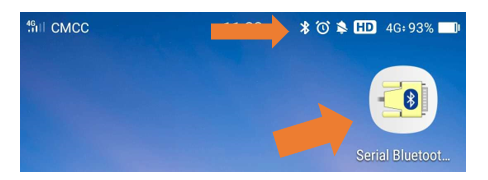
In this tutorial we need to use a Bluetooth APP called Serial Bluetooth Terminal to assist in the experiment. If you’ve not installed it yet, please do so by clicking: https://www.appsapk.com/serial-bluetooth-terminal/ The following is its logo.
Component knowledge
ESP32’s integrated Bluetooth function Bluetooth is a short-distance communication system, which can be divided into two types, namely Bluetooth Low Energy(BLE) and Classic Bluetooth. There are two modes for simple data transmission: master mode and slave mode.
Master mode
In this mode, works are done in the master device and it can connect with a slave device. And we can search and select slave devices nearby to connect with. When a device initiates connection request in master mode, it requires information of the other Bluetooth devices including their address and pairing passkey. After finishing pairing, it can connect with them directly.
Slave mode
The Bluetooth module in slave mode can only accept connection request from a host computer, but cannot initiate a connection request. After connecting with a host device, it can send data to or receive from the host device.
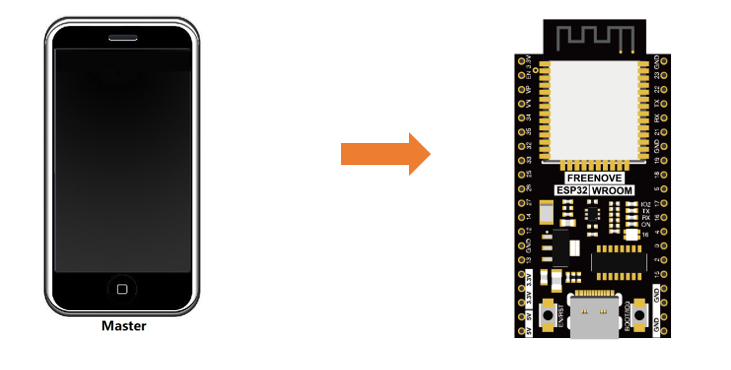
Bluetooth devices can make data interaction with each other, as one is in master mode and the other in slave mode. When they are making data interaction, the Bluetooth device in master mode searches and selects devices nearby to connect to. When establishing connection, they can exchange data. When mobile phones exchange data with ESP32, they are usually in master mode and ESP32 in slave mode.
Circuit
Connect Freenove ESP32 to the computer using the USB cable.

Sketch
Sketch_03.1_SerialToSerialBT
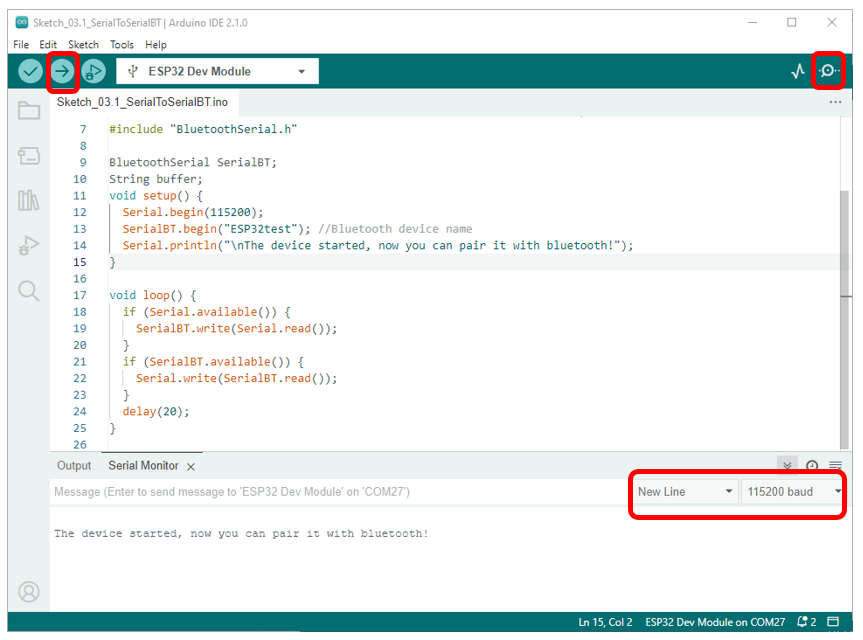
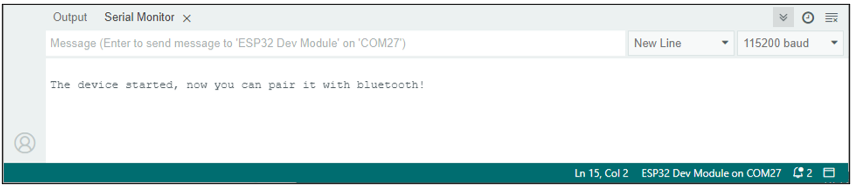
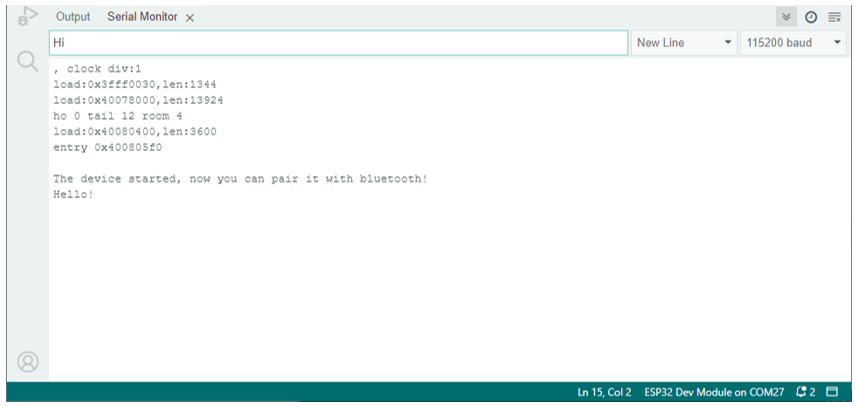
Compile and upload the code to the ESP32-WROOM, open the serial monitor, and set the baud rate to 115200. When you see the serial printing out the character string as below, it indicates that the Bluetooth of ESP32 is ready and waiting to connect with the mobile phone.
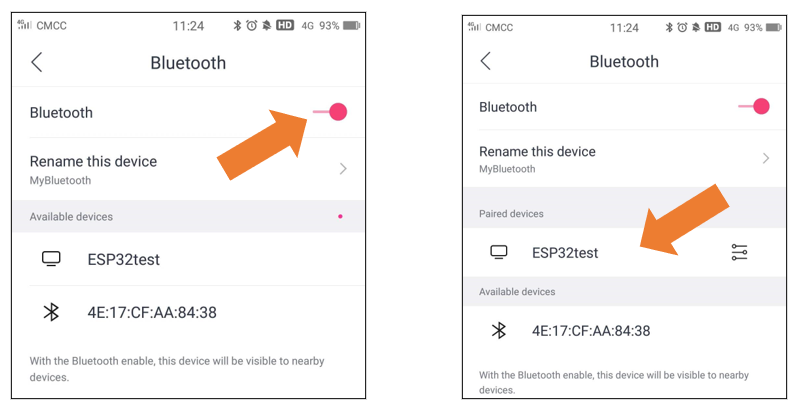
Make sure that the Bluetooth of your phone has been turned on and Serial Bluetooth Terminal has been installed.
Click “Search” to search Bluetooth devices nearby and select “ESP32 test” to connect to.
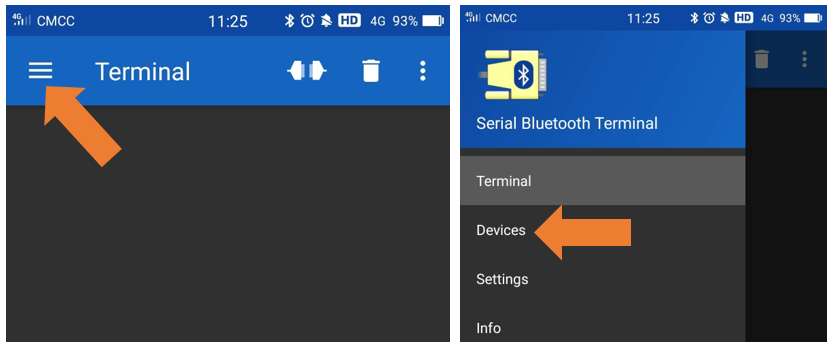
Turn on software APP, click the left of the terminal. Select “Devices”
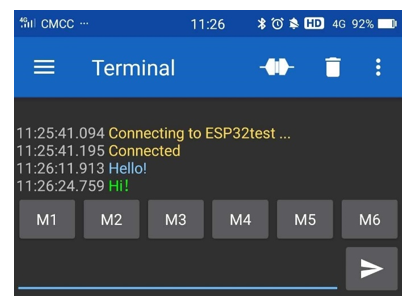
Select ESP32test in classic Bluetooth mode, and a successful connecting prompt will appear as shown on the right illustration.
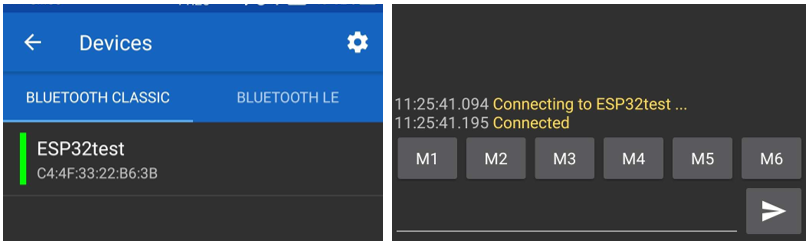
And now data can be transferred between your mobile phone and computer via ESP32-WROOM.
Send ‘Hello!’’ from your phone, when the computer receives it, reply “Hi” to your phone.
Reference
- Class BluetoothSerial
This is a class library used to operate BluetoothSerial, which can directly read and set BluetoothSerial. Here are some member functions:
begin(localName,isMaster): Initialization function of the Bluetooth
name: name of Bluetooth module; Data type: String
isMaster: bool type, whether to set Bluetooth as Master. By default, it is false.
available(): acquire digits sent from the buffer, if not, return 0.
read(): read data from Bluetooth, data type of return value is int.
readString(): read data from Bluetooth, data type of return value is String.
write(val): send an int data val to Bluetooth.
write(str): send an Srtring data str to Bluetooth.
write(buf, len): Sends the first len data in the buf Array to Bluetooth.
setPin(const char *pin): set a four-digit Bluetooth pairing code. By default, it is 1234
connet(remoteName): connect a Bluetooth named remoteName, data type: String
connect(remoteAddress[]): connect the physical address of Bluetooth, data type: uint8-t.
disconnect(): disconnect all Bluetooth devices.
end(): disconnect all Bluetooth devices and turn off the Bluetooth, release all occupied space
Project 3.2 Bluetooth Low Energy Data Passthrough
Component List
ESP32-WROOM x1 |
Type C Wire x1 |
|---|---|
|
|
Circuit
Connect Freenove ESP32 to the computer using the USB cable.
Sketch
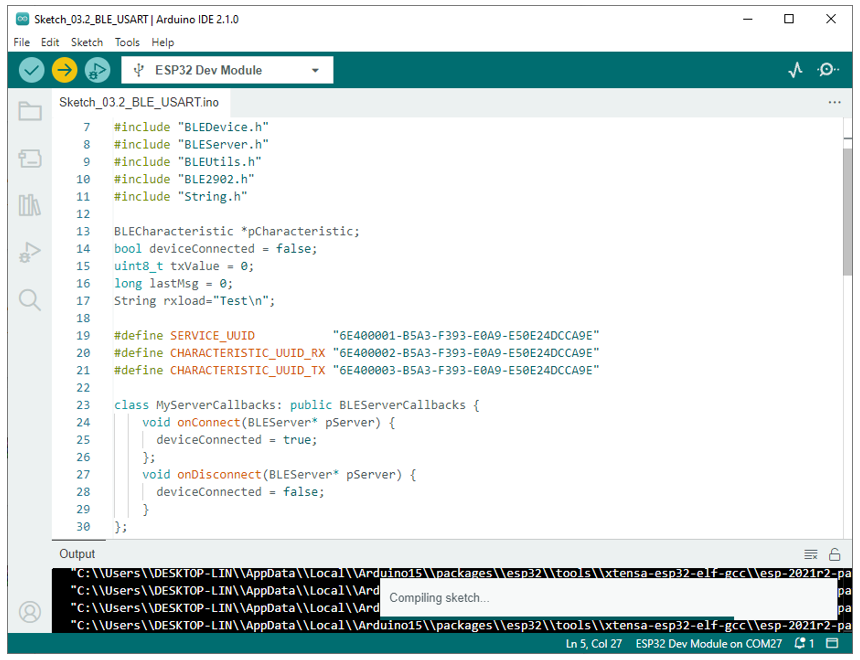
Sketch_03.2_BLE
Serial Bluetooth
Compile and upload code to ESP32, the operation is similar to the last section.
First, make sure you’ve turned on the mobile phone Bluetooth, and then open the software.
Click “Search” to search Bluetooth devices nearby and select “ESP32 test” to connect to.
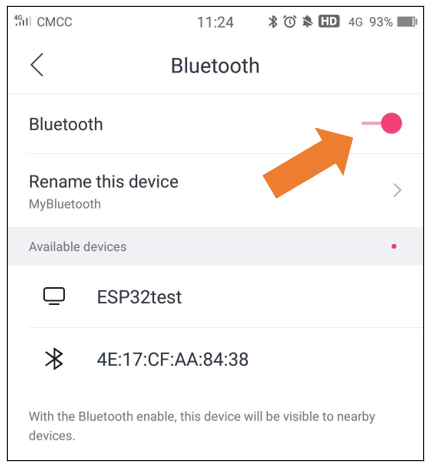
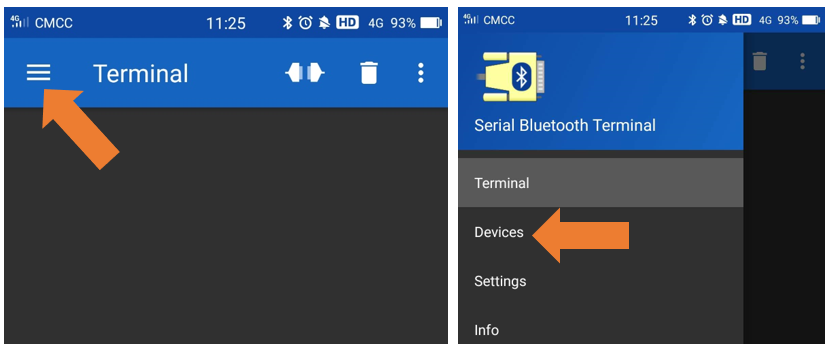
Turn on software APP, click the left of the terminal. Select “Devices”
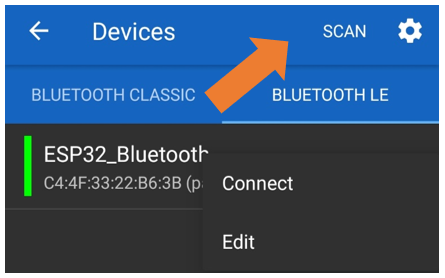
Select BLUETOOTHLE, click SCAN to scan Low Energy Bluetooth devices nearby.
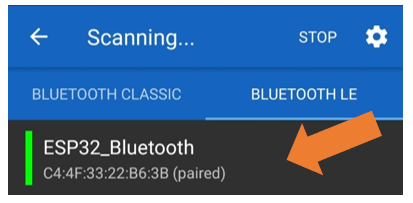
Select”ESP32-Bluetooth”
Lightblue
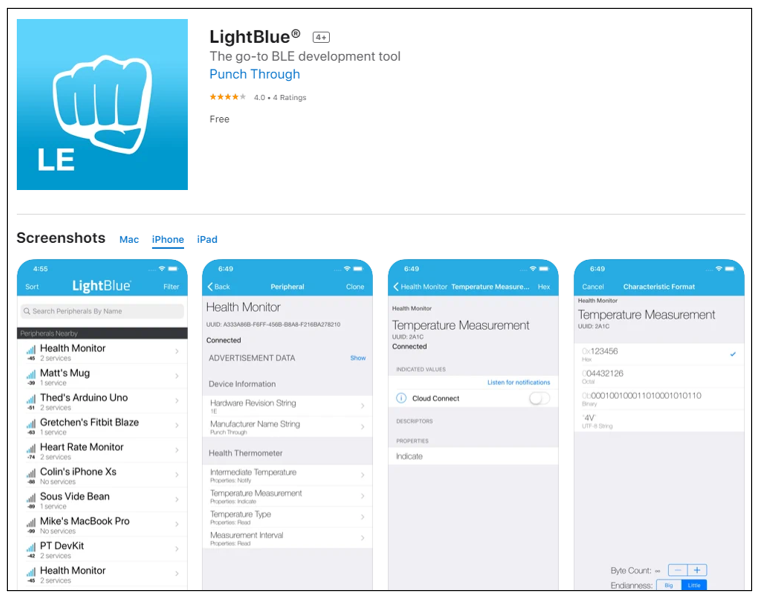
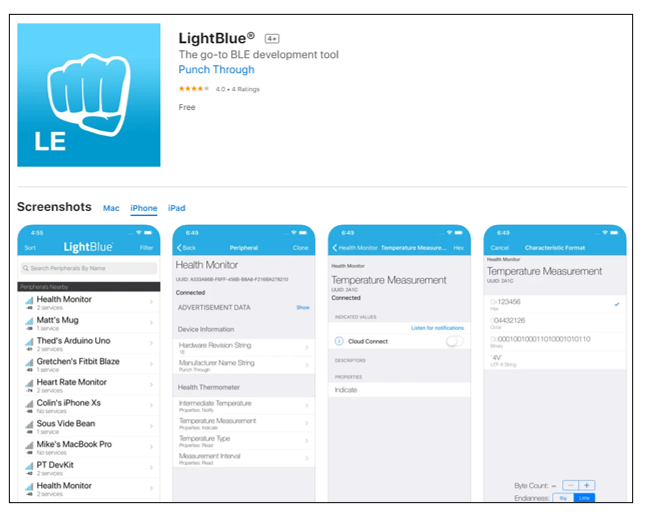
If you can’t install Serial Bluetooth on your phone, try LightBlue.If you do not have this software installed on your phone, you can refer to this link:https://apps.apple.com/us/app/lightblue/id557428110#?platform=iphone.
https://apps.apple.com/us/app/lightblue/id557428110#?platform=iphone.
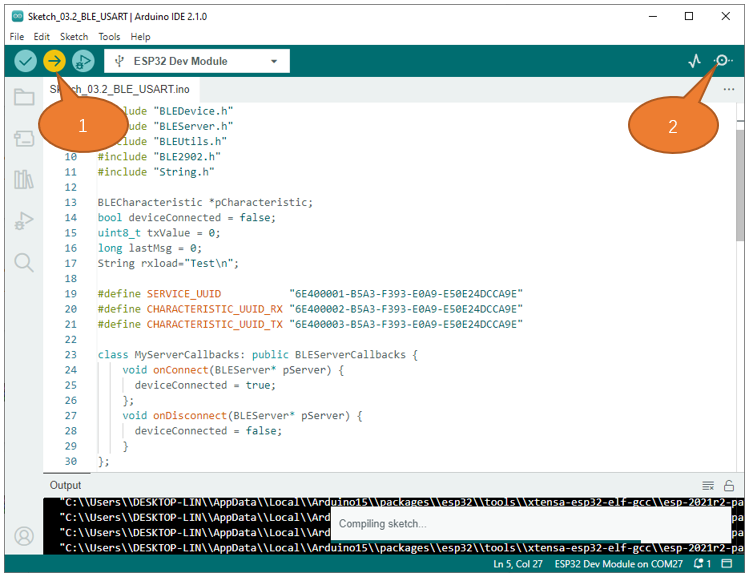
Step1. Upload the code to ESP32.
Step2. Click on serial monitor.
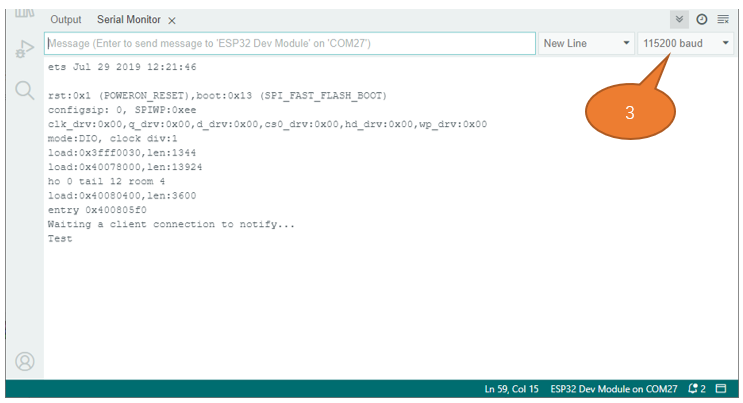
Step3. Set baud rate to 115200.
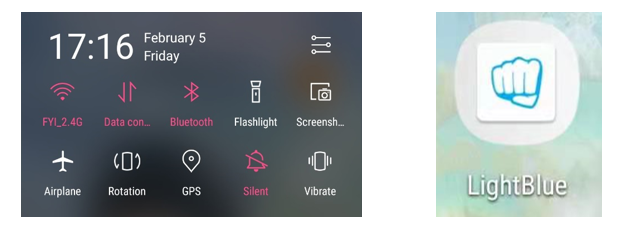
Turn ON Bluetooth on your phone, and open the Lightblue APP.
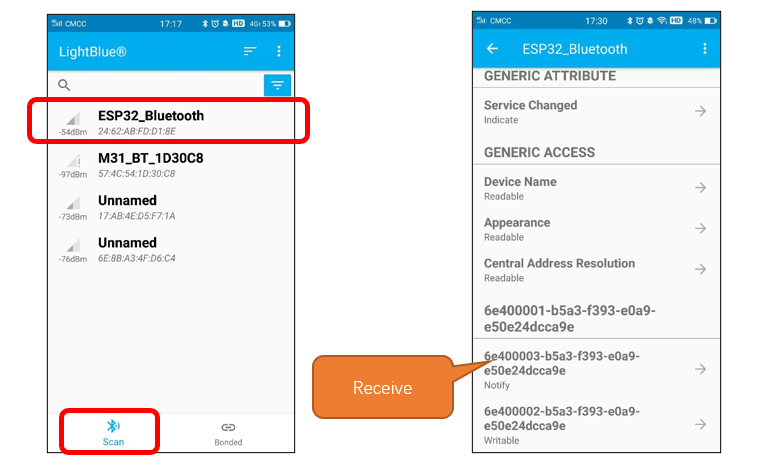
In the Scan page, swipe down to refresh the name of Bluetooth that the phone searches for. Click ESP32_Bluetooth.
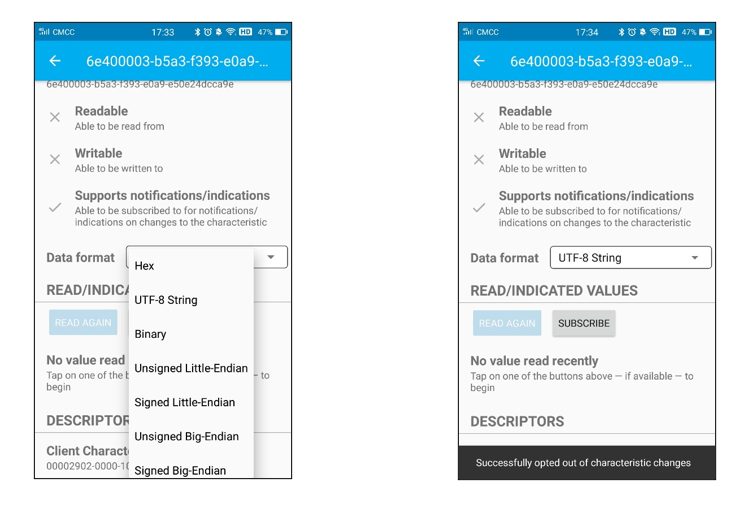
Click “Receive”. Select the appropriate Data format in the box to the right of Data Format. For example, HEX for hexadecimal, utf-string for character, Binary for Binary, etc. Then click SUBSCRIBE.
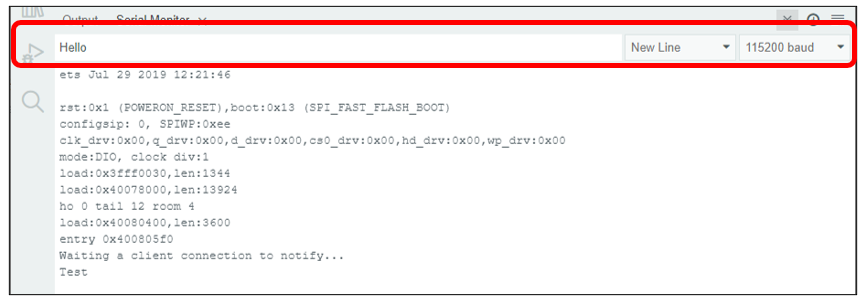
Back to the serial monitor on your computer. You can type anything in the left border of Send, and then click Send.
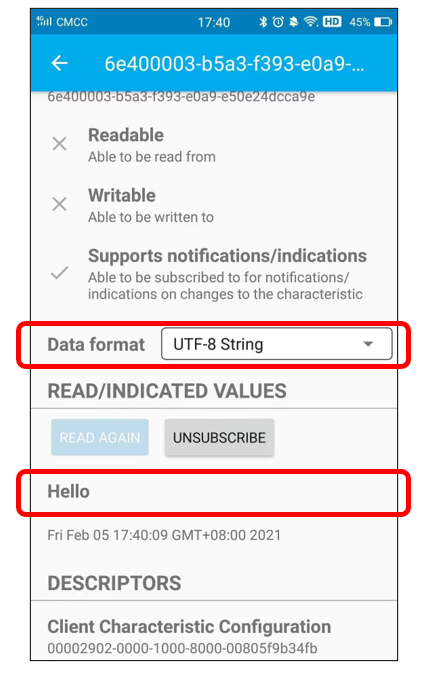
And then you can see the mobile Bluetooth has received the message.
Similarly, you can select “Send” on your phone. Set Data format, and then enter anything in the sending box and click Write to send.
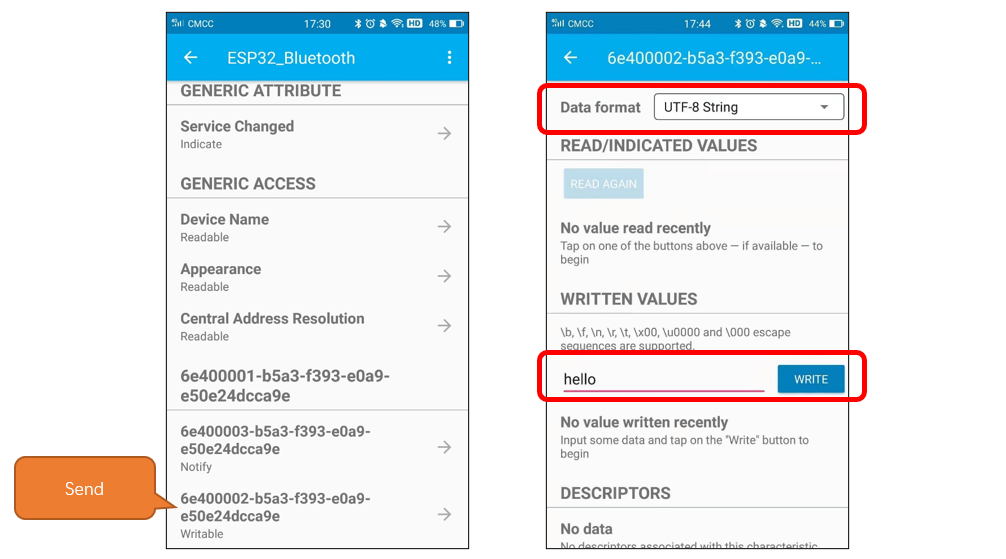
And the computer will receive the message from the mobile Bluetooth.
And now data can be transferred between your mobile phone and computer via ESP32-WROOM.
The following is the program code:
 1/**********************************************************************
 2  Filename    : BLE_USART
 3  Description : Esp32 communicates with the phone by BLE and sends incoming data via a serial port
 4  Auther      : www.freenove.com
 5  Modification: 2023/06/15
 6**********************************************************************/
 7#include "BLEDevice.h"
 8#include "BLEServer.h"
 9#include "BLEUtils.h"
10#include "BLE2902.h"
11#include "String.h"
12
13BLECharacteristic *pCharacteristic;
14bool deviceConnected = false;
15uint8_t txValue = 0;
16long lastMsg = 0;
17String rxload="Test\n";
18
19#define SERVICE_UUID           "6E400001-B5A3-F393-E0A9-E50E24DCCA9E"
20#define CHARACTERISTIC_UUID_RX "6E400002-B5A3-F393-E0A9-E50E24DCCA9E"
21#define CHARACTERISTIC_UUID_TX "6E400003-B5A3-F393-E0A9-E50E24DCCA9E"
22
23class MyServerCallbacks: public BLEServerCallbacks {
24    void onConnect(BLEServer* pServer) {
25      deviceConnected = true;
26    };
27    void onDisconnect(BLEServer* pServer) {
28      deviceConnected = false;
29      //pServer->getAdvertising()->start();  Reopen the pServer and wait for the connection.
30    }
31};
32
33class MyCallbacks: public BLECharacteristicCallbacks {
34    void onWrite(BLECharacteristic *pCharacteristic) {
35      String rxValue = pCharacteristic->getValue();
36      if (rxValue.length() > 0) {
37        rxload="";
38        for (int i = 0; i < rxValue.length(); i++){
39          rxload +=(char)rxValue[i];
40        }
41      }
42    }
43};
44
45void setupBLE(String BLEName){
46  const char *ble_name=BLEName.c_str();
47  BLEDevice::init(ble_name);
48  BLEServer *pServer = BLEDevice::createServer();
49  pServer->setCallbacks(new MyServerCallbacks());
50  BLEService *pService = pServer->createService(SERVICE_UUID);
51  pCharacteristic= pService->createCharacteristic(CHARACTERISTIC_UUID_TX,BLECharacteristic::PROPERTY_NOTIFY);
52  pCharacteristic->addDescriptor(new BLE2902());
53  BLECharacteristic *pCharacteristic = pService->createCharacteristic(CHARACTERISTIC_UUID_RX,BLECharacteristic::PROPERTY_WRITE);
54  pCharacteristic->setCallbacks(new MyCallbacks());
55  pService->start();
56  pServer->getAdvertising()->start();
57  Serial.println("Waiting a client connection to notify...");
58}
59
60void setup() {
61  Serial.begin(115200);
62  setupBLE("ESP32_Bluetooth");
63}
64
65void loop() {
66  long now = millis();
67  if (now - lastMsg > 100) {
68    if (deviceConnected&&rxload.length()>0) {
69        Serial.println(rxload);
70        rxload="";
71    }
72    if(Serial.available()>0){
73        String str=Serial.readString();
74        const char *newValue=str.c_str();
75        pCharacteristic->setValue(newValue);
76        pCharacteristic->notify();
77    }
78    lastMsg = now;
79  }
80}
Define the specified UUID number for BLE vendor.
1#define SERVICE_UUID           "6E400001-B5A3-F393-E0A9-E50E24DCCA9E"
2#define CHARACTERISTIC_UUID_RX "6E400002-B5A3-F393-E0A9-E50E24DCCA9E"
3#define CHARACTERISTIC_UUID_TX "6E400003-B5A3-F393-E0A9-E50E24DCCA9E"
Write a Callback function for BLE server to manage connection of BLE.
1class MyServerCallbacks: public BLEServerCallbacks {
2    void onConnect(BLEServer* pServer) {
3      deviceConnected = true;
4    };
5    void onDisconnect(BLEServer* pServer) {
6      deviceConnected = false;
7      //pServer->getAdvertising()->start();  Reopen the pServer and wait for the connection.
8    }
9};
Write Callback function with BLE features. When it is called, as the mobile terminal send data to ESP32, it will store them into reload.
 1class MyCallbacks: public BLECharacteristicCallbacks {
 2    void onWrite(BLECharacteristic *pCharacteristic) {
 3      String rxValue = pCharacteristic->getValue();
 4      if (rxValue.length() > 0) {
 5        rxload="";
 6        for (int i = 0; i < rxValue.length(); i++){
 7          rxload +=(char)rxValue[i];
 8        }
 9      }
10    }
11};
Initialize the BLE function and name it.
1setupBLE("ESP32_Bluetooth");
When the mobile phone send data to ESP32 via BLE Bluetooth, it will print them out with serial port; When the serial port of ESP32 receive data, it will send them to mobile via BLE Bluetooth.
 1long now = millis();
 2if (now - lastMsg > 100) {
 3  if (deviceConnected&&rxload.length()>0) {
 4      Serial.println(rxload);
 5      rxload="";
 6  }
 7  if(Serial.available()>0){
 8      String str=Serial.readString();
 9      const char *newValue=str.c_str();
10      pCharacteristic->setValue(newValue);
11      pCharacteristic->notify();
12  }
13  lastMsg = now;
14}
The design for creating the BLE server is:
Create a BLE Server
Create a BLE Service
Create a BLE Characteristic on the Service
Create a BLE Descriptor on the characteristic
Start the service.
Start advertising.
 1void setupBLE(String BLEName){
 2  const char *ble_name=BLEName.c_str();
 3  BLEDevice::init(ble_name);
 4  BLEServer *pServer = BLEDevice::createServer();
 5  pServer->setCallbacks(new MyServerCallbacks());
 6  BLEService *pService = pServer->createService(SERVICE_UUID);
 7  pCharacteristic= pService->createCharacteristic(CHARACTERISTIC_UUID_TX,BLECharacteristic::PROPERTY_NOTIFY);
 8  pCharacteristic->addDescriptor(new BLE2902());
 9  BLECharacteristic *pCharacteristic = pService->createCharacteristic(CHARACTERISTIC_UUID_RX,BLECharacteristic::PROPERTY_WRITE);
10  pCharacteristic->setCallbacks(new MyCallbacks());
11  pService->start();
12  pServer->getAdvertising()->start();
13  Serial.println("Waiting a client connection to notify...");
14}