Chapter 5 Bluetooth remote control robot
This section requires an Android or iPhone device with Bluetooth to control the robot.
If you have any concerns, please feel free to contact us via support@freenove.com
Bluetooth Sending and Receiving Data
Bluetooth Module
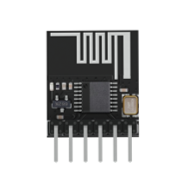
The Bluetooth module is a serial port transparent transmission module that supports Bluetooth Low Energy (BLE).
It has such advantages as small size, high performance, high-cost performance, low power consumption, and strong platform compatibility. The Bluetooth module we use is as shown below:
Install Freenove app
There are three ways to install our app.
Method 1
Use Google play to search “Freenove”, download and install.
Method 2
Visit https://play.google.com/store/apps/details?id=com.freenove.suhayl.Freenove, and click install.
Method 3
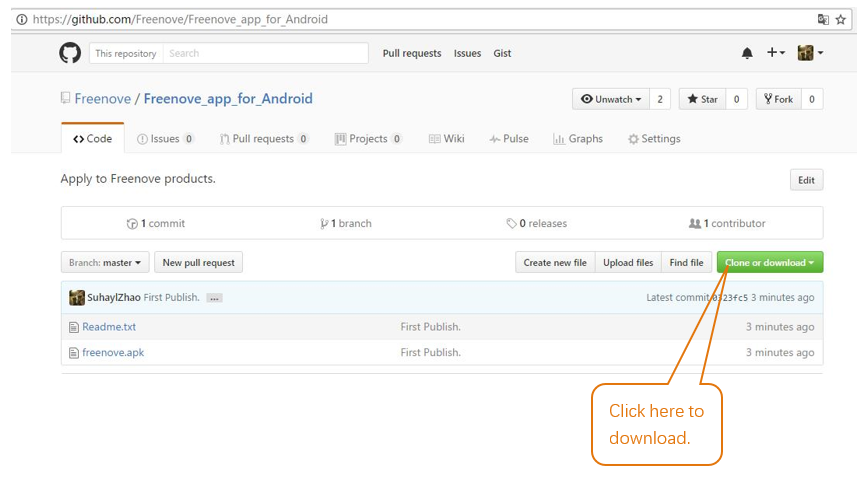
Visit https://github.com/Freenove/Freenove_app_for_Android, download the files in this library, and install freenove.apk to your Android phone manually.
Instructions for Using the Bluetooth Module
The Bluetooth module communicates with the Raspberry Pi Pico (W) through serial port, and the program is also uploaded to Pico (W) via the serial port. Therefore, when uploading code to pico (W), if it fails, please remove the Bluetooth module and upload again.
When the Bluetooth module is not connected by other device, it can be configured using the AT command. Once connected, the Bluetooth module acts as a data pipe and cannot be configured.
By default, the Bluetooth module has a baud rate of 115200, no parity, 8 data bits, and 1 stop bit. Bluetooth name “BT05”, role mode is slave mode.
Set name of bluetooth
If you have multiple Bluetooth modules with the same name around you, you will be confused when you connect. Which one is the Bluetooth module I want to connect to?
In the next project, we will introduce how to use the AT command to modify the name of the Bluetooth module and the master-slave role in the program.
For AT commands and more information about the Bluetooth module, refer to the documentation in the package for Datasheets/BT05-Instruction.pdf
This project uses the AT command to make some settings for the Bluetooth module, then uses the Bluetooth module to receive data from the app and print the data on the serial monitor.
Menu
Open application “Freenove”, as shown below:
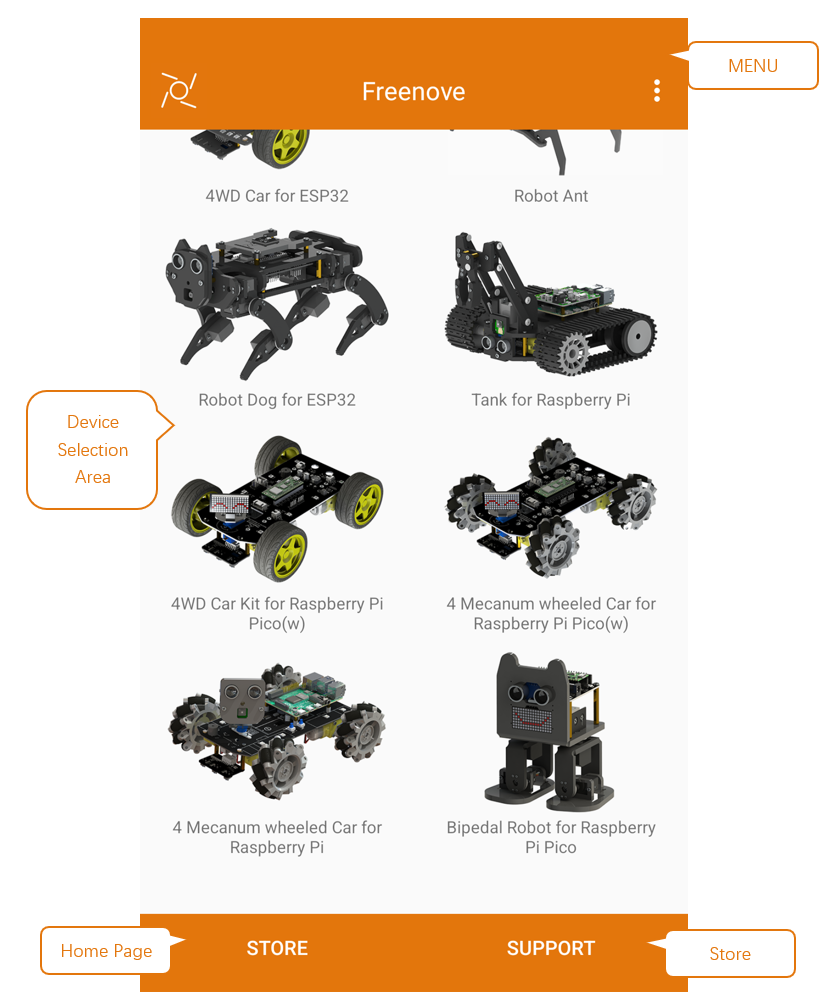
Introduction to the APP
In this chapter, we use the Freenove Bipedal robot for Raspberry Pi Pico (W) in the app, so let’s learn its interface first, as shown below:
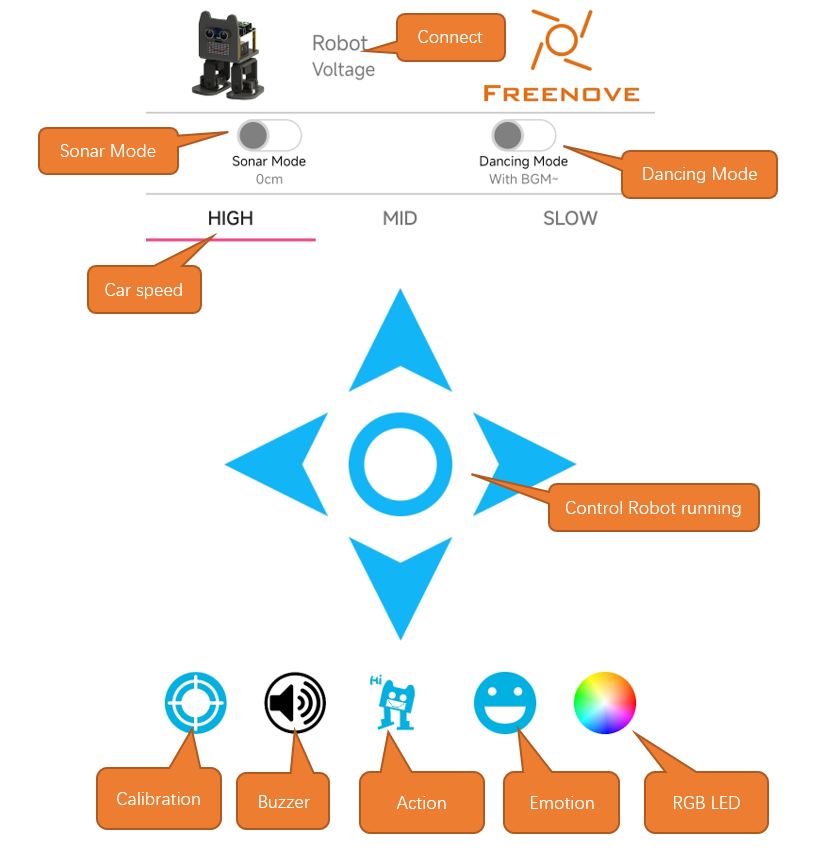
Sketch
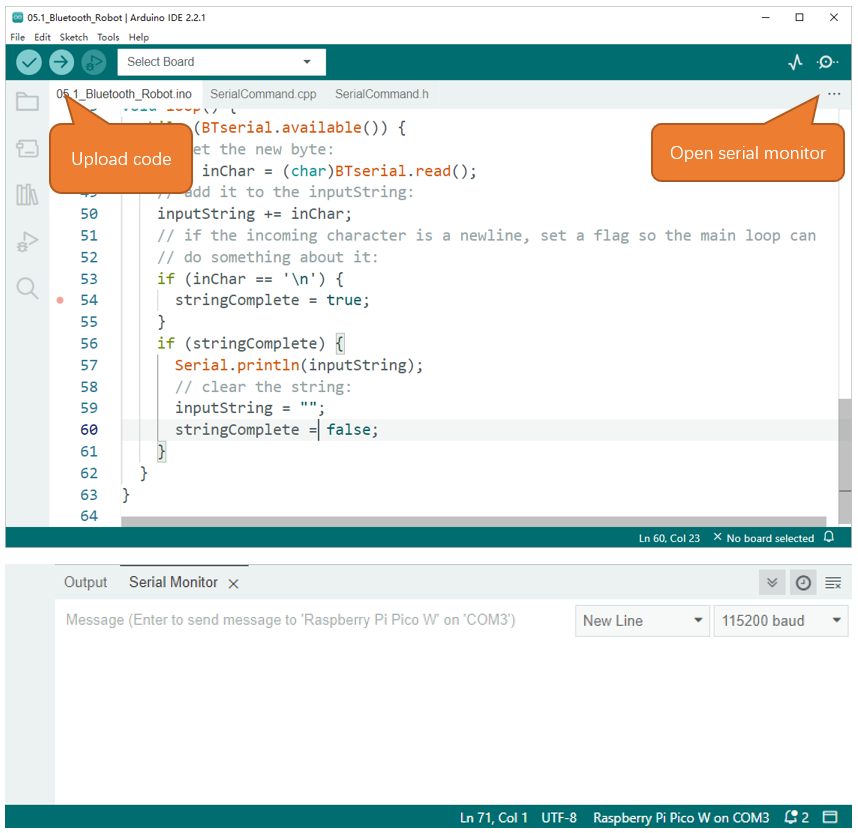
Open “05.1_Bluetooth_Robot” in “ Freenove_Bipedal_Robot_Kit_for_Raspberry_Pi_Pico\Sketches ” and double click “05.1_Bluetooth_Robot.ino”.
Note: if the code fails to upload, please remove the Bluetooth and upload it again.
After the code is successfully uploaded, follow the steps below.
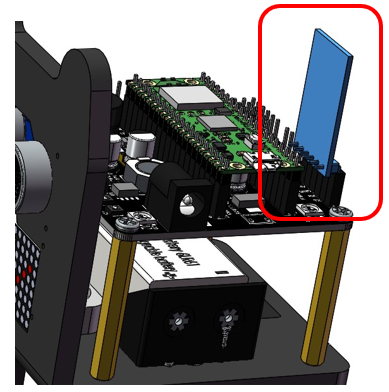
Plug the Bluetooth module to thecar as shown below. Don’t reverse it. The wrong connection may damage your hardware.
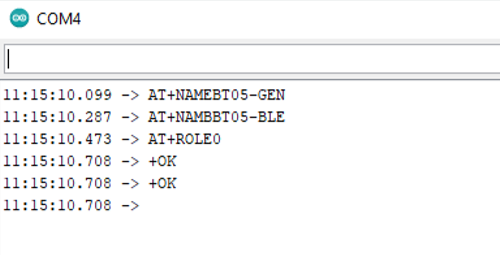
Open Arduino Serial Monitor, and reset the control board.
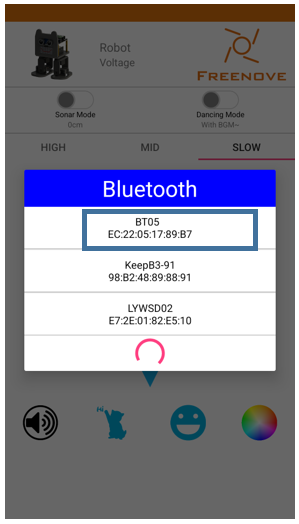
As shown in the figure below, the Bluetooth name is set to “BT05” and the Bluetooth mode is slave mode (ROLE=0).
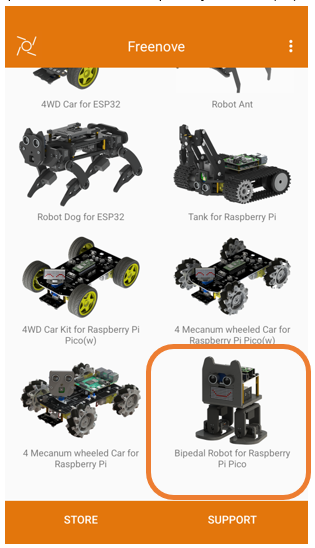
Next, open Freenove APP, tap e Freenove Bipedal Robot for Raspberry Pi Pico.
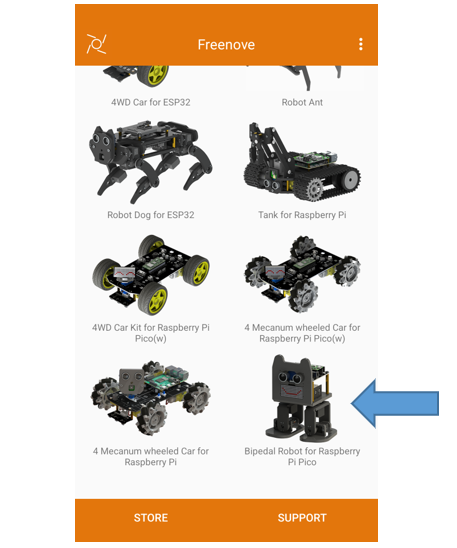
Click the following icon.
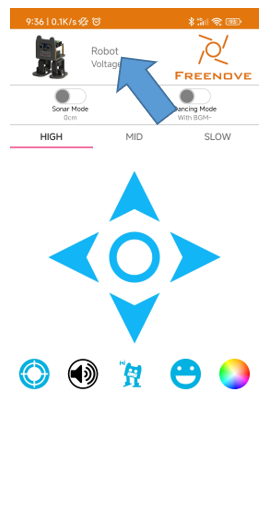
Click BT05.
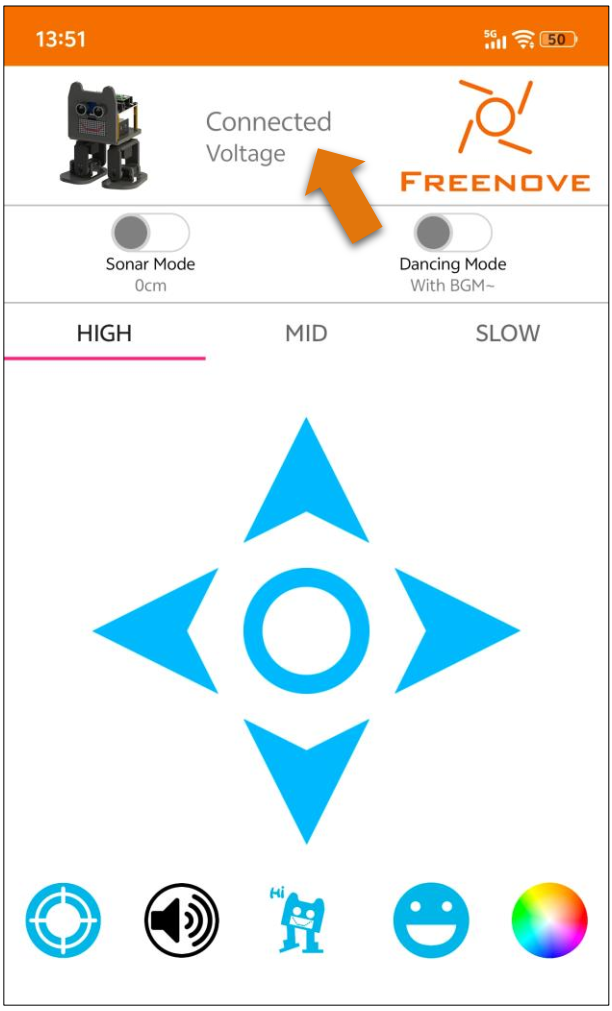
If the connection successes, you can see “Connected”.
Operate the app, and observe the monitor.
The monitor will show contents as below:
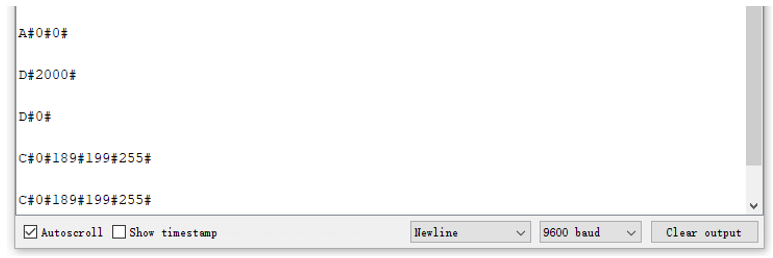
Bluetooth data- robot action
The command format for communication between app and robot is A#xxx#xxx#…xxx#, where # is a separator, the first character A represents the action command, it can be other characters, such as B, C, D…The xxx represents the parameters of the action command. And different commands carry different parameters. The command list is as below:
Action command |
Description |
Command character |
Number of parameters (app send/receive) |
Format example (app send/receive) |
|---|---|---|---|---|
MOVE |
Under the MOVE mode, parameter 1 represents the movement mode, and parameter 2 indicates the moving speed. |
A |
2 |
A#100#100# |
VOLTAGE |
Get the batteries voltage, parameter is the voltage value, unit mV |
P |
0/1 |
P# /P#4100# |
LED_RGB |
Control RGBLED, parameters respectively are serial number of LED mode, red value, green value, blue value. |
C |
4 |
C#2#100#150#200# |
BUZZER |
Control buzzer, and parameter is the frequency. |
D |
1 |
D#2000# |
Code
 1/**********************************************************************
 2  Filename    : Receive_Bluetooth_Data.ino
 3  Product     : Freenove Robot for Raspberry Pi Pico (W)
 4  Description : Receive data from bluetooth and print it to monitor.
 5  Auther      : www.freenove.com
 6  Modification: 2023/11/07
 7**********************************************************************/
 8#include <Arduino.h>
 9#include <SoftwareSerial.h>  // Reference library
10
11#include "SerialCommand.h"
12SoftwareSerial BTserial = SoftwareSerial(1, 0);  // RX pin to 0 and TX pin to 1 on the board
13SerialCommand SCmd(BTserial);
14
15String inputString = "";    // a String to hold incoming data
16bool stringComplete = false;// whether the string is complete
17int baudRate[] = {2400, 9600, 19200, 115200};
18int baudRateCount = sizeof(baudRate) / sizeof(baudRate[0]);
19
20void receiveStop() {
21  delay(10);
22  Serial.flush();
23}
24
25void setup() {
26  Serial.begin(9600);
27  delay(2000);
28  // Loop through each baud rate and send commands
29  for(int i = 0; i < baudRateCount; i++){
30    BTserial.begin(baudRate[i]);
31    delay(200);
32    BTserial.println("AT+NAME=BT05");//Set the radio called Robot
33    delay(200);
34    BTserial.println("AT+ROLE=0");
35    delay(200);
36    BTserial.println("AT+UART=2");//1=2400 2=9600 3=19200 4=115200
37    delay(200);
38
39    //SoftwareSerial does not support dynamic adjustment of baud rate, so close the serial
40    BTserial.end();
41  }
42
43  BTserial.begin(9600);
44  delay(2000);
45
46  SCmd.addDefaultHandler(receiveStop);
47  inputString.reserve(200);
48  Serial.println("Set the name of the Bluetooth module to BT05.");
49  Serial.println("Set the Bluetooth baud rate to 9600.");
50  // Serial.println("Set Bluetooth to slave mode.");
51}
52
53void loop() {
54  while (BTserial.available()) {
55    // get the new byte:
56    char inChar = (char)BTserial.read();
57    // add it to the inputString:
58    inputString += inChar;
59    // if the incoming character is a newline, set a flag so the main loop can
60    // do something about it:
61    if (inChar == '\n') {
62      stringComplete = true;
63    }
64    if (stringComplete) {
65      Serial.println(inputString);
66      // clear the string:
67      inputString = "";
68      stringComplete = false;
69    }
70  }
71}
Uplode the code to Raspberry Pi Pico W car and open serial monitor.
Open Freenove app, and tap the bipedal robot for Raspberry Pi Pico (W).
Code Explanation
Configure Bluetooth, set the Bluetooth name, baud rate and other parameters.
 1Serial.begin(9600);
 2delay(2000);
 3// Loop through each baud rate and send commands
 4for(int i = 0; i < baudRateCount; i++){
 5  BTserial.begin(baudRate[i]);
 6  delay(200);
 7  BTserial.println("AT+NAME=BT05");//Set the radio called Robot
 8  delay(200);
 9  BTserial.println("AT+ROLE=0");
10  delay(200);
11  BTserial.println("AT+UART=2");//1=2400 2=9600 3=19200 4=115200
12  delay(200);
13
14  //SoftwareSerial does not support dynamic adjustment of baud rate, so close the serial
15  BTserial.end();
16}
17
18BTserial.begin(9600);
After the Bluetooth module connects successfully, print the data it receives.
 1while (BTserial.available()) {
 2  // get the new byte:
 3  char inChar = (char)BTserial.read();
 4  // add it to the inputString:
 5  inputString += inChar;
 6  // if the incoming character is a newline, set a flag so the main loop can
 7  // do something about it:
 8  if (inChar == '\n') {
 9    stringComplete = true;
10  }
11  if (stringComplete) {
12    Serial.println(inputString);
13    // clear the string:
14    inputString = "";
15    stringComplete = false;
16  }
17}
Bluetooth Remote Robot
In the previous section, we have learned how to receive the data of the app via Bluetooth, and the meanings of the data format. Next, let’s use the data to control the robot to make some basic movements, like moving forward and backward, turning left and right, etc.
Sketch
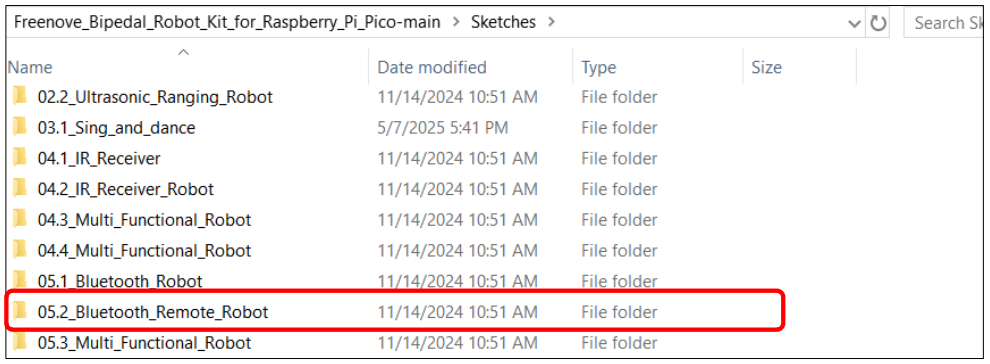
Open the folder “05.2_Bluetooth_Remote_Robot” in
Freenove_Bipedal_Robot_Kit_for_Raspberry_Pi_Pico\Sketches and double click “05.2_Bluetooth_Remote_Robot.ino”.
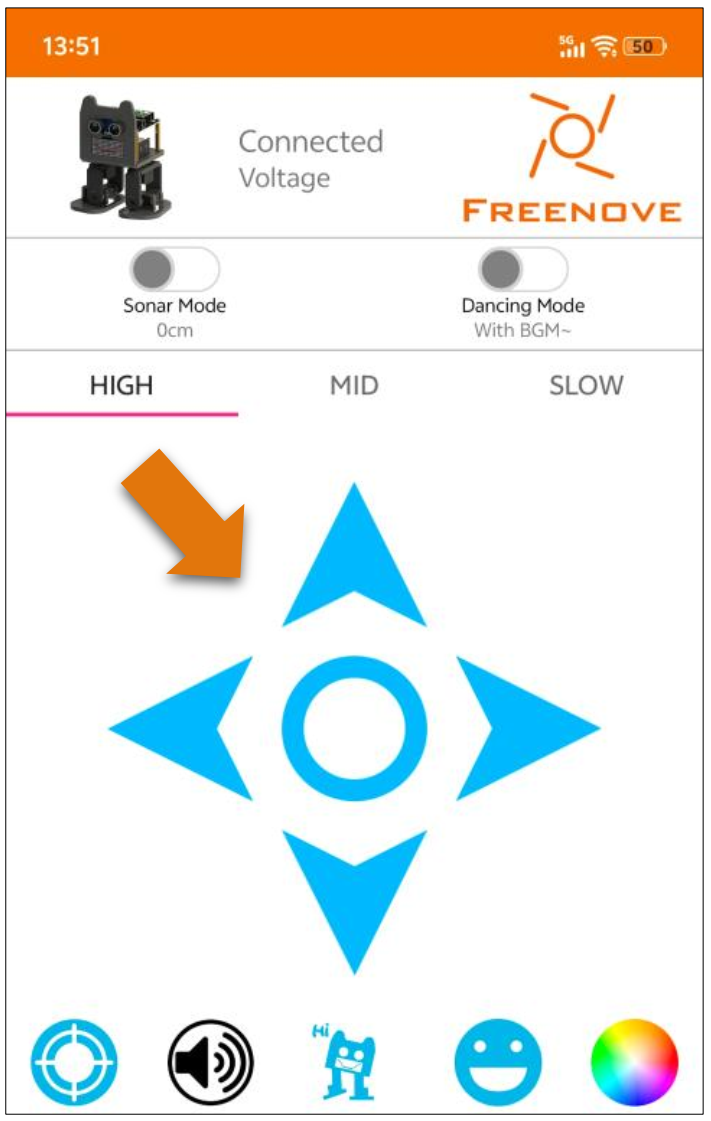
Connect the App to the Bluetooth of the robot, and tap the directional keys to control its movements.
Code
  1/**********************************************************************
  2  Product     : Freenove Robot for Raspberry Pi Pico (W)
  3  Description : Control the robot movement.
  4  Auther      : www.freenove.com
  5  Modification: 2023/11/07
  6**********************************************************************/
  7//Check that the servos are properly connected to the corresponding interface before uploading the code
  8/************************************
  9           ---     ---
 10         ---------------
 11        |     O   O     |
 12        |---------------|
 13YR 12==>|               | <== YL 10
 14         ---------------
 15            ||     ||
 16            ||     ||
 17RR 13==>  -----   ------  <== RL 11
 18         |-----   ------|
 19************************************/
 20#include <Arduino.h>
 21#include <SoftwareSerial.h>
 22#include <EEPROM.h>
 23#include "Freenove_Robot_For_Pico_W.h"
 24
 25#include "SerialCommand.h"
 26SoftwareSerial BTserial = SoftwareSerial(1, 0);  // RX pin to 1 and TX pin to 0 on the board
 27SerialCommand SCmd(BTserial);
 28#include "Bipedal_Robot.h"
 29Bipedal_Robot Bipedal_Robot;
 30
 31#define LeftLeg 10
 32#define RightLeg 12
 33#define LeftFoot 11
 34#define RightFoot 13
 35
 36int YL;
 37int YR;
 38int RL;
 39int RR;
 40
 41int T = 1000;
 42int moveId = 0;
 43bool isServoResting = true;
 44
 45extern int moveId;
 46extern bool isServoResting;
 47
 48int moveSize = 15;
 49
 50String inputString = "";    // a String to hold incoming data
 51bool stringComplete = false;// whether the string is complete
 52int baudRate[] = {2400, 9600, 19200, 115200};
 53int baudRateCount = sizeof(baudRate) / sizeof(baudRate[0]);
 54
 55void receiveStop() {
 56  sendAck();
 57  sendFinalAck();
 58}
 59
 60void recieveBuzzer() {
 61  sendAck();
 62  bool error = false;
 63  int frec;
 64  int duration;
 65  char *arg;
 66  arg = SCmd.next();
 67  if (arg != NULL) frec = atoi(arg);
 68  else error = true;
 69  Serial.println("\nfrec is:");
 70  Serial.println(frec);
 71  tone(2, frec);
 72  sendFinalAck();
 73}
 74
 75void receiveMovement() {
 76  sendAck();
 77  Serial.print("move loop...");
 78  if (Bipedal_Robot.getRestState() == true) Bipedal_Robot.setRestState(false);
 79  isServoResting = Bipedal_Robot.getRestState();
 80  char *arg;
 81  arg = SCmd.next();
 82  if (arg != NULL) {
 83    moveId = atoi(arg);
 84    Serial.print("moveId:");
 85    Serial.print(moveId);
 86  } else {
 87    moveId = 0;
 88  }
 89  arg = SCmd.next();
 90  if (arg != NULL) {
 91    T = atoi(arg);
 92    if (T == 0) {
 93      T = 1000;
 94    } else if (T == 1) {
 95      T = 1500;
 96    } else if (T == 2) {
 97      T = 2000;
 98    }
 99  } else T = 2000;
100  Serial.print("T is:");
101  Serial.print(T);
102  arg = SCmd.next();
103  if (arg != NULL) moveSize = atoi(arg);
104  else moveSize = 15;
105}
106void move(int moveId) {
107  // bool manualMode = false;
108  switch (moveId) {
109    case 0:
110      Bipedal_Robot.home();
111      // Serial.print("moveId 0 home");
112      break;
113    case 1:
114      Bipedal_Robot.walk(1, T, 1);
115      break;
116    case 2:
117      Bipedal_Robot.walk(1, T, -1);
118      break;
119    case 3:
120      Bipedal_Robot.turn(1, T, 1);
121      break;
122    case 4:
123      Bipedal_Robot.turn(1, T, -1);
124      break;
125    default:
126      break;
127  }
128}
129
130void sendAck() {
131  delay(10);
132  Serial.flush();
133}
134void sendFinalAck() {
135  delay(10);
136  Serial.flush();
137}
138
139void setup() {
140  Serial.begin(9600);
141  delay(2000);
142  // Loop through each baud rate and send commands
143  for(int i = 0; i < baudRateCount; i++){
144    BTserial.begin(baudRate[i]);
145    delay(200);
146    BTserial.println("AT+NAME=BT05");//Set the radio called Robot
147    delay(200);
148    BTserial.println("AT+ROLE=0");
149    delay(200);
150    BTserial.println("AT+UART=2");//1=2400 2=9600 3=19200 4=115200
151    delay(200);
152
153    //SoftwareSerial does not support dynamic adjustment of baud rate, so close the serial
154    BTserial.end();
155  }
156
157  BTserial.begin(9600);
158  delay(1500);
159  Buzzer_Setup();  //Initialize the buzzer
160  EEPROM.begin(512);
161  Bipedal_Robot.init(LeftLeg, RightLeg, LeftFoot, RightFoot, true);  //Set the servo pins and Buzzer pin
162
163  YL = EEPROM.read(0);
164  if (YL > 128) YL -= 256;
165  YR = EEPROM.read(1);
166  if (YR > 128) YR -= 256;
167  RL = EEPROM.read(2);
168  if (RL > 128) RL -= 256;
169  RR = EEPROM.read(3);
170  if (RR > 128) RR -= 256;
171  Bipedal_Robot.setTrims(YL, YR, RL, RR);
172  calib_homePos();
173  Bipedal_Robot.saveTrimsOnEEPROM();
174  Bipedal_Robot.home();
175  delay(100);
176  EEPROM.commit();
177  SCmd.addCommand("S", receiveStop);
178  SCmd.addCommand("D", recieveBuzzer);
179  SCmd.addCommand("A", receiveMovement);
180
181  inputString.reserve(200);
182  SCmd.addDefaultHandler(receiveStop);
183  Serial.println("Set the name of the Bluetooth module to BT05.");
184  Serial.println("Set the Bluetooth baud rate to 9600.");
185  Bipedal_Robot.home();
186}
187
188void loop() {
189  SCmd.readSerial();
190  move(moveId);
191}
192
193void calib_homePos() {
194  int servoPos[4];
195  servoPos[0] = 90;
196  servoPos[1] = 90;
197  servoPos[2] = 90;
198  servoPos[3] = 90;
199  Bipedal_Robot._moveServos(500, servoPos);
200  Bipedal_Robot.detachServos();
201}
Code Explanation
Add the header files to drive the robot.
1#include <Arduino.h>
2#include <SoftwareSerial.h>
3#include <EEPROM.h>
4#include "Freenove_Robot_For_Pico_W.h"
5
6#include "SerialCommand.h"
Upon receiving movement commands, the robot makes corresponfing actions.
 1  Serial.print(T);
 2  arg = SCmd.next();
 3  if (arg != NULL) moveSize = atoi(arg);
 4  else moveSize = 15;
 5}
 6void move(int moveId) {
 7  // bool manualMode = false;
 8  switch (moveId) {
 9    case 0:
10      Bipedal_Robot.home();
11      // Serial.print("moveId 0 home");
12      break;
13    case 1:
14      Bipedal_Robot.walk(1, T, 1);
15      break;
16    case 2:
17      Bipedal_Robot.walk(1, T, -1);
18      break;
19    case 3:
20      Bipedal_Robot.turn(1, T, 1);
21      break;
22    case 4:
23      Bipedal_Robot.turn(1, T, -1);
Multifunctional Bluetooth Remote Robot
In this section, we add more functions to the robot based on the previous section, making the robot more interested. The main functions include automatic obstacle avoidance, audio playing, LED displaying, and expressions on LED dot matrix.
Upload Code and Running
Connect the robot to your computer with the USB cable.
As this section involves the audio playing function, please upload the audio data to the Raspberry Pi Pico (W) before uploading sketch. You can find the detailed steps here.
After uploading the audio file, you can upload sketch 05.3_Multi_Functional_Robot to the robot.
If the code fails to upload, please remove the Bluetooth module and upload again. Reconnect the Bluetooth module after the code uploads successfully.
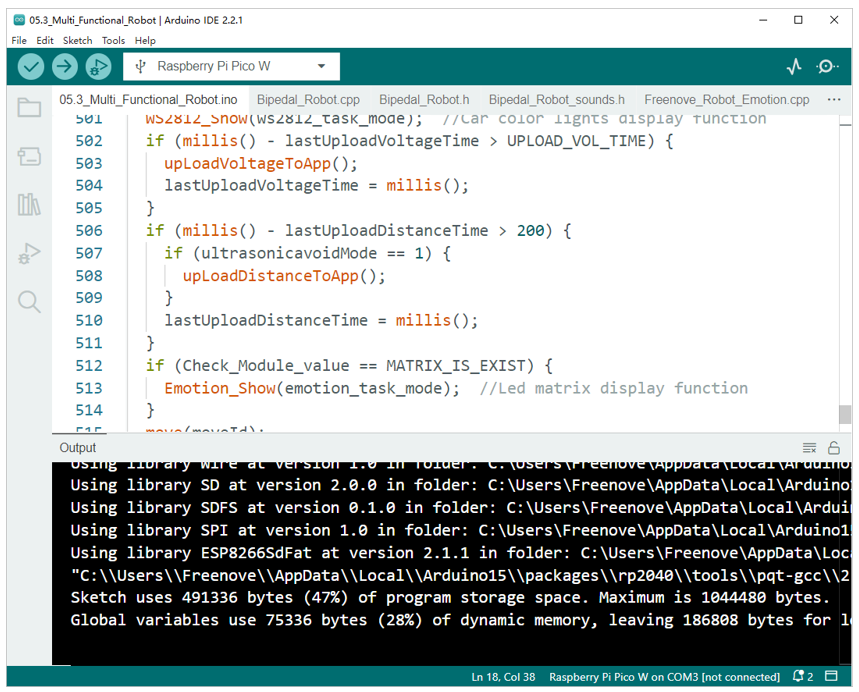
After the code is successfully uploaded, unplug the USB cable and plug the Bluetooth module to the robot. Turn on the robot power switch.
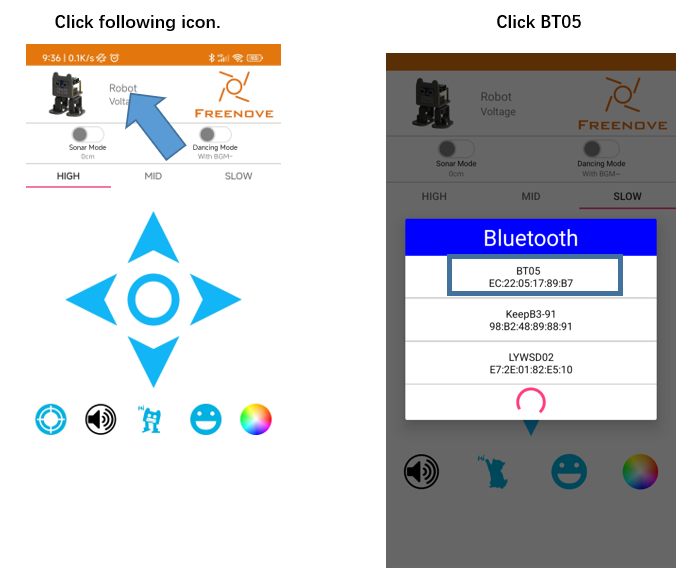
Connect the APP with the robot through Bluetooth. Tap or swipe the operation panels on the app to control the robot’s movements. The color palette of the lower right corner can be clicked to control the display mode and color of the LED. Among them,
Mode 0 is a flowing rainbow,
Mode 1 is a flowing water LED with color changing.
Mode 2 is a color-adjustable Blink.
Mode 3 displays the selected color of the current color picker for all LEDs.
Code
On the basis of the previous sketch, this one is added with more interesting functions.
Multi_Functional_Robot
  1/**********************************************************************
  2  Product     : Freenove Robot for Raspberry Pi Pico (W)
  3  Description : Multi Functional Robot.
  4  Auther      : www.freenove.com
  5  Modification: 2023/11/07
  6**********************************************************************/
  7//Check that the servos are properly connected to the corresponding interface before uploading the code
  8/************************************
  9           ---     ---
 10         ---------------
 11        |     O   O     |
 12        |---------------|
 13YR 12==>|               | <== YL 10
 14         ---------------
 15            ||     ||
 16            ||     ||
 17RR 13==>  -----   ------  <== RL 11
 18         |-----   ------|
 19************************************/
 20#include <Arduino.h>
 21#include <EEPROM.h>
 22#include "Bipedal_Robot.h"
 23#include "AudioFileSourceLittleFS.h"
 24#include "AudioGeneratorMP3.h"
 25#include "AudioOutputI2SNoDAC.h"
 26#include "AudioFileSourceID3.h"
 27#include "AudioOutputI2S.h"
 28#include <SoftwareSerial.h>
 29#include "SerialCommand.h"
 30#include "Freenove_Robot_For_Pico_W.h"
 31#include "Freenove_Robot_Emotion.h"
 32#include "Freenove_Robot_WS2812.h"
 33#include "Freenove_VK16K33_Lib.h"
 34
 35SoftwareSerial BTserial = SoftwareSerial(1, 0);  // RX pin to 0 and TX pin to 1 on the board
 36SerialCommand SCmd(BTserial);
 37
 38Bipedal_Robot Bipedal_Robot;
 39AudioGeneratorMP3 *mp3;
 40AudioFileSourceLittleFS *file;
 41AudioOutputI2SNoDAC *out;
 42AudioFileSourceID3 *id3;
 43
 44#define LeftLegPin 10
 45#define RightLegPin 12
 46#define LeftFootPin 11
 47#define RightFootPin 13
 48#define BuzzerPin 20
 49
 50int motionFlag = 0;
 51int ultrasonicavoidMode = 0;
 52int playstartingmusic = 0;
 53int musicmode = 0;
 54int playsong = 0;
 55extern int playsong;  //Set the proportional coefficient
 56int T = 1000;
 57int moveId = 0;
 58int dance_steps = 0;
 59int Ultrasonic_Avoid_steps = 0;
 60bool isServoResting = true;
 61extern int moveId;
 62extern bool isServoResting;
 63int moveSize = 15;
 64
 65String inputString = "";    // a String to hold incoming data
 66bool stringComplete = false;// whether the string is complete
 67int baudRate[] = {2400, 9600, 19200, 115200};
 68int baudRateCount = sizeof(baudRate) / sizeof(baudRate[0]);
 69
 70#define ACTION_GET_VOLTAGE 'P'
 71#define ACTION_GET_DISTANCE 'E'
 72#define INTERVAL_CHAR '#'
 73unsigned long lastUploadVoltageTime;
 74unsigned long lastUploadDistanceTime;
 75#define UPLOAD_VOL_TIME 2000
 76
 77int Resting = 0;
 78float Distance = 0;
 79
 80// int calibratePosition[4] = { -17, -10, -15, 12 };
 81// int YL;
 82// int YR;
 83// int RL;
 84// int RR;
 85
 86void upLoadVoltageToApp() {
 87  float voltage = 0;
 88  voltage = Get_Battery_Voltage();
 89  BTserial.print("P#");
 90  BTserial.println(int(voltage * 1000));
 91}
 92
 93void upLoadDistanceToApp() {
 94  Distance = Get_Sonar();
 95  BTserial.print("E#");
 96  BTserial.println(Distance);
 97}
 98
 99void receiveStop() {
100  sendAck();
101  sendFinalAck();
102}
103
104void recieveBuzzer() {
105  sendAck();
106  moveId = 0;
107  playsong = 0;
108  bool error = false;
109  int frec;
110  char *arg;
111  arg = SCmd.next();
112  if (arg != NULL) frec = atoi(arg);
113  else error = true;
114  tone(2, frec);
115  sendFinalAck();
116}
117
118void receiveAvoid() {
119  sendAck();
120  ws2812_task_mode = 0;
121  emotion_task_mode = 0;
122  if (Bipedal_Robot.getRestState() == true) Bipedal_Robot.setRestState(false);
123  isServoResting = Bipedal_Robot.getRestState();
124  char *arg;
125  arg = SCmd.next();
126  if (arg != NULL) {
127    ultrasonicavoidMode = atoi(arg);
128    playsong = 0;
129    if (ultrasonicavoidMode == 1) {
130      moveId = 21;
131      Ultrasonic_Avoid_steps = 0;
132      playsong = 0;
133    }
134    if (ultrasonicavoidMode == 2) {
135      dance_steps = 0;
136      moveId = 22;
137      playsong = 4;
138    }
139    if (ultrasonicavoidMode == 0) {
140      moveId = 0;
141      Resting = 1;
142      playsong = 0;
143    }
144  }
145  sendFinalAck();
146}
147
148void receiveEmotion() {
149  sendAck();
150  Emotion_Setup();
151  moveId = 0;
152  playsong = 0;
153  char *arg;
154  char *endstr;
155  arg = SCmd.next();
156  if (arg != NULL) {
157    String stringOne = String(arg);  // converting a constant char into a String
158    emotion_task_mode = stringOne.toInt();
159    Emotion_SetMode(emotion_task_mode);  //显示静态表情
160  } else {
161  }
162  sendFinalAck();
163}
164
165void receiveLED() {
166  sendAck();
167  moveId = 0;
168  playsong = 0;
169  char *arg;
170  unsigned char paramters[3];
171  char *endstr;
172  arg = SCmd.next();
173  if (arg != NULL) {
174    String stringOne = String(arg);  // converting a constant char into a String
175    ws2812_task_mode = stringOne.toInt();
176  } else {
177  }
178  arg = SCmd.next();
179  String stringOne1 = String(arg);
180  paramters[0] = stringOne1.toInt();
181
182  arg = SCmd.next();
183  String stringOne2 = String(arg);
184  paramters[1] = stringOne2.toInt();
185
186  arg = SCmd.next();
187  String stringOne3 = String(arg);
188  paramters[2] = stringOne3.toInt();
189
190  WS2812_Set_Color_1(15, paramters[0], paramters[1], paramters[2]);
191  sendFinalAck();
192}
193
194void songmusic() {
195  if (playsong > 0) {
196    playmusic(1, playsong);
197    if (playsong != 4) {
198      playsong = 0;
199    }
200  } else {
201    pinMode(6, OUTPUT);
202    digitalWrite(6, LOW);
203  }
204}
205void receiveMusic() {
206  int music_song;
207  sendAck();
208  ws2812_task_mode = 0;
209  emotion_task_mode = 0;
210  if (Bipedal_Robot.getRestState() == true) Bipedal_Robot.setRestState(false);
211  isServoResting = Bipedal_Robot.getRestState();
212  char *arg;
213  arg = SCmd.next();
214  if (arg != NULL) {
215    music_song = atoi(arg);
216    playsong = music_song;
217    playstartingmusic = music_song;
218    clearEmtions();
219    if (playsong == 1) {
220      moveId = 18;  //play music  Hello.mp3
221    } else if (playsong == 2) {
222      moveId = 19;  //play music  Nicetomeetyou.mp3
223    } else if (playsong == 3) {
224      moveId = 20;  //play music  goodbye.mp3
225      Serial.print("yundong");
226    } else if (playsong == 0) {
227      moveId = 0;
228    }
229    Serial.print("moveId:");
230    Serial.print(moveId);
231  } else {
232    moveId = 0;
233    Resting = 1;
234  }
235}
236
237void playmusic(int playtimes, int song) {
238  if (playtimes--) {
239    if (song == 1) {
240      file = new AudioFileSourceLittleFS("Hello.mp3");
241    } else if (song == 2) {
242      file = new AudioFileSourceLittleFS("Nicetomeetyou.mp3");
243    } else if (song == 3) {
244      file = new AudioFileSourceLittleFS("goodbye.mp3");
245    } else if (song == 4) {
246      file = new AudioFileSourceLittleFS("1.mp3");
247    } else if (song == 5) {
248      file = new AudioFileSourceLittleFS("onfoot.mp3");
249    } else if (song == 6) {
250      file = new AudioFileSourceLittleFS("hello_cn.mp3");
251    } else if (song == 0) {
252      file = new AudioFileSourceLittleFS("split.mp3");
253    }
254    out = new AudioOutputI2SNoDAC(6);
255    out->SetGain(4.0);  //Volume Setup (0-4.0)
256    mp3 = new AudioGeneratorMP3();
257    mp3->begin(file, out);
258    if (mp3->isRunning() && song > 0) {
259      if (!mp3->loop() && song > 0) {
260        delete file;
261        delete mp3;
262        out->flush();
263        out->stop();
264      }
265    } else {
266      delete file;
267      delete mp3;
268      out->flush();
269      out->stop();
270      pinMode(6, OUTPUT);
271      digitalWrite(6, LOW);
272    }
273  }
274}
275
276//Ultrasonic robot
277void Ultrasonic_Avoid() {
278  if (Distance <= 15) {
279    Bipedal_Robot.walk(2, 1000, -1);  // BACKWARD x2
280    Bipedal_Robot.turn(3, 1000, -1);  // LEFT x3
281  }
282  Bipedal_Robot.walk(1, 1500, 1);  // FORWARD x1
283}
284
285void dance() {
286  dance_steps = dance_steps + 1;
287  staticEmtions(21);
288  if (moveId > 0) {
289    switch (dance_steps) {
290      case 0:
291        dance_steps = 0;
292        break;
293      case 1:
294        Bipedal_Robot.jitter(1, 750, 20);
295        break;
296      case 2:
297        Bipedal_Robot.jitter(1, 750, 20);
298        break;
299      case 3:
300        Bipedal_Robot.crusaito(1, 800, 30, 1);
301        break;
302      case 4:
303        Bipedal_Robot.crusaito(1, 800, 30, -1);
304        break;
305      case 5:
306        Bipedal_Robot.crusaito(1, 800, 30, 1);
307        Bipedal_Robot.home();
308        delay(300);
309        break;
310      case 6:
311        Bipedal_Robot.walk(1, 1500, -1);
312        break;
313      case 7:
314        Bipedal_Robot.walk(1, 1000, 1);
315        break;
316      case 8:
317        Bipedal_Robot.walk(1, 1000, 1);
318        Bipedal_Robot.home();
319        break;
320      case 9:
321        Bipedal_Robot.moonwalker(1, 600, 30, 1);
322        break;
323      case 10:
324        Bipedal_Robot.moonwalker(1, 600, 30, -1);
325        break;
326      case 11:
327        Bipedal_Robot.moonwalker(1, 600, 30, 1);
328        break;
329      case 12:
330        Bipedal_Robot.moonwalker(1, 600, 30, -1);
331        Bipedal_Robot.home();
332        delay(100);
333        break;
334      case 13:
335        Bipedal_Robot.walk(1, 1500, -1);
336        Bipedal_Robot.home();
337        delay(100);
338        break;
339    }
340    if (dance_steps > 14) {
341      dance_steps = 0;
342    }
343  } else {
344    Resting = 1;
345    moveId = 0;
346    dance_steps = 0;
347  }
348}
349
350void receiveMovement() {
351  sendAck();
352  ws2812_task_mode = 0;
353  emotion_task_mode = 0;
354  if (Bipedal_Robot.getRestState() == true) Bipedal_Robot.setRestState(false);
355  isServoResting = Bipedal_Robot.getRestState();
356  char *arg;
357  arg = SCmd.next();
358  if (arg != NULL) {
359    moveId = atoi(arg);
360    if (moveId == 0) {
361      Resting = 1;
362    }
363  } else {
364    moveId = 0;
365  }
366  arg = SCmd.next();
367  if (arg != NULL) {
368    T = atoi(arg);
369    if (T == 0) {
370      T = 1000;
371    } else if (T == 1) {
372      T = 1500;
373    } else if (T == 2) {
374      T = 2000;
375    }
376  } else T = 2000;
377  Serial.print("T is:");
378  Serial.print(T);
379  arg = SCmd.next();
380  if (arg != NULL) moveSize = atoi(arg);
381  else moveSize = 15;
382}
383
384void move(int movemode) {
385  // bool manualMode = false;
386  switch (movemode) {
387    case 0:
388      Bipedal_Robot.home();
389      if (Resting == 1) {
390        Bipedal_Robot.setRestState(false);
391        Bipedal_Robot.home();
392        Resting = 0;
393      }
394      break;
395    case 1:
396      staticEmtions(21);
397      Bipedal_Robot.walk(1, T, 1);
398      break;
399    case 2:
400      staticEmtions(21);
401      Bipedal_Robot.walk(1, T, -1);
402      break;
403    case 3:
404      staticEmtions(21);
405      Bipedal_Robot.turn(1, T, 1);
406      break;
407    case 4:
408      staticEmtions(21);
409      Bipedal_Robot.turn(1, T, -1);
410      break;
411    case 5:
412      Bipedal_Robot.updown(1, 2000, 30);
413      break;
414    case 6: Bipedal_Robot.moonwalker(1, T, moveSize, 1); break;
415    case 7: Bipedal_Robot.moonwalker(1, T, moveSize, -1); break;
416    case 8: Bipedal_Robot.swing(1, T, moveSize); break;
417    case 9: Bipedal_Robot.crusaito(1, T, moveSize, 1); break;
418    case 10: Bipedal_Robot.crusaito(1, T, moveSize, -1); break;
419    case 11: Bipedal_Robot.jump(1, T); break;
420    case 12: Bipedal_Robot.flapping(1, T, moveSize, 1); break;
421    case 13: Bipedal_Robot.flapping(1, T, moveSize, -1); break;
422    case 14: Bipedal_Robot.tiptoeSwing(1, T, moveSize); break;
423    case 15: Bipedal_Robot.bend(1, T, 1); break;
424    case 16: Bipedal_Robot.bend(1, T, -1); break;
425    case 17: Bipedal_Robot.shakeLeg(1, T, 1); break;
426    case 18:
427      staticEmtions(21);
428      Bipedal_Robot.swing(1, 1100, 50);
429      Bipedal_Robot.home();
430      Resting = 1;
431      moveId = 0;
432      clearEmtions();
433      break;
434    case 19:
435      staticEmtions(22);
436      Bipedal_Robot.moonwalker(1, 1550, 50, 1);  //1541
437      Bipedal_Robot.home();
438      Resting = 1;
439      moveId = 0;
440      clearEmtions();
441      break;
442    case 20:
443      staticEmtions(23);
444      Bipedal_Robot.ascendingTurn(2, 700, 12);  //1332
445      clearEmtions();
446      delay(100);
447      Bipedal_Robot.home();
448      Resting = 1;
449      moveId = 0;
450      break;
451    case 21:
452      Ultrasonic_Avoid();
453      break;
454    case 22:
455      dance();
456      break;
457    default:
458      break;
459  }
460}
461
462void sendAck() {
463  delay(5);
464  Serial.flush();
465}
466void sendFinalAck() {
467  delay(5);
468  Serial.flush();
469}
470
471void calib_homePos() {
472  int servoPos[4];
473  servoPos[0] = 90;
474  servoPos[1] = 90;
475  servoPos[2] = 90;
476  servoPos[3] = 90;
477  Bipedal_Robot._moveServos(500, servoPos);
478  Bipedal_Robot.detachServos();
479}
480
481void setup() {
482  Serial.begin(9600);
483  delay(2000);
484  // Loop through each baud rate and send commands
485  for(int i = 0; i < baudRateCount; i++){
486    BTserial.begin(baudRate[i]);
487    delay(200);
488    BTserial.println("AT+NAME=BT05");//Set the radio called Robot
489    delay(200);
490    BTserial.println("AT+ROLE=0");
491    delay(200);
492    BTserial.println("AT+UART=2");//1=2400 2=9600 3=19200 4=115200
493    delay(200);
494
495    //SoftwareSerial does not support dynamic adjustment of baud rate, so close the serial
496    BTserial.end();
497  }
498
499  BTserial.begin(9600);
500  delay(1500);
501  EEPROM.begin(512);                                                             //Initialize the ultrasonic module
502  Bipedal_Robot.init(LeftLegPin, RightLegPin, LeftFootPin, RightFootPin, true);  //Set the servo pins
503  Bipedal_Robot.Buzzer_init(BuzzerPin);
504
505  Bipedal_Robot.saveTrimsOnEEPROM();
506  Bipedal_Robot.home();
507  delay(50);
508  Buzzer_Setup();  //Initialize the buzzer
509  WS2812_Setup();  //WS2812 initialization
510  Emotion_Setup();
511  Ultrasonic_Setup();
512
513  SCmd.addCommand("S", receiveStop);
514  SCmd.addCommand("C", receiveLED);
515  SCmd.addCommand("D", recieveBuzzer);
516  SCmd.addCommand("A", receiveMovement);
517  SCmd.addCommand("B", receiveEmotion);
518  SCmd.addCommand("H", receiveAvoid);
519  SCmd.addCommand("M", receiveMusic);
520
521  inputString.reserve(200);
522  SCmd.addDefaultHandler(receiveStop);
523  Serial.println("Set the name of the Bluetooth module to BT05.");
524  Serial.println("Set the Bluetooth baud rate to 9600.");
525}
526
527void loop() {
528  SCmd.readSerial();
529  Emotion_Detection();
530  WS2812_Show(ws2812_task_mode);  //Car color lights display function
531  if (millis() - lastUploadVoltageTime > UPLOAD_VOL_TIME) {
532    upLoadVoltageToApp();
533    lastUploadVoltageTime = millis();
534  }
535  if (millis() - lastUploadDistanceTime > 200) {
536    if (ultrasonicavoidMode == 1) {
537      upLoadDistanceToApp();
538    }
539    lastUploadDistanceTime = millis();
540  }
541  if (Check_Module_value == MATRIX_IS_EXIST) {
542    Emotion_Show(emotion_task_mode);  //Led matrix display function
543  }
544  move(moveId);
545}
546
547void setup1() {
548  delay(2000);
549  playmusic(1, 2);
550  pinMode(6, OUTPUT);
551  digitalWrite(6, LOW);
552}
553void loop1() {
554  songmusic();
555}
Same as in the previous project, when the corresponding command is received by Bluetooth, the corresponding function is executed.
 1delay(1500);
 2EEPROM.begin(512);                                                             //Initialize the ultrasonic module
 3Bipedal_Robot.init(LeftLegPin, RightLegPin, LeftFootPin, RightFootPin, true);  //Set the servo pins
 4Bipedal_Robot.Buzzer_init(BuzzerPin);
 5
 6Bipedal_Robot.saveTrimsOnEEPROM();
 7Bipedal_Robot.home();
 8delay(50);
 9Buzzer_Setup();  //Initialize the buzzer
10WS2812_Setup();  //WS2812 initialization
11Emotion_Setup();
12Ultrasonic_Setup();
13
14SCmd.addCommand("S", receiveStop);
15SCmd.addCommand("C", receiveLED);
16SCmd.addCommand("D", recieveBuzzer);
17SCmd.addCommand("A", receiveMovement);
18SCmd.addCommand("B", receiveEmotion);
19SCmd.addCommand("H", receiveAvoid);
The decription of the commands and their functions are as shwon in the table below:
Commands |
Description |
A#parm1#parm2 |
Controls the robot’s movements. |
B#parm1 |
Expressions control command |
C#parm1#parm2#parm3#parm4 |
RGB LEDs control command |
D#parm1 |
Buzzer control command |
Send battery data every 25s |
Send the battery level to the APP. Format: P#Battery voltage |
M#parm1 |
Audio playing command |
H#parm1 |
Ultrasonic obstacle avoidanve mode or dance mode |
Send distance data under the obstacle avoidance mode |
Send the ultrasonic data to the APP. Format: E# ultrasonic data |