21. Chapter Read and Write the SDcard
An SDcard slot is integrated on the back of the ESP32-S3 WROOM. In this chapter we learn how to use ESP32-S3 to read and write SDcard.
21.1. Project SDMMC Test
21.1.1. Component List
ESP32-S3 WROOM x1 |
USB cable x1 |
SDcard reader x1 (random color) |
SDcard x1 |
|
|
(Not a USB flash drive.) |
|
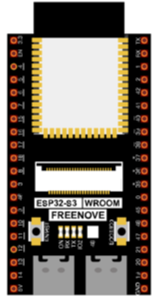
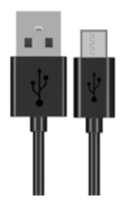
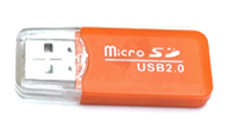
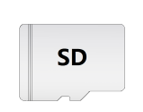
21.1.2. Component knowledge
21.1.2.1. SD card read and write method
ESP32-S3 has two ways to use SD card, one is to use the SPI interface to access the SD card, and the other is to use the SDMMC interface to access the SD card. SPI mode uses 4 IOs to access SD card. The SDMMC has one-bit bus mode and four-bit bus mode. In one-bit bus mode, SDMMC use 3 IOs to access SD card. In four-bit bus mode, SDMMC uses 6 IOs to access the SD card.
The above three methods can all be used to access the SD card, the difference is that the access speed is different.
In the four-bit bus mode of SDMMC, the reading and writing speed of accessing the SD card is the fastest. In the one-bit bus mode of SDMMC, the access speed is about 80% of the four-bit bus mode. The access speed of SPI is the slowest, which is about 50% of the four-bit bus mode of SDMMC.
Usually, we recommend using the one-bit bus mode to access the SD card, because in this mode, we only need to use the least pin IO to access the SD card with good performance and speed.
21.1.3. Format SD card
Before starting the tutorial, we need to create a drive letter for the blank SD card and format it. This step requires a card reader and SD card. Please prepare them in advance. Below we will guide you to do it on different computer systems. You can choose the guide that matches your computer.
21.1.3.1. Windows
Insert the SD card into the card reader, then insert the card reader into the computer.
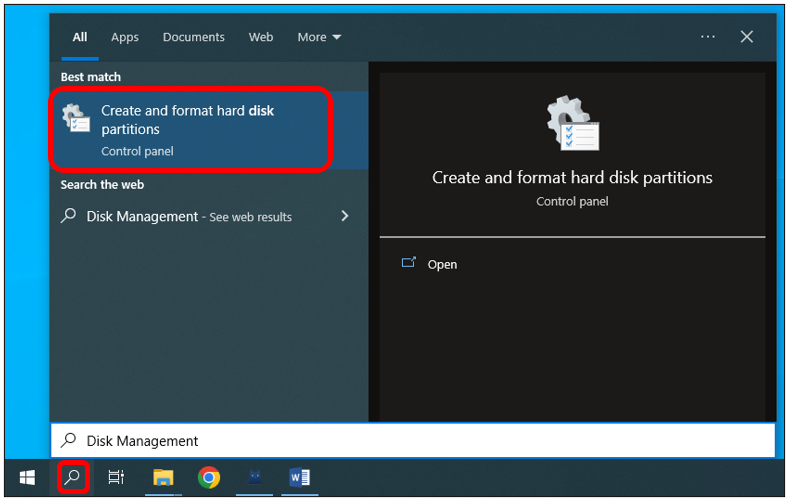
In the Windows search box, enter “Disk Management” and select “Create and format hard disk partitions”.
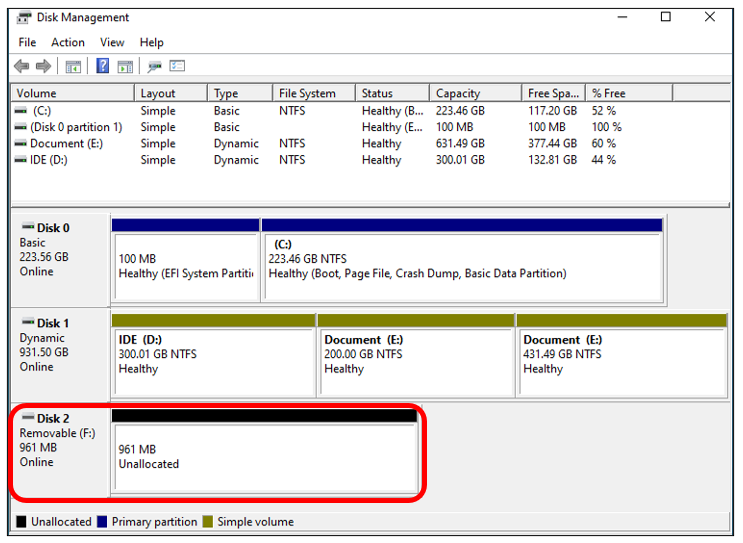
In the new pop-up window, find an unallocated volume close to 1G in size.
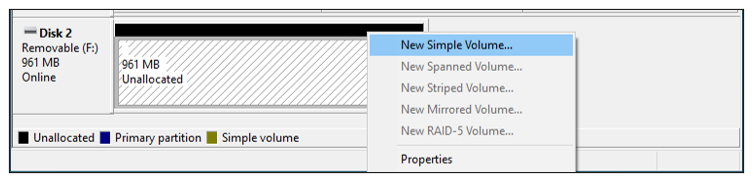
Click to select the volume, right-click and select “New Simple Volume”.
Click Next.
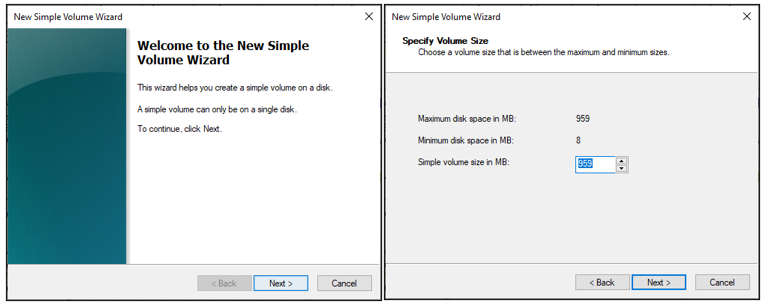
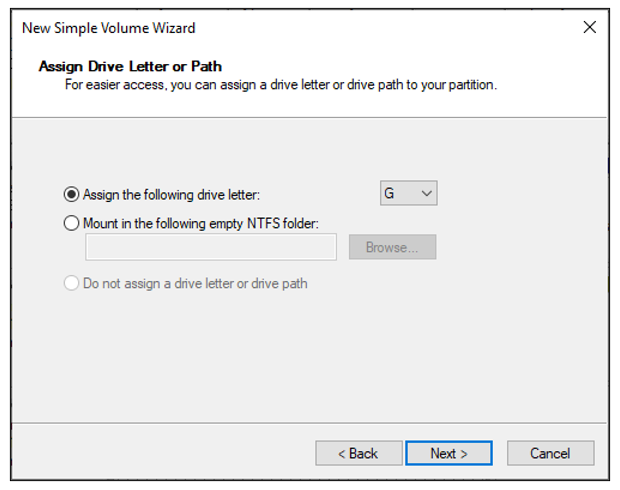
You can choose the drive letter on the right, or you can choose the default. By default, just click Next.
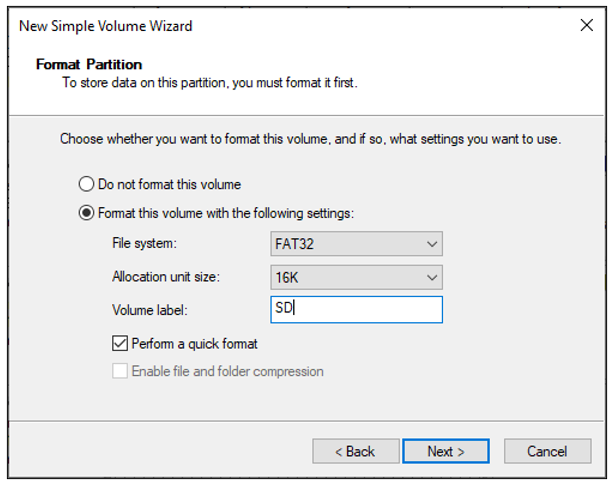
File system is FAT(or FAT32). The Allocation unit size is 16K, and the Volume label can be set to any name. After setting, click Next.
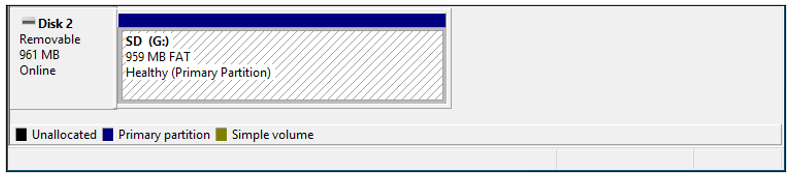
Click Finish. Wait for the SD card initialization to complete.
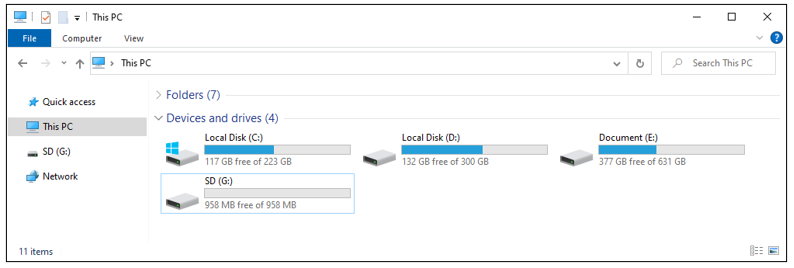
At this point, you can see the SD card in This PC.
21.1.3.2. MAC
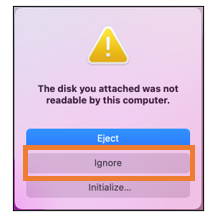
Insert the SD card into the card reader, then insert the card reader into the computer. Some computers will prompt the following information, please click to ignore it.
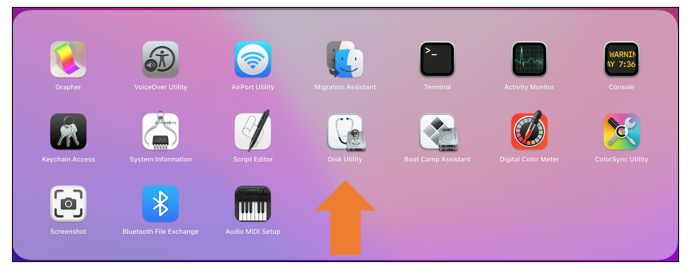
Find “Disk Utility” in the MAC system and click to open it.
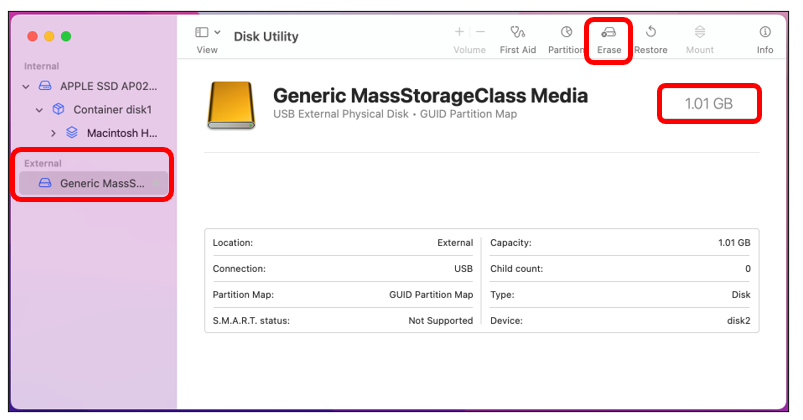
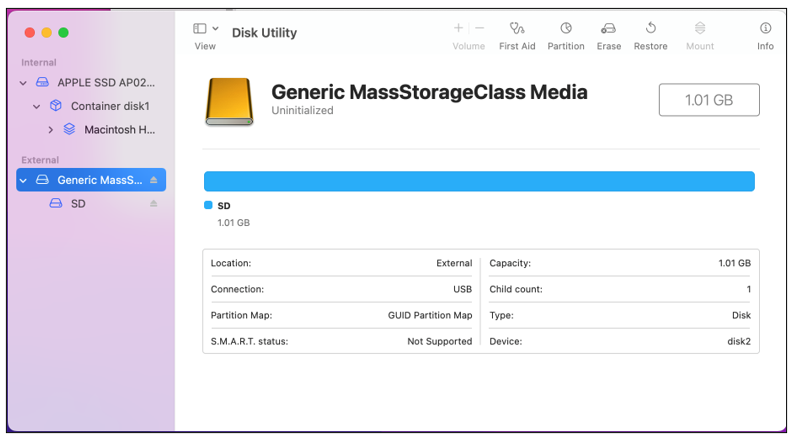
Select “Generic MassStorageClass Media”, note that its size is about 1G. Please do not choose wrong item. Click “Erase”.
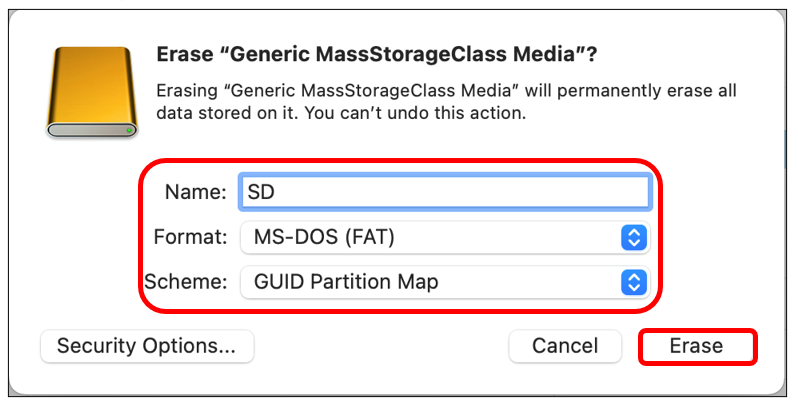
Select the configuration as shown in the figure below, and then click “Erase”.
Wait for the formatting to complete. When finished, it will look like the picture below. At this point, you can see a new disk on the desktop named “SD”.
21.1.4. Circuit
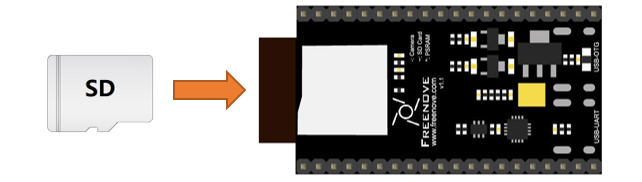
Before connecting the USB cable, insert the SD card into the SD card slot on the back of the ESP32-S3.
Connect Freenove ESP32-S3 to the computer using the USB cable.
21.1.5. Sketch
21.1.5.1. Sketch_SDMMC_Test
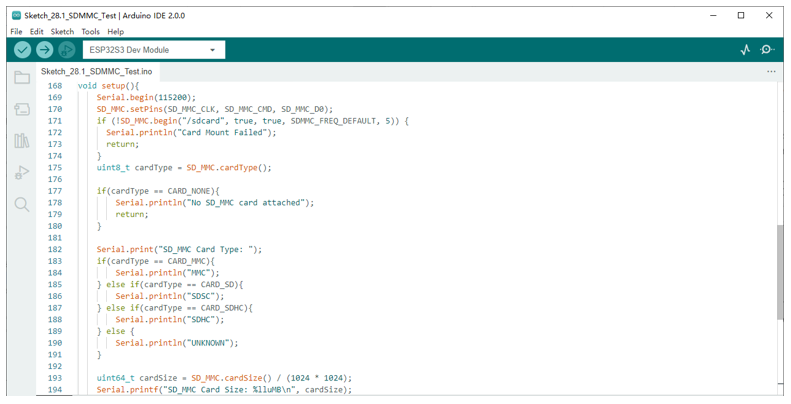
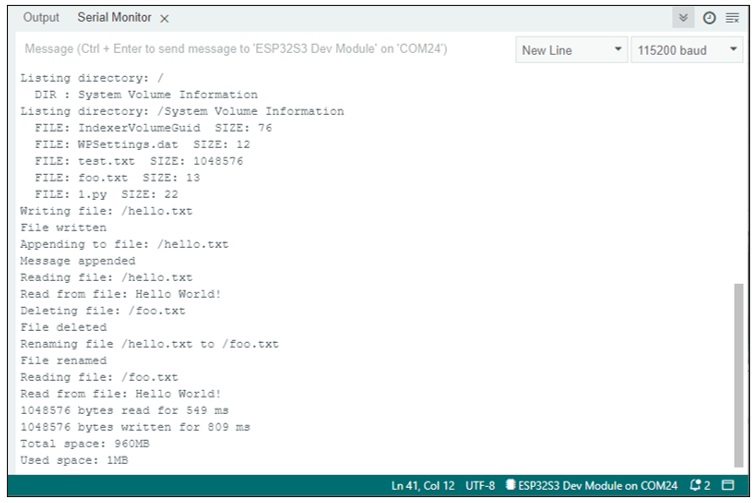
Compile and upload the code to ESP32-S3-WROOM, open the serial monitor, and press the RST button on the board.
You can see the printout as shown below.
The following is the program code:
 1/**********************************************************************
 2  Filename    : SDMMC Test
 3  Description : The SD card is accessed using the SDMMC one-bit bus
 4  Auther      : www.freenove.com
 5  Modification: 2022/10/28
 6**********************************************************************/
 7#include "sd_read_write.h"
 8#include "SD_MMC.h"
 9
10#define SD_MMC_CMD 38 //Please do not modify it.
11#define SD_MMC_CLK 39 //Please do not modify it.
12#define SD_MMC_D0  40 //Please do not modify it.
13
14void setup(){
15    Serial.begin(115200);
16    SD_MMC.setPins(SD_MMC_CLK, SD_MMC_CMD, SD_MMC_D0);
17    if (!SD_MMC.begin("/sdcard", true, true, SDMMC_FREQ_DEFAULT, 5)) {
18      Serial.println("Card Mount Failed");
19      return;
20    }
21    uint8_t cardType = SD_MMC.cardType();
22    if(cardType == CARD_NONE){
23        Serial.println("No SD_MMC card attached");
24        return;
25    }
26
27    Serial.print("SD_MMC Card Type: ");
28    if(cardType == CARD_MMC){
29        Serial.println("MMC");
30    } else if(cardType == CARD_SD){
31        Serial.println("SDSC");
32    } else if(cardType == CARD_SDHC){
33        Serial.println("SDHC");
34    } else {
35        Serial.println("UNKNOWN");
36    }
37
38    uint64_t cardSize = SD_MMC.cardSize() / (1024 * 1024);
39    Serial.printf("SD_MMC Card Size: %lluMB\n", cardSize);
40
41    listDir(SD_MMC, "/", 0);
42
43    createDir(SD_MMC, "/mydir");
44    listDir(SD_MMC, "/", 0);
45
46    removeDir(SD_MMC, "/mydir");
47    listDir(SD_MMC, "/", 2);
48
49    writeFile(SD_MMC, "/hello.txt", "Hello ");
50    appendFile(SD_MMC, "/hello.txt", "World!\n");
51    readFile(SD_MMC, "/hello.txt");
52
53    deleteFile(SD_MMC, "/foo.txt");
54    renameFile(SD_MMC, "/hello.txt", "/foo.txt");
55    readFile(SD_MMC, "/foo.txt");
56
57    testFileIO(SD_MMC, "/test.txt");
58
59    Serial.printf("Total space: %lluMB\r\n", SD_MMC.totalBytes() / (1024 * 1024));
60    Serial.printf("Used space: %lluMB\r\n", SD_MMC.usedBytes() / (1024 * 1024));
61}
62
63void loop(){
64  delay(10000);
65}
Add the SD card drive header file.
1#include "sd_read_write.h"
2#include "SD_MMC.h"
Defines the drive pins of the SD card. Please do not modify it. Because these pins are fixed.
1#define SD_MMC_CMD 38 //Please do not modify it.
2#define SD_MMC_CLK 39 //Please do not modify it.
3#define SD_MMC_D0  40 //Please do not modify it.
Initialize the serial port function. Sets the drive pin for SDMMC one-bit bus mode.
1Serial.begin(115200);
2SD_MMC.setPins(SD_MMC_CLK, SD_MMC_CMD, SD_MMC_D0);
Set the mount point of the SD card, set SDMMC to one-bit bus mode, and set the read and write speed to 20MHz.
1if (!SD_MMC.begin("/sdcard", true, true, SDMMC_FREQ_DEFAULT, 5)) {
2  Serial.println("Card Mount Failed");
3  return;
4}
Get the type of SD card and print it out through the serial port.
 1uint8_t cardType = SD_MMC.cardType();
 2if(cardType == CARD_NONE){
 3    Serial.println("No SD_MMC card attached");
 4    return;
 5}
 6
 7Serial.print("SD_MMC Card Type: ");
 8if(cardType == CARD_MMC){
 9    Serial.println("MMC");
10} else if(cardType == CARD_SD){
11    Serial.println("SDSC");
12} else if(cardType == CARD_SDHC){
13    Serial.println("SDHC");
14} else {
15    Serial.println("UNKNOWN");
16}
Call the listDir() function to read the folder and file names in the SD card, and print them out through the serial port. This function can be found in “sd_read_write.cpp”.
1listDir(SD_MMC, "/", 0);
Call createDir() to create a folder, and call removeDir() to delete a folder.
createDir(SD_MMC, "/mydir");
removeDir(SD_MMC, "/mydir");
Call writeFile() to write any content to the txt file. If there is no such file, create this file first.
Call appendFile() to append any content to txt.
Call readFile() to read the content in txt and print it via the serial port.
1writeFile(SD_MMC, "/hello.txt", "Hello ");
2appendFile(SD_MMC, "/hello.txt", "World!\n");
3readFile(SD_MMC, "/hello.txt");
Call deleteFile() to delete a specified file.
Call renameFile() to copy a file and rename it.
1deleteFile(SD_MMC, "/foo.txt");
2renameFile(SD_MMC, "/hello.txt", "/foo.txt");
Call the testFileIO() function to test the time it takes to read 512 bytes and the time it takes to write 2048*512 bytes of data.
1testFileIO(SD_MMC, "/test.txt");
Print the total size and used size of the SD card via the serial port.
1Serial.printf("Total space: %lluMB\r\n", SD_MMC.totalBytes() / (1024 * 1024));
2Serial.printf("Used space: %lluMB\r\n", SD_MMC.usedBytes() / (1024 * 1024));