19. Chapter LVGL WS2812
In this chapter, we learn to control the onboard WS2812 RGB LED with the touch screen.
19.1. Project 19.1 LVGL WS2812
In the code, we use four sliders to control the LED, three of which control the LED’s red, green and blue colors, and one controls the brightness.
19.1.1. Component List
ESP32-S3 WROOM x1
|
USB cable x1
|
2.8-inch Screen
|
ESP32-S3 WROOM Shield x1
|
||


19.1.2. Circuit
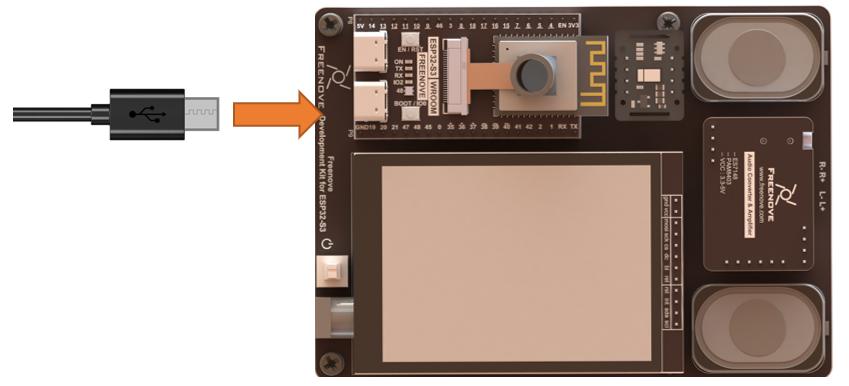
Connect Freenove ESP32-S3 to the computer using the USB cable.
Hardware connection. If you need any support, please feel free to contact us via: support@freenove.com
19.1.3. Sketch
Here is an illustration of the example:
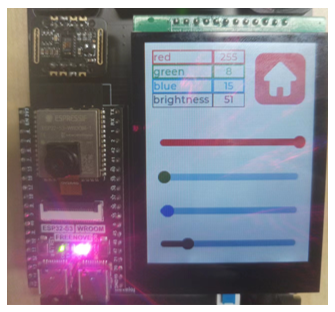
By sliding the slider of different colors, the ESP32S3’s onboard LED will change color accordingly, and the values of color data are shown at the top of the screen.
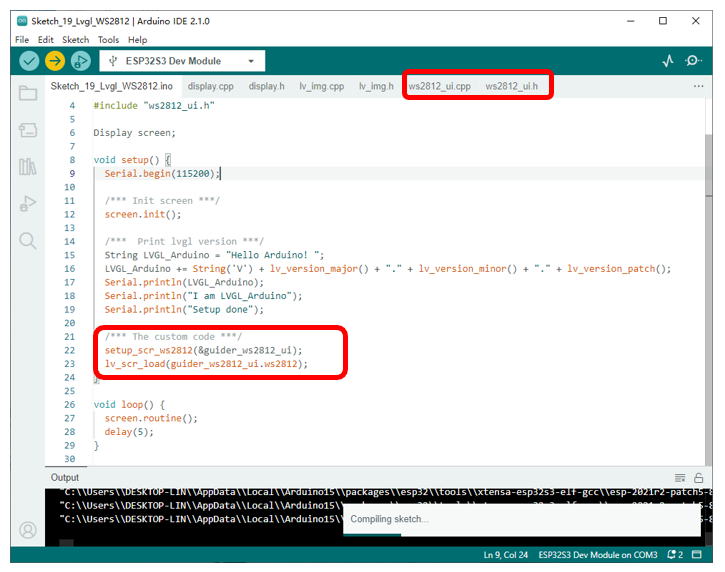
The following is the program code:
19.1.3.1. Sketch_19_Lvgl_WS2812.ino
 1#include <lvgl.h>
 2#include "Arduino.h"
 3#include "display.h"
 4#include "ws2812_ui.h"
 5Display screen;
 6void setup() {
 7  Serial.begin(115200);
 8
 9  /*** Init screen ***/
10  screen.init();
11
12  /***  Print lvgl version ***/
13  String LVGL_Arduino = "Hello Arduino! ";
14  LVGL_Arduino += String('V') + lv_version_major() + "." + lv_version_minor() + "." + lv_version_patch();
15  Serial.println(LVGL_Arduino);
16  Serial.println("I am LVGL_Arduino");
17  Serial.println("Setup done");
18
19  /*** The custom code ***/
20  setup_scr_ws2812(&guider_ws2812_ui);
21  lv_scr_load(guider_ws2812_ui.ws2812);
22}
23
24void loop() {
25  screen.routine();
26  delay(5);
27}
19.1.3.2. ws2812_ui.h
The declaration file about the the LED’s interface and driver is as below:
 1#ifndef __WS2812_UI_H
 2#define __WS2812_UI_H
 3
 4#include "lvgl.h"
 5#include "Arduino.h"
 6
 7#define LEDS_COUNT 1
 8#define LEDS_PIN 48
 9#define CHANNEL 0
10
11typedef struct lvgl_ws2812
12{
13	lv_obj_t *ws2812;
14  lv_obj_t *ws2812_home;
15
16  lv_obj_t *ws2812_slider_red;
17  lv_obj_t *ws2812_slider_green;
18  lv_obj_t *ws2812_slider_blue;
19  lv_obj_t *ws2812_slider_brightness;
20
21  lv_obj_t *ws2812_lable_red;
22  lv_obj_t *ws2812_lable_green;
23  lv_obj_t *ws2812_lable_blue;
24  lv_obj_t *ws2812_lable_brightness;
25
26  lv_obj_t *ws2812_text_red;
27  lv_obj_t *ws2812_text_green;
28  lv_obj_t *ws2812_text_blue;
29  lv_obj_t *ws2812_text_brightness;
30
31}lvgl_ws2812_ui;
32
33extern lvgl_ws2812_ui guider_ws2812_ui;    //ws2812 ui structure
34
35bool ws2812_init(void);
36void ws2812_set_color(int num, int red, int green, int blue, int brightness);
37
38void setup_scr_ws2812(lvgl_ws2812_ui *ui); //Parameter configuration function on the ws2812 screen
39
40#endif
Here is the complete code:
19.1.3.3. ws2812_ui.cpp
  1//#include "main_ui.h"
  2#include "lvgl.h"
  3#include "ws2812_ui.h"
  4#include "lv_img.h"
  5#include "Freenove_WS2812_Lib_for_ESP32.h"
  6
  7lvgl_ws2812_ui guider_ws2812_ui;
  8Freenove_ESP32_WS2812 strip = Freenove_ESP32_WS2812(LEDS_COUNT, LEDS_PIN, CHANNEL, TYPE_GRB);
  9
 10bool ws2812_init(void) {
 11  strip.begin();
 12  strip.setBrightness(1);
 13  return 1;
 14}
 15
 16void ws2812_set_color(int num, int red, int green, int blue, int brightness) {
 17  red = constrain(red, 0, 255);
 18  green = constrain(green, 0, 255);
 19  blue = constrain(blue, 0, 255);
 20  brightness = constrain(brightness, 0, 255);
 21  strip.setBrightness(brightness);
 22  strip.setLedColorData(num, red, green, blue);
 23  strip.show();
 24}
 25
 26static void ws2812_imgbtn_home_event_handler(lv_event_t *e) {
 27  lv_event_code_t code = lv_event_get_code(e);
 28  switch (code) {
 29    case LV_EVENT_CLICKED:
 30      {
 31        Serial.println("Clicked the logo button.");
 32      }
 33      break;
 34    case LV_EVENT_RELEASED:
 35      {
 36        /*
 37        if (!lv_obj_is_valid(guider_main_ui.main))
 38          setup_scr_main(&guider_main_ui);
 39        lv_scr_load(guider_main_ui.main);
 40        lv_obj_del(guider_music_ui.music);
 41        */
 42      }
 43      break;
 44    default:
 45      break;
 46  }
 47}
 48
 49static void slider_event_cb(lv_event_t *e) {
 50  LV_UNUSED(e);
 51  int color_red = lv_slider_get_value(guider_ws2812_ui.ws2812_slider_red);
 52  int color_green = lv_slider_get_value(guider_ws2812_ui.ws2812_slider_green);
 53  int color_blue = lv_slider_get_value(guider_ws2812_ui.ws2812_slider_blue);
 54  int color_brightness = lv_slider_get_value(guider_ws2812_ui.ws2812_slider_brightness);
 55
 56  lv_label_set_text_fmt(guider_ws2812_ui.ws2812_text_red, "%d", color_red);
 57  lv_label_set_text_fmt(guider_ws2812_ui.ws2812_text_green, "%d", color_green);
 58  lv_label_set_text_fmt(guider_ws2812_ui.ws2812_text_blue, "%d", color_blue);
 59  lv_label_set_text_fmt(guider_ws2812_ui.ws2812_text_brightness, "%d", color_brightness);
 60
 61  ws2812_set_color(0, color_red, color_green, color_blue, color_brightness);
 62}
 63
 64void create_lable(lvgl_ws2812_ui *ui, lv_obj_t **lable1, lv_obj_t **lable2) {
 65  *lable1 = lv_label_create(ui->ws2812);
 66  lv_obj_set_style_text_align(*lable1, LV_TEXT_ALIGN_LEFT, 0);
 67  lv_obj_set_size(*lable1, 85, 20);
 68
 69  *lable2 = lv_label_create(ui->ws2812);
 70  lv_obj_set_style_text_align(*lable2, LV_TEXT_ALIGN_CENTER, 0);
 71  lv_obj_set_size(*lable2, 45, 20);
 72}
 73
 74static lv_obj_t *create_slider(lvgl_ws2812_ui *ui, lv_color_t color) {
 75  lv_obj_t *slider = lv_slider_create(ui->ws2812);
 76  lv_slider_set_range(slider, 0, 255);
 77  lv_obj_set_size(slider, 200, 10);
 78  lv_obj_set_style_bg_color(slider, color, LV_PART_KNOB);
 79  lv_obj_set_style_bg_color(slider, color, LV_PART_INDICATOR);
 80  lv_obj_add_event_cb(slider, slider_event_cb, LV_EVENT_VALUE_CHANGED, NULL);
 81  return slider;
 82}
 83
 84//Parameter configuration function on the ws2812 screen
 85void setup_scr_ws2812(lvgl_ws2812_ui *ui) {
 86  ws2812_init();
 87
 88  //Write codes picture
 89  ui->ws2812 = lv_obj_create(NULL);
 90  static lv_style_t bg_style;
 91  lv_style_init(&bg_style);
 92  lv_style_set_bg_color(&bg_style, lv_color_hex(0xffffff));
 93  lv_obj_add_style(ui->ws2812, &bg_style, LV_PART_MAIN);
 94
 95  lv_img_home_init();
 96  //Write codes picture_home
 97  ui->ws2812_home = lv_imgbtn_create(ui->ws2812);
 98  lv_obj_remove_style_all(ui->ws2812_home);
 99  lv_obj_set_pos(ui->ws2812_home, 150, 10);
100  lv_obj_set_size(ui->ws2812_home, 80, 80);
101  lv_img_set_src(ui->ws2812_home, &img_home);
102  static lv_style_t style_pr;              //Apply for a style
103  lv_style_init(&style_pr);                //Initialize it
104  lv_style_set_translate_y(&style_pr, 5);  //Style: Every time you trigger, move down 5 pixels
105  lv_obj_add_style(ui->ws2812_home, &style_pr, LV_STATE_PRESSED);
106
107  create_lable(ui, &ui->ws2812_lable_red, &ui->ws2812_text_red);
108  lv_obj_set_pos(ui->ws2812_lable_red, 10, 10);
109  lv_obj_set_pos(ui->ws2812_text_red, 95, 10);
110  lv_label_set_text(ui->ws2812_lable_red, "red");
111  lv_label_set_text(ui->ws2812_text_red, "255");
112  static lv_style_t style_color_red;
113  lv_style_init(&style_color_red);
114  lv_style_set_border_width(&style_color_red, 2);
115  lv_style_set_border_color(&style_color_red, lv_palette_main(LV_PALETTE_RED));
116  lv_style_set_text_color(&style_color_red, lv_palette_main(LV_PALETTE_RED));
117  lv_obj_add_style(ui->ws2812_lable_red, &style_color_red, LV_PART_MAIN);
118  lv_obj_add_style(ui->ws2812_text_red, &style_color_red, LV_PART_MAIN);
119
120  create_lable(ui, &ui->ws2812_lable_green, &ui->ws2812_text_green);
121  lv_obj_set_pos(ui->ws2812_lable_green, 10, 30);
122  lv_obj_set_pos(ui->ws2812_text_green, 95, 30);
123  lv_label_set_text(ui->ws2812_lable_green, "green");
124  lv_label_set_text(ui->ws2812_text_green, "255");
125  static lv_style_t style_color_green;
126  lv_style_init(&style_color_green);
127  lv_style_set_border_width(&style_color_green, 2);
128  lv_style_set_border_color(&style_color_green, lv_palette_main(LV_PALETTE_GREEN));
129  lv_style_set_text_color(&style_color_green, lv_palette_main(LV_PALETTE_GREEN));
130  lv_obj_add_style(ui->ws2812_lable_green, &style_color_green, LV_PART_MAIN);
131  lv_obj_add_style(ui->ws2812_text_green, &style_color_green, LV_PART_MAIN);
132
133  create_lable(ui, &ui->ws2812_lable_blue, &ui->ws2812_text_blue);
134  lv_obj_set_pos(ui->ws2812_lable_blue, 10, 50);
135  lv_obj_set_pos(ui->ws2812_text_blue, 95, 50);
136  lv_label_set_text(ui->ws2812_lable_blue, "blue");
137  lv_label_set_text(ui->ws2812_text_blue, "255");
138  static lv_style_t style_color_blue;
139  lv_style_init(&style_color_blue);
140  lv_style_set_border_width(&style_color_blue, 2);
141  lv_style_set_border_color(&style_color_blue, lv_palette_main(LV_PALETTE_BLUE));
142  lv_style_set_text_color(&style_color_blue, lv_palette_main(LV_PALETTE_BLUE));
143  lv_obj_add_style(ui->ws2812_lable_blue, &style_color_blue, LV_PART_MAIN);
144  lv_obj_add_style(ui->ws2812_text_blue, &style_color_blue, LV_PART_MAIN);
145
146  create_lable(ui, &ui->ws2812_lable_brightness, &ui->ws2812_text_brightness);
147  lv_obj_set_pos(ui->ws2812_lable_brightness, 10, 70);
148  lv_obj_set_pos(ui->ws2812_text_brightness, 95, 70);
149  lv_label_set_text(ui->ws2812_lable_brightness, "brightness");
150  lv_label_set_text(ui->ws2812_text_brightness, "255");
151  static lv_style_t style_color_brightness;
152  lv_style_init(&style_color_brightness);
153  lv_style_set_border_width(&style_color_brightness, 1);
154  lv_style_set_border_color(&style_color_brightness, lv_palette_darken(LV_PALETTE_GREY, 2));
155  lv_style_set_text_color(&style_color_brightness, lv_palette_darken(LV_PALETTE_GREY, 2));
156  lv_obj_add_style(ui->ws2812_lable_brightness, &style_color_brightness, LV_PART_MAIN);
157  lv_obj_add_style(ui->ws2812_text_brightness, &style_color_brightness, LV_PART_MAIN);
158
159  ui->ws2812_slider_red = create_slider(ui, lv_palette_main(LV_PALETTE_RED));
160  ui->ws2812_slider_green = create_slider(ui, lv_palette_main(LV_PALETTE_GREEN));
161  ui->ws2812_slider_blue = create_slider(ui, lv_palette_main(LV_PALETTE_BLUE));
162  ui->ws2812_slider_brightness = create_slider(ui, lv_palette_main(LV_PALETTE_GREY));
163
164  lv_slider_set_value(ui->ws2812_slider_red, LV_OPA_10, LV_ANIM_OFF);
165  lv_slider_set_value(ui->ws2812_slider_green, LV_OPA_10, LV_ANIM_OFF);
166  lv_slider_set_value(ui->ws2812_slider_blue, LV_OPA_10, LV_ANIM_OFF);
167  lv_slider_set_value(ui->ws2812_slider_brightness, LV_OPA_10, LV_ANIM_OFF);
168
169  lv_obj_align(ui->ws2812_slider_red, LV_ALIGN_LEFT_MID, 20, -20);
170  lv_obj_align_to(ui->ws2812_slider_green, ui->ws2812_slider_red, LV_ALIGN_OUT_BOTTOM_MID, 0, 40);
171  lv_obj_align_to(ui->ws2812_slider_blue, ui->ws2812_slider_green, LV_ALIGN_OUT_BOTTOM_MID, 0, 40);
172  lv_obj_align_to(ui->ws2812_slider_brightness, ui->ws2812_slider_blue, LV_ALIGN_OUT_BOTTOM_MID, 0, 40);
173
174  lv_event_send(ui->ws2812_slider_brightness, LV_EVENT_VALUE_CHANGED, NULL);
175  lv_obj_add_event_cb(ui->ws2812_home, ws2812_imgbtn_home_event_handler, LV_EVENT_VALUE_CHANGED, NULL);
176}
Call the WS2812 library file.
1#include "Freenove_WS2812_Lib_for_ESP32.h"
Apply for a WS2812 interface object and configure its parameters.
1Freenove_ESP32_WS2812 strip = Freenove_ESP32_WS2812(LEDS_COUNT, LEDS_PIN, CHANNEL, TYPE_GRB);
Initialize the WS2812 LED and set its brightness to 1.
1bool ws2812_init(void) {
2  strip.begin();
3  strip.setBrightness(1);
4  return 1;
5}
WS2812 color setting function, through which the color of the specified WS2812 LED can be set. Parameter num refers to the index number of the specified LED, and the remaining four parameters correspond to the red, green, blue and brightness values respectivey.
1void ws2812_set_color(int num, int red, int green, int blue, int brightness) {
2  red = constrain(red, 0, 255);
3  green = constrain(green, 0, 255);
4  blue = constrain(blue, 0, 255);
5  brightness = constrain(brightness, 0, 255);
6  strip.setBrightness(brightness);
7  strip.setLedColorData(num, red, green, blue);
8  strip.show();
9}
Label creation function, which is used to create labels in batches, and the created objects are returned through formal parameters.
1void create_lable(lvgl_ws2812_ui *ui, lv_obj_t **lable1, lv_obj_t **lable2) {
2  *lable1 = lv_label_create(ui->ws2812);
3  lv_obj_set_style_text_align(*lable1, LV_TEXT_ALIGN_LEFT, 0);
4  lv_obj_set_size(*lable1, 85, 20);
5
6  *lable2 = lv_label_create(ui->ws2812);
7  lv_obj_set_style_text_align(*lable2, LV_TEXT_ALIGN_CENTER, 0);
8  lv_obj_set_size(*lable2, 45, 20);
9}
Use the label creation function to create two labels and assign values to the actual parameters corresponding to the two formal parameters of the function, and set the position and content of the labels.
1create_lable(ui, &ui->ws2812_lable_red, &ui->ws2812_text_red);
2lv_obj_set_pos(ui->ws2812_lable_red, 10, 10);
3lv_obj_set_pos(ui->ws2812_text_red, 95, 10);
4lv_label_set_text(ui->ws2812_lable_red, "red");
5lv_label_set_text(ui->ws2812_text_red, "255");
The slider creation function specifies the color of the slider through the formal parameter, and returns the created slider through the return value. Each slider has a range of 0-255. The created sliders are associated with the slider_event_cb function.
1static lv_obj_t *create_slider(lvgl_ws2812_ui *ui, lv_color_t color) {
2  lv_obj_t *slider = lv_slider_create(ui->ws2812);
3  lv_slider_set_range(slider, 0, 255);
4  lv_obj_set_size(slider, 200, 10);
5  lv_obj_set_style_bg_color(slider, color, LV_PART_KNOB);
6  lv_obj_set_style_bg_color(slider, color, LV_PART_INDICATOR);
7  lv_obj_add_event_cb(slider, slider_event_cb, LV_EVENT_VALUE_CHANGED, NULL);
8  return slider;
9}
Call the slider creation function to create four sliders of different colors and assign them to the corresponding slider objects.
1ui->ws2812_slider_red = create_slider(ui, lv_palette_main(LV_PALETTE_RED));
2ui->ws2812_slider_green = create_slider(ui, lv_palette_main(LV_PALETTE_GREEN));
3ui->ws2812_slider_blue = create_slider(ui, lv_palette_main(LV_PALETTE_BLUE));
4ui->ws2812_slider_brightness = create_slider(ui, lv_palette_main(LV_PALETTE_GREY));
Sets the initial value of the slider. LV_OPA_10 means 10%, and the range of the slider is 0-255. Therefore, the value of LV_OPA_10 is 25.
1lv_slider_set_value(ui->ws2812_slider_red, LV_OPA_10, LV_ANIM_OFF);
2lv_slider_set_value(ui->ws2812_slider_green, LV_OPA_10, LV_ANIM_OFF);
3lv_slider_set_value(ui->ws2812_slider_blue, LV_OPA_10, LV_ANIM_OFF);
4lv_slider_set_value(ui->ws2812_slider_brightness, LV_OPA_10, LV_ANIM_OFF);
Trigger a slider event and set the callback function of the home button in the interface.
1lv_event_send(ui->ws2812_slider_brightness, LV_EVENT_VALUE_CHANGED, NULL);
2lv_obj_add_event_cb(ui->ws2812_home, ws2812_imgbtn_home_event_handler, LV_EVENT_VALUE_CHANGED, NULL);
Slider event callback function. Every time this function is triggered, get the values of the four sliders and display them in the value area in the upper left corner, and set the corresponding color and brightness of the onboard WS2812 LED.
 1static void slider_event_cb(lv_event_t *e) {
 2  LV_UNUSED(e);
 3  int color_red = lv_slider_get_value(guider_ws2812_ui.ws2812_slider_red);
 4  int color_green = lv_slider_get_value(guider_ws2812_ui.ws2812_slider_green);
 5  int color_blue = lv_slider_get_value(guider_ws2812_ui.ws2812_slider_blue);
 6  int color_brightness = lv_slider_get_value(guider_ws2812_ui.ws2812_slider_brightness);
 7
 8  lv_label_set_text_fmt(guider_ws2812_ui.ws2812_text_red, "%d", color_red);
 9  lv_label_set_text_fmt(guider_ws2812_ui.ws2812_text_green, "%d", color_green);
10  lv_label_set_text_fmt(guider_ws2812_ui.ws2812_text_blue, "%d", color_blue);
11  lv_label_set_text_fmt(guider_ws2812_ui.ws2812_text_brightness, "%d", color_brightness);
12
13  ws2812_set_color(0, color_red, color_green, color_blue, color_brightness);
14}