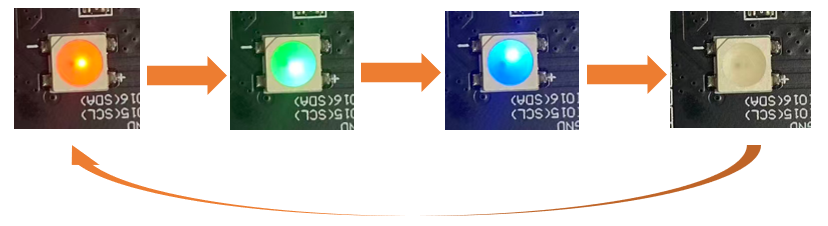
Chapter 3 Button
The Boot button on the Freenove ESP32-S3 Display can be configured as a regular input button after the program starts.
Project 3.1 Button RGB
In the previous chapter, we learned about RGB LEDs. In this section, we will further explore how to integrate RGB LEDs with buttons.
Related Knowledge
Button
In embedded systems, buttons are one of the most common human-machine input devices. When a button is not pressed, its opposing contacts are connected while adjacent contacts remain disconnected. Conversely, when the button is pressed, adjacent contacts connect while opposing contacts disconnect.
Usage of the Boot Button on the Freenove ESP32-S3 Display:
Manual Entry into Download Mode:
When the board is powered on or reset, pressing and holding the Boot button forces the board into download mode.
In this mode, users can upload programs to the board via the serial port.
Use as a Regular Input Button:
If the Boot button is not pressed during power-on or reset, the board enters normal operation mode.
Once in operation mode, the Boot button can function as GPIO0, typically configured as a standard input button for user interaction.
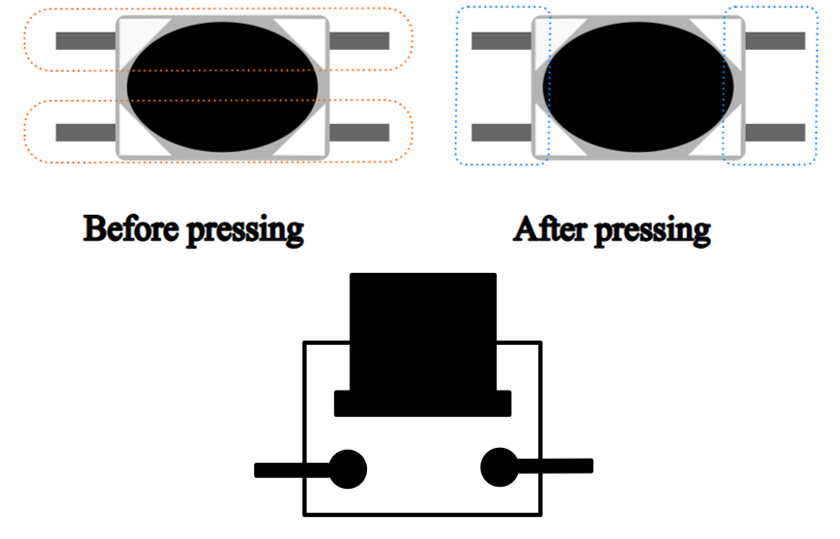
Pull-up Resistor
The primary function of a pull-up resistor is to ensure that the button maintains a stable high-level state when not pressed, preventing false triggering caused by floating pins or signal noise. The pull-up resistor is connected between the GPIO pin and VCC.
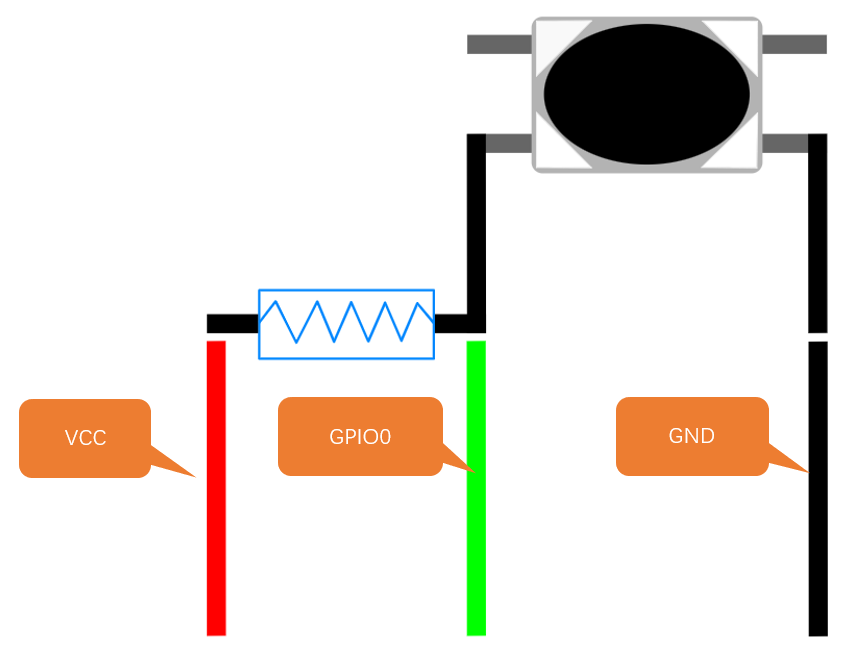
When the button is not pressed, Vcc is connected to GPIO0 through the resistor, resulting in a high-level signal at this pin.
When the button is pressed, GPIO0 is connected to GND, resulting in a low-level signal.
Therefore, by reading the GPIO0 pin state, we can determine whether the button is pressed or not.
Component List
Freenove ESP32-S3 Display x 1
|
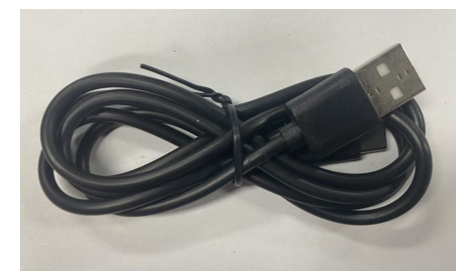
USB cable x1
|
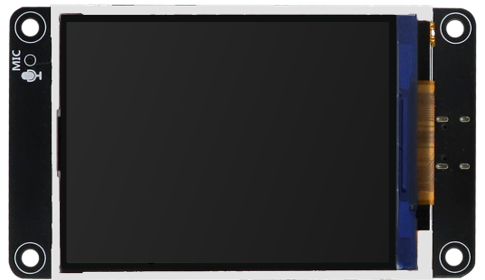
Circuit
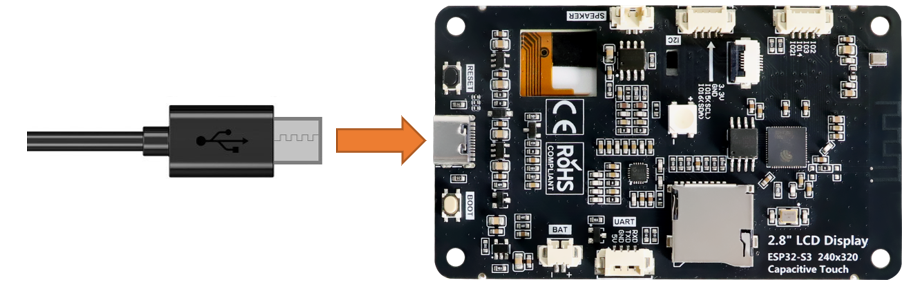
Connect Freenove ESP32-S3 Display to the computer with USB cable.
Sketch
Open “Sketch_03.1_Button_RGB” folder under “Freenove_ESP32_S3_Display\Tutorial_With_Touch\Sketches” and double-click “Sketch_03.1_Button_RGB.ino”.
Code Explanation
Define the pins for the button and the RGB LED.
1#define FNK0104AB_2P8_240x320_ILI9341
2//#define FNK0104N_3P5_320x480_ST77922
3//#define FNK0104S_4P0_320x480_ST7796
Initialize the RGB LED and the button.
1default:
2  strip.setLedColorData(0, m_color[4][0], m_color[4][1], m_color[4][2]);
3  strip.show();
Control the color of the RGB LED through the button.
 1void setup() {
 2  strip.begin();
 3  strip.setBrightness(10);
 4  buttonInit();
 5  Serial.println("ESP32-S3 initialization completed!");
 6}
 7
 8void loop() {
 9  if (readButton() == 0) {
10    delay(20);
11    if (readButton() == 0) {
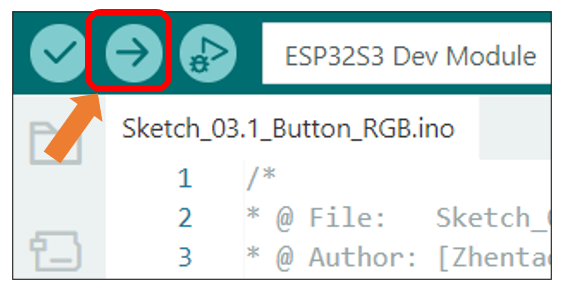
Click “Upload” to upload the code to Freenove ESP32-S3 Display.
The RGB LEDs will cycle through Red -> Green -> Blue -> OFF every 500ms after code upload.