Chapter 21 TCP/IP
In this chapter, we will introduce how ESP8266 implements network communications based on TCP/IP protocol. There are two roles in TCP/IP communication, namely Server and Client, which will be implemented respectively with two projects in this chapter.
Project 21.1 As Client
In this section, ESP8266 is used as Client to connect Server on the same LAN and communicate with it.
Component List
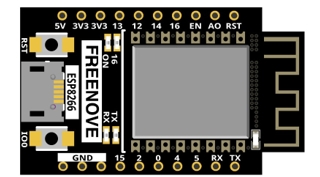
ESP8266 x1 |
USB cable |
|
|

Component knowledge
TCP connection
Before transmitting data, TCP needs to establish a logical connection between the sending end and the receiving end. It provides reliable and error-free data transmission between the two computers. In the TCP connection, the client and the server must be clarified. The client sends a connection request to the server, and each time such a request is proposed, a “three-times handshake” is required.
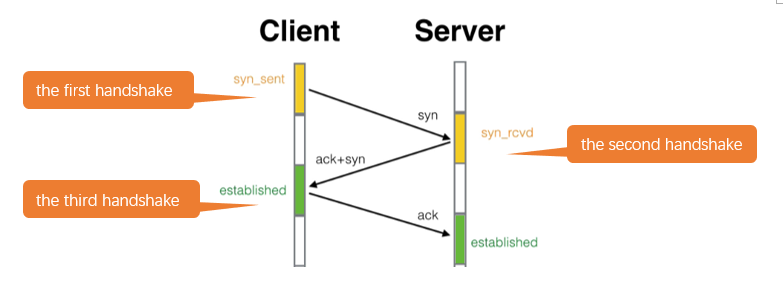
Three-times handshake: In the TCP protocol, during the preparation phase of sending data, the client and the server interact three times to ensure the reliability of the connection, which is called “three-times handshake”.
The first handshake, the client sends a connection request to the server and waits for the server to confirm.
The second handshake, the server sends a response back to the client informing that it has received the connection request.
The third handshake, the client sends a confirmation message to the server again to confirm the connection.
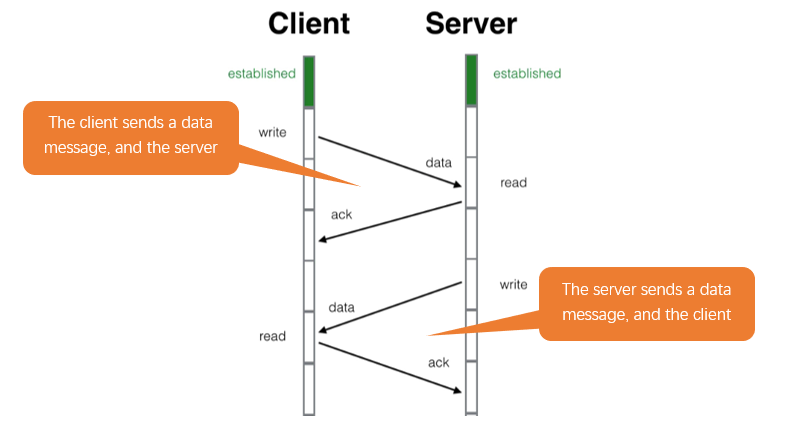
TCP is a connection-oriented, low-level transmission control protocol. After TCP establishes a connection, the client and server can send and receive messages to each other, and the connection will always exist as long as the client or server does not initiate disconnection. Each time one party sends a message, the other party will reply with an ack signal.
Install Processing
In this tutorial, we use Processing to build a simple TCP/IP communication platform.
If you’ve not installed Processing, you can download it by clicking https://processing.org/download/. You can choose an appropriate version to download according to your PC system.
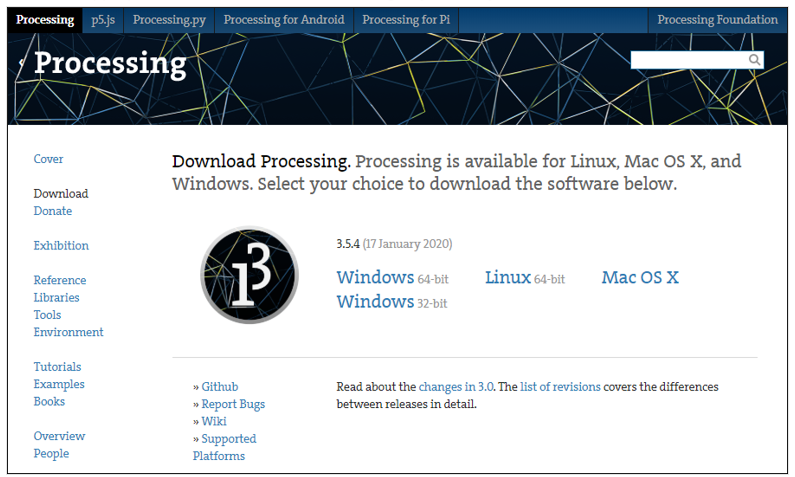
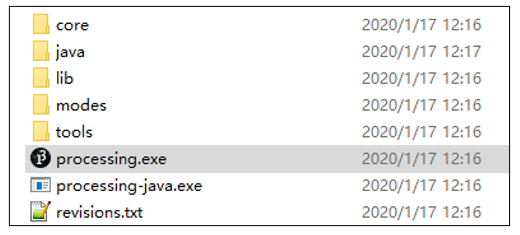
Unzip the downloaded file to your computer. Click “processing.exe” as the figure below to run this software.
Use Server mode for communication
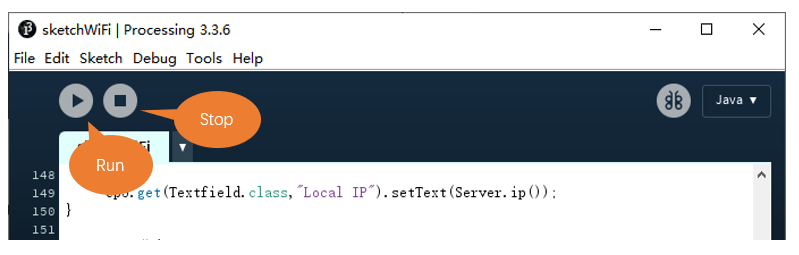
Open the “Freenove_Ultimate_Starter_Kit_for_ESP8266\C\Sketches\Sketch_21.1_WiFiClient\sketchWiFi\sketchWiFi.pde”, and click “Run”.
The new pop-up interface is as follows. If ESP8266 is used as client, select TCP SERVER mode for sketchWiFi.
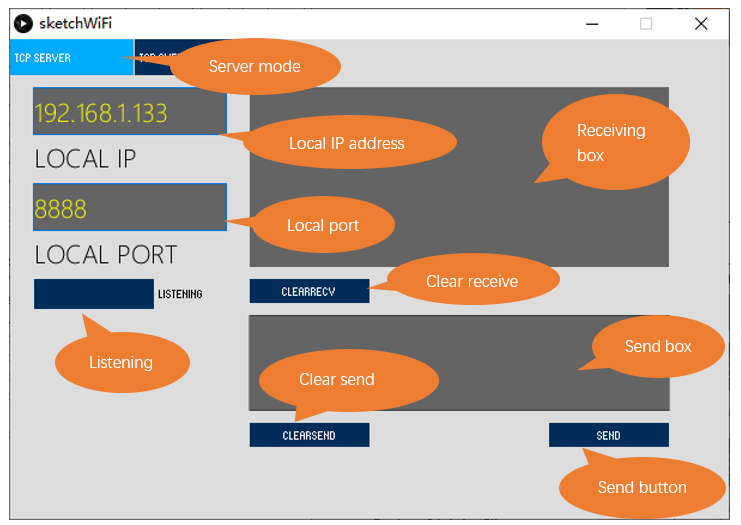
When sketchWiFi selects TCP SERVER mode, ESP8266 Sketch needs to be changed according to sketchWiFi’s displaying of LOCAL IP or LOCAL PORT.
If ESP8266 serves as server, select TCP CLIENT mode for sketchWiFi.
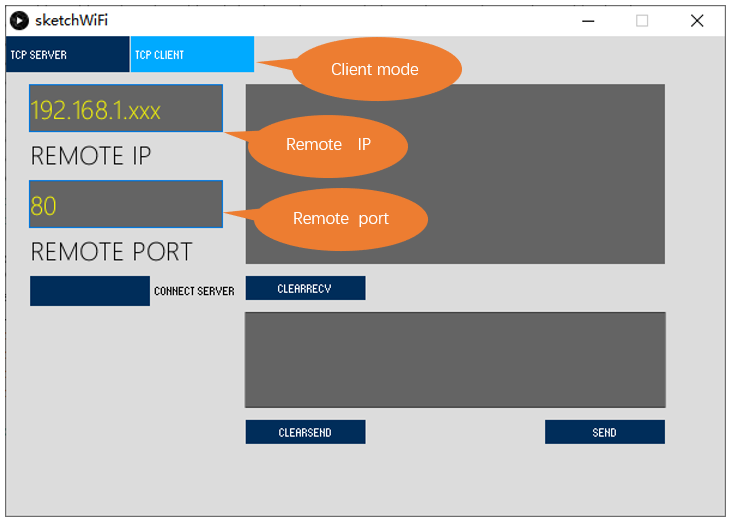
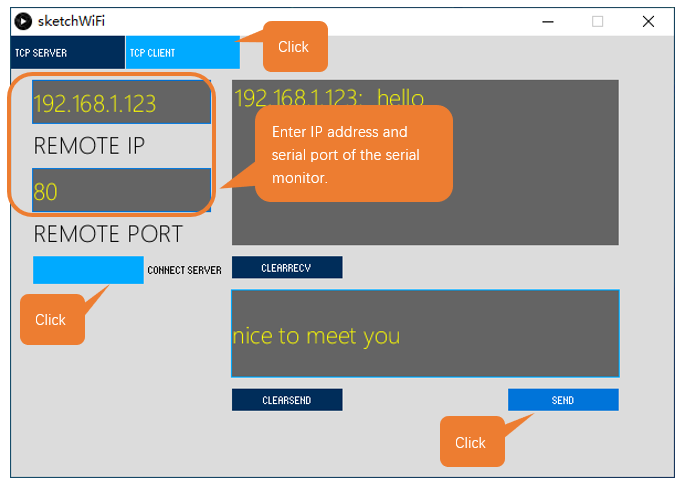
When sketchWiFi selects TCP CLIENT mode, the LOCAL IP and LOCAL PORT of sketchWiFi need to be changed according to the IP address and port number printed by the serial monitor.
Mode selection: select Server mode/Client mode.
IP address:
In server mode, this option does not need to be filled in, and the computer will automatically obtain the IP address.
In client mode, fill in the remote IP address to be connected.
Port number:
In server mode, fill in a port number for client devices to make an access connection.
In client mode, fill in port number given by the Server devices to make an access connection.
Start button:
In server mode, push the button, then the computer will serve as server and open a port number for client to make access connection. During this period, the computer will keep monitoring.
In client mode, before pushing the button, please make sure the server is on, remote IP address and remote port number is correct; push the button, and the computer will make access connection to the remote port number of the remote IP as a client.
clear receive: clear out the content in the receiving text box
clear send: clear out the content in the sending text box
Sending button: push the sending button, the computer will send the content in the text box to others.
Circuit
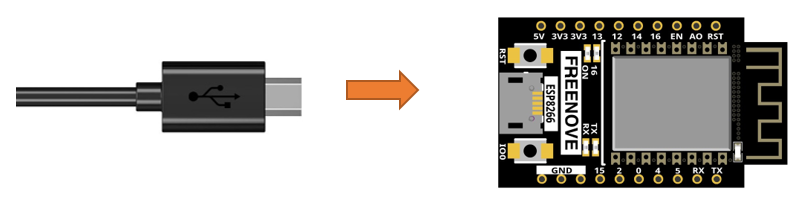
Connect Freenove ESP8266 to the computer using USB cable.
Sketch
If you have not installed “ControlP5”, please follow the following steps to continue the installation, if you have installed, please skip this section.
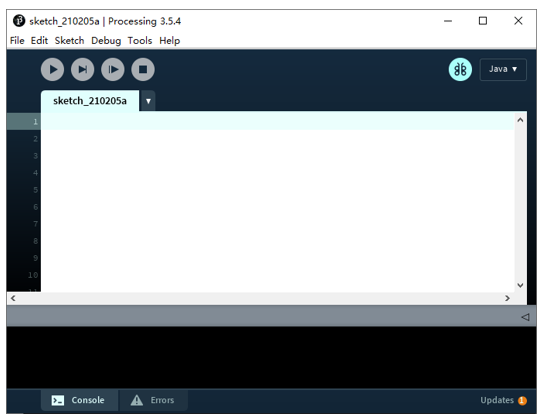
Open Processing.
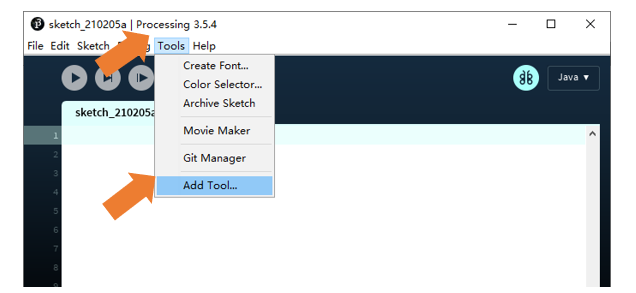
Click Add Tool under Tools.
Select Libraries in the pop-up window.
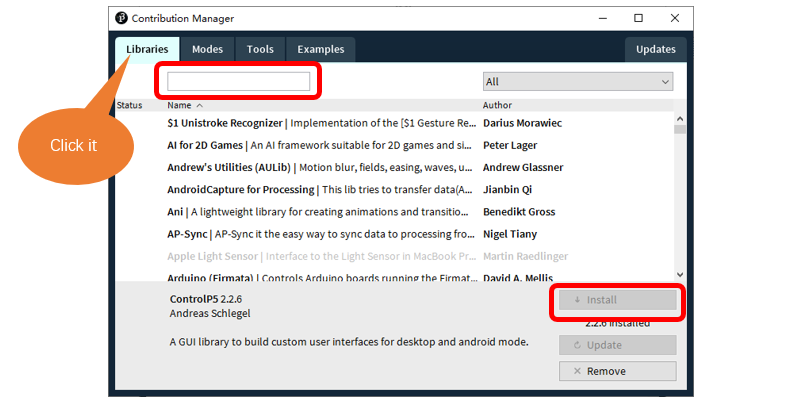
Input “ControlP5” in the searching box, and then select the option as below. Click “Install” and wait for the installation to finish.
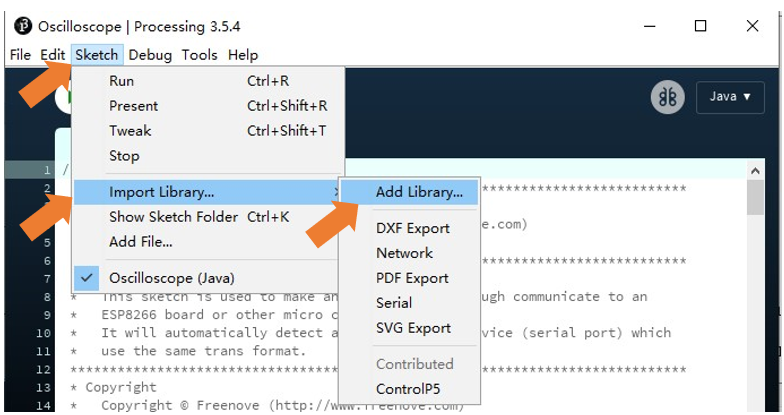
You can also click Add Library under ‘Import Library’ under ‘Sketch’.

Sketch_21.1_As_Client
Before running the Sketch, please open “sketchWiFi.pde.” first, and click “Run”.

The newly pop up window will use the computer’s IP address by default and open a data monitor port.
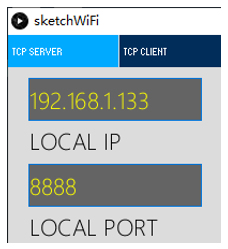
Next, open Sketch_WiFiClient.ino. Before running it, please change the following information based on “LOCAL IP” and “LOCAL PORT” in the figure above.
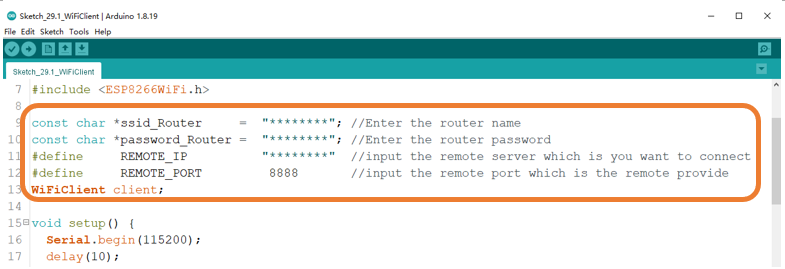
REMOTE_IP needs to be filled in according to the interface of sketchWiFi.pde. Taking this tutorial as an example, its REMOTE_IP is “192.168.1.133”. Generally, by default, the ports do not need to change its value.
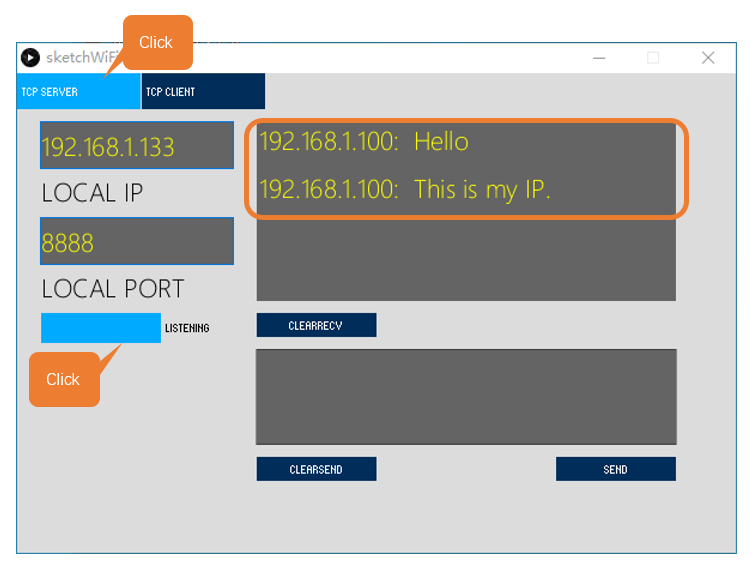
Click LISTENING, turn on TCP SERVER’s data listening function and wait for ESP8266 to connect.
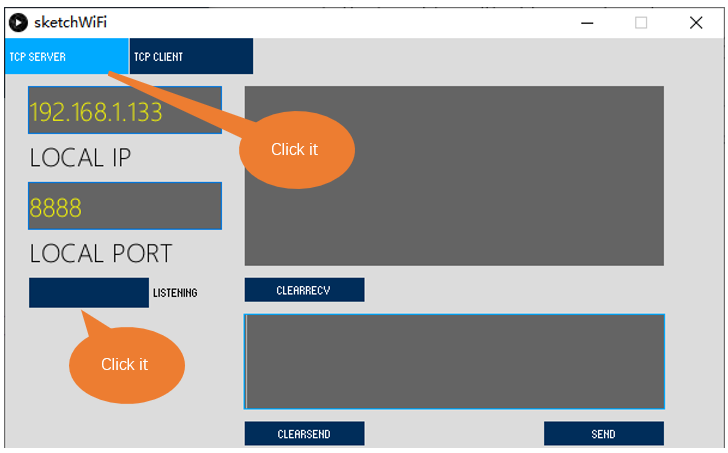
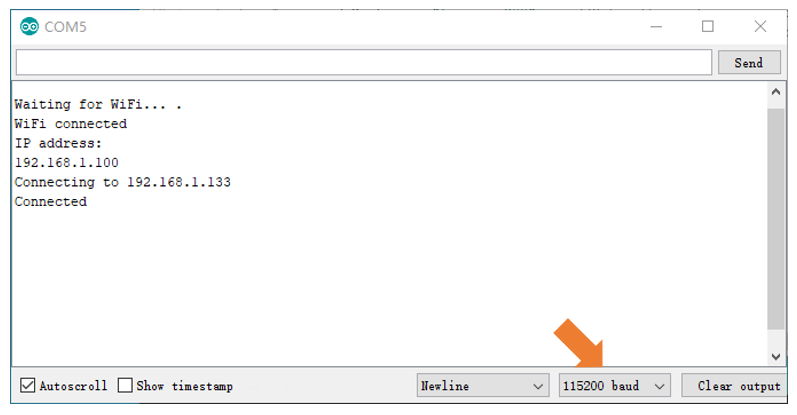
Compile and upload code to ESP8266, open the serial monitor and set the baud rate to 115200. ESP8266 connects router, obtains IP address and sends access request to server IP address on the same LAN till the connection is successful. When connect successfully, ESP8266 can send messages to server.
ESP8266 connects with TCP SERVER, and TCP SERVER receives messages from ESP8266, as shown in the figure below.
The following is the program code:
 1/**********************************************************************
 2  Filename    : WiFi Client
 3  Description : Use ESP8266's WiFi client feature to connect and communicate with a remote IP.
 4  Auther      : www.freenove.com
 5  Modification: 2022/05/11
 6**********************************************************************/
 7#include <ESP8266WiFi.h>
 8
 9const char *ssid_Router     =  "********"; //Enter the router name
10const char *password_Router =  "********"; //Enter the router password
11#define     REMOTE_IP          "********"  //input the remote server which is you want to connect
12#define     REMOTE_PORT         8888       //input the remote port which is the remote provide
13WiFiClient client;
14
15void setup() {
16  Serial.begin(115200);
17  delay(10);
18
19  WiFi.begin(ssid_Router, password_Router);
20  Serial.print("\nWaiting for WiFi... ");
21  while (WiFi.status() != WL_CONNECTED) {
22    Serial.print(".");
23    delay(500);
24  }
25  Serial.println("");
26  Serial.println("WiFi connected");
27  Serial.println("IP address: ");
28  Serial.println(WiFi.localIP());
29  delay(500);
30
31  Serial.print("Connecting to ");
32  Serial.println(REMOTE_IP);
33
34  while (!client.connect(REMOTE_IP, REMOTE_PORT)) {
35    Serial.println("Connection failed.");
36    Serial.println("Waiting a moment before retrying...");
37  }
38  Serial.println("Connected");
39  client.print("Hello\n");
40  client.print("This is my IP.\n");
41}
42
43void loop() {
44  if (client.available() > 0) {
45    delay(20);
46    //read back one line from the server
47    String line = client.readString();
48    Serial.println(REMOTE_IP + String(":") + line);
49  }
50  if (Serial.available() > 0) {
51    delay(20);
52    String line = Serial.readString();
53    client.print(line);
54  }
55  if (client.connected () == 0) {
56    client.stop();
57    WiFi.disconnect();
58  }
59}
Add WiFi function header file.
1#include <ESP8266WiFi.h>
Enter the actual router name, password, remote server IP address, and port number.
1const char *ssid_Router     =  "********"; //Enter the router name
2const char *password_Router =  "********"; //Enter the router password
3#define     REMOTE_IP          "********"  //input the remote server which is you want to connect
4#define     REMOTE_PORT         8888       //input the remote port which is the remote provide
Apply for the method class of WiFiClient.
1WiFiClient client;
Connect specified WiFi until it is successful. If the name and password of WiFi are correct but it still fails to connect, please push the reset key.
1WiFi.begin(ssid_Router, password_Router);
2Serial.print("\nWaiting for WiFi... ");
3while (WiFi.status() != WL_CONNECTED) {
4  Serial.print(".");
5  delay(500);
6}
Send connection request to remote server until connect successfully. When connect successfully, print out the connecting prompt on the serial monitor and send messages to remote server.
1while (!client.connect(REMOTE_IP, REMOTE_PORT)) {
2  Serial.println("Connection failed.");
3  Serial.println("Waiting a moment before retrying...");
4}
5Serial.println("Connected");
6client.print("Hello\n");
When ESP8266 receive messages from servers, it will print them out via serial port; Users can also send messages to servers from serial port.
 1if (client.available() > 0) {
 2  delay(20);
 3  //read back one line from the server
 4  String line = client.readString();
 5  Serial.println(REMOTE_IP + String(":") + line);
 6}
 7if (Serial.available() > 0) {
 8  delay(20);
 9  String line = Serial.readString();
10  client.print(line);
11}
If the server is disconnected, turn off WiFi of ESP8266.
1if (client.connected () == 0) {
2  client.stop();
3  WiFi.disconnect();
4}
Reference
- Class Client
Every time when using Client, you need to include header file “ESP8266WiFi.h”
connect(ip, port, timeout)/connect(*host, port, timeout): establish a TCP connection.
ip, *host: ip address of target server
port: port number of target server
timeout: connection timeout
connected(): judge whether client is connecting. If return value is 1, then connect successfully; If return value is 0, then fail to connect.
stop(): stop tcp connection
print(): send data to server connecting to client
available(): return to the number of bytes readable in receive buffer, if no, return to 0 or -1.
read(): read one byte of data in receive buffer
readString(): read string in receive buffer
Project 21.2 As Server
In this section, ESP8266 is used as a server to wait for the connection and communication of client on the same LAN.
Component List
ESP8266 x1 |
USB cable |
|
|
Circuit
Connect Freenove ESP8266 to the computer using USB cable.
Sketch
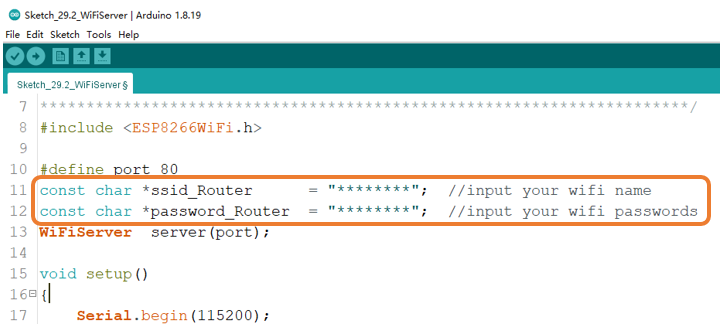
Before running Sketch, please modify the contents of the box below first.
Sketch_21.2_As_Server
Compile and upload code to ESP8266 board, open the serial monitor and set the baud rate to 115200. Turn on server mode for ESP8266, waiting for the connection of other devices on the same LAN. Once a device connects to server successfully, they can send messages to each other.
If the ESP8266 fails to connect to router, press the reset button as shown below and wait for ESP8266 to run again.
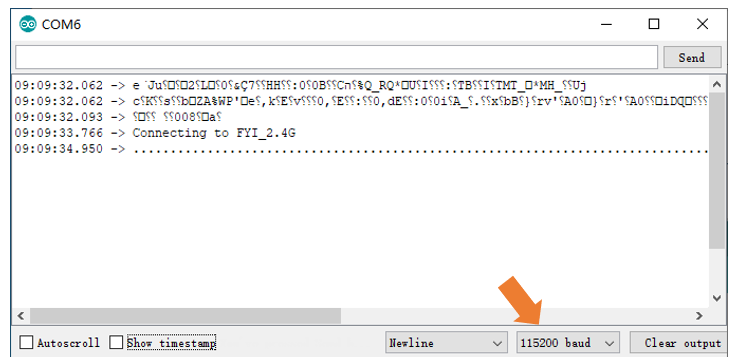
Serial Monitor
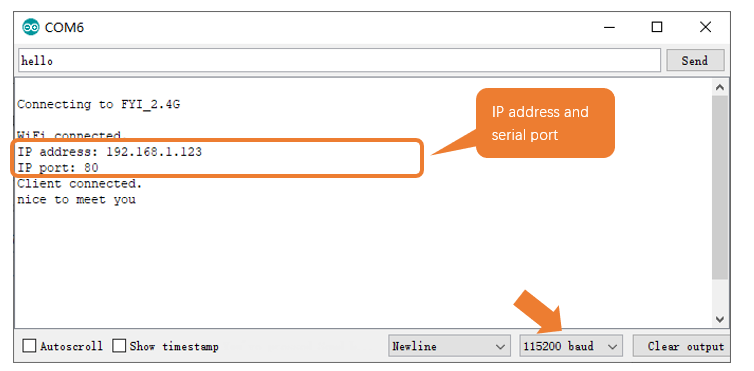
Processing:
Open the “ Freenove_Ultimate_Starter_Kit_for_ESP8266\C\Sketches\Sketch_21.2_WiFiServer\sketchWiFisketchWiFi.pde “.
Based on the messages printed by the serial monitor, enter correct IP address and serial port in Processing to establish connection and make communication.
The following is the program code:
 1/**********************************************************************
 2  Filename    : WiFi Server
 3  Description : Use ESP8266's WiFi server feature to wait for other WiFi devices to connect.
 4                And communicate with them once a connection has been established.
 5  Auther      : www.freenove.com
 6  Modification: 2022/05/11
 7**********************************************************************/
 8#include <ESP8266WiFi.h>
 9
10#define port 80
11const char *ssid_Router      = "********";  //input your wifi name
12const char *password_Router  = "********";  //input your wifi passwords
13WiFiServer  server(port);
14
15void setup()
16{
17    Serial.begin(115200);
18    Serial.printf("\nConnecting to ");
19    Serial.println(ssid_Router);
20    WiFi.disconnect();
21    WiFi.begin(ssid_Router, password_Router);
22    delay(1000);
23    while (WiFi.status() != WL_CONNECTED) {
24        delay(500);
25        Serial.print(".");
26    }
27    Serial.println("");
28    Serial.println("WiFi connected.");
29    Serial.print("IP address: ");
30    Serial.println(WiFi.localIP());
31    Serial.printf("IP port: %d\n",port);
32    server.begin(port);
33    WiFi.setAutoConnect(true);
34    WiFi.setAutoReconnect(true);
35}
36
37void loop(){
38 WiFiClient client = server.available();            // listen for incoming clients
39  if (client) {                                     // if you get a client,
40    Serial.println("Client connected.");
41    while (client.connected()) {                    // loop while the client's connected
42      if (client.available()) {                     // if there's bytes to read from the client,
43        Serial.println(client.readStringUntil('\n')); // print it out the serial monitor
44        while(client.read()>0);                     // clear the wifi receive area cache
45      }
46      if(Serial.available()){                       // if there's bytes to read from the serial monitor,
47        client.print(Serial.readStringUntil('\n')); // print it out the client.
48        while(Serial.read()>0);                     // clear the wifi receive area cache
49      }
50    }
51    client.stop();                                  // stop the client connecting.
52    Serial.println("Client Disconnected.");
53  }
54}
Apply for method class of WiFiServer.
1WiFiServer server(port);
Connect specified WiFi until it is successful. If the name and password of WiFi are correct but it still fails to connect, please push the reset key.
1WiFi.disconnect();
2WiFi.begin(ssid_Router, password_Router);
3delay(1000);
4while (WiFi.status() != WL_CONNECTED) {
5    delay(500);
6    Serial.print(".");
7}
8Serial.println("");
9Serial.println("WiFi connected.");
Print out the IP address and port number of ESP8266.
1Serial.print("IP address: ");
2Serial.println(WiFi.localIP());
3Serial.printf("IP port: %d\n",port);
Turn on server mode of ESP8266, start automatic connection and turn on automatic reconnection.
1server.begin(port);
2WiFi.setAutoConnect(true);
3WiFi.setAutoReconnect(true);
When ESP8266 receive messages from servers, it will print them out via serial port; Users can also send messages to servers from serial port.
1if (client.available()) {                     // if there's bytes to read from the client,
2  Serial.println(client.readStringUntil('\n')); // print it out the serial monitor
3  while(client.read()>0);                     // clear the wifi receive area cache
4}
5if(Serial.available()){                       // if there's bytes to read from the serial monitor,
6  client.print(Serial.readStringUntil('\n')); // print it out the client.
7  while(Serial.read()>0);                     // clear the wifi receive area cache
8}
Reference
- Class Server
Every time use Server functionality, we need to include header file”ESP8266WiFi.h”.
WiFiServer(uint16_t port=80, uint8_t max_clients=4): create a TCP Server.
port: ports of Server; range from 0 to 65535 with the default number as 80.
max_clients: maximum number of clients with default number as 4.
begin(port): start the TCP Server.
port: ports of Server; range from 0 to 65535 with the default number as 0.
setNoDelay(bool nodelay): whether to turn off the delay sending functionality.
nodelay: true stands for forbidden Nagle algorithm.
close(): close tcp connection.
stop(): stop tcp connection.