Logo

FNK0092

  • C language
    • Welcome
      • Getting Started
      • Get Support and Offer Input
      • Safety and Precautions
      • About Freenove
      • Copyright
    • Preface
      • Control Board
    • 0. Getting Ready (Important)
      • Programming Software
      • Installation of Development Board Support Package
      • First Use
      • How to install the library
    • 1. Chapter LED Blink
      • 1.1. Project Control LED with Manual Button
        • 1.1.1. Component List
        • 1.1.2. Circuit Knowledge
          • 1.1.2.1. Power supply
          • 1.1.2.2. Voltage
          • 1.1.2.3. Current
          • 1.1.2.4. Resistor
        • 1.1.3. Component Knowledge
          • 1.1.3.1. Jumper
          • 1.1.3.2. Breadboard
          • 1.1.3.3. Push Button Switch
          • 1.1.3.4. LED
        • 1.1.4. Circuit
      • 1.2. Project Control LED with Control Board
        • 1.2.1. Component List
        • 1.2.2. Circuit Knowledge
          • 1.2.2.1. Analog signal and Digital signal
          • 1.2.2.2. Low level and high level
        • 1.2.3. Code Knowledge
          • 1.2.3.1. Comments
          • 1.2.3.2. Data type
          • 1.2.3.3. Constant
          • 1.2.3.4. Variable
          • 1.2.3.5. Function
        • 1.2.4. Circuit
        • 1.2.5. Sketch
          • 1.2.5.1. Sketch Control_LED_by_Control_Board
            • Reset()
      • 1.3. How to Use the Expanding GPIO Pins
    • 2. Chapter Two LEDs Blink
      • 2.1. Project Two LEDs Blink
        • 2.1.1. Component List
        • 2.1.2. Code Knowledge
          • 2.1.2.1. Parameters of function
          • 2.1.2.2. Boolean data type
          • 2.1.2.3. Logical operator
          • 2.1.2.4. Relation operator
          • 2.1.2.5. Conditional statement
        • 2.1.3. Circuit
        • 2.1.4. Sketch
          • 2.1.4.1. Sketch Two_LEDs_Blink
          • 2.1.4.2. Sketch Two_LEDs_Blink
          • 2.1.4.3. Sketch Two_LEDs_Blink
    • 3. Chapter LED Bar Graph
      • 3.1. Project LED Bar Graph Display
        • 3.1.1. Component List
        • 3.1.2. Component Knowledge
          • 3.1.2.1. LED bar graph
        • 3.1.3. Code Knowledge
          • 3.1.3.1. Array
          • 3.1.3.2. Loop
        • 3.1.4. Circuit
        • 3.1.5. Sketch
          • 3.1.5.1. Sketch LED_bar_graph_Display
          • 3.1.5.2. Sketch LED_bar_graph_Display
    • 4. Chapter LED Blink Smoothly
      • 4.1. Project LEDs Emit Different Brightness
        • 4.1.1. Component List
        • 4.1.2. Circuit Knowledge
          • 4.1.2.1. PWM
        • 4.1.3. Code Knowledge
          • 4.1.3.1. Return value of function
          • 4.1.3.2. return
        • 4.1.4. Circuit
        • 4.1.5. Sketch
          • 4.1.5.1. Sketch LEDs_Emit_Different_Brightness
            • analogWrite()
            • map()
      • 4.2. Project LED Blinking Smoothly
        • 4.2.1. Component List
        • 4.2.2. Circuit
        • 4.2.3. Sketch
          • 4.2.3.1. Sketch LED_Blink_Smoothly
    • 5. Chapter Control LED with Push Button Switch
      • 5.1. Project Control LED with Push Button Switch
        • 5.1.1. Component List
        • 5.1.2. Circuit Knowledge
          • 5.1.2.1. Connection of Push Button Switch
        • 5.1.3. Circuit
        • 5.1.4. Sketch
          • 5.1.4.1. Sketch Control_LED_Through_Push_Button
            • digitalRead()
      • 5.2. Project Change LED State with Push Button Switch
        • 5.2.1. Component List
        • 5.2.2. Circuit Knowledge
          • 5.2.2.1. Debounce a push button switch
        • 5.2.3. Circuit
        • 5.2.4. Sketch
          • 5.2.4.1. Sketch Change_LED_State_by_Push_Button
    • 6. Chapter Serial
      • 6.1. Project Send Data through Serial
        • 6.1.1. Component List
        • 6.1.2. Code Knowledge
          • 6.1.2.1. Bit and Byte
        • 6.1.3. Circuit Knowledge
          • 6.1.3.1. Serial and parallel communication
          • 6.1.3.2. Serial communication
          • 6.1.3.3. Serial port on Control board
        • 6.1.4. Circuit
        • 6.1.5. Sketch
          • 6.1.5.1. Sketch Send_data_through_Serial
      • 6.2. Project Receive Data through Serial Port
        • 6.2.1. Component List
        • 6.2.2. Code Knowledge
          • 6.2.2.1. Interrupt
        • 6.2.3. Circuit
        • 6.2.4. Sketch
          • 6.2.4.1. Sketch Receive_Data_through_Serial_Port
      • 6.3. Project Application of Serial
        • 6.3.1. Component List
        • 6.3.2. Circuit
        • 6.3.3. Sketch
          • 6.3.3.1. Sketch Application_of_Serial
            • constrain()
    • 7. Chapter Timer
      • 7.1. Project Serial print using timer
        • 7.1.1. Component List
        • 7.1.2. Code Knowledge
          • 7.1.2.1. Timer
        • 7.1.3. Circuit
        • 7.1.4. Sketch
          • 7.1.4.1. How to install the library
          • 7.1.4.2. Sketch Serial_print_using_timer
      • 7.2. Project Using timer to implement LED blinking
        • 7.2.1. Component List
        • 7.2.2. Circuit
        • 7.2.3. Sketch
          • 7.2.3.1. Sketch Using_timer_to_implement_LED_blinking
    • 8. Chapter ADC
      • 8.1. Project ADC
        • 8.1.1. Component List
        • 8.1.2. Circuit Knowledge
          • 8.1.2.1. ADC
        • 8.1.3. Component Knowledge
          • 8.1.3.1. Potentiometer
          • 8.1.3.2. Rotary potentiometer
        • 8.1.4. Circuit
        • 8.1.5. Sketch
          • 8.1.5.1. Sketch ADC
      • 8.2. Project Control LED by Potentiometer
        • 8.2.1. Component List
        • 8.2.2. Circuit
        • 8.2.3. Sketch
          • 8.2.3.1. Sketch Control_LED_by_Potentiometer
      • 8.3. Project Control LED by Potentiometer
        • 8.3.1. Component List
        • 8.3.2. Component Knowledge
          • 8.3.2.1. Photoresistor
        • 8.3.3. Circuit
        • 8.3.4. Sketch
          • 8.3.4.1. Sketch Control_LED_through_Photoresistor
    • 9. Chapter RGB LED
      • 9.1. Project Control RGB LED through Potentiometer
        • 9.1.1. Component List
        • 9.1.2. Component Knowledge
          • 9.1.2.1. RGB LED
        • 9.1.3. Circuit
        • 9.1.4. Sketch
          • 9.1.4.1. Sketch Control_RGB_LED_through_Potentiometer
      • 9.2. Project Multicolored LED
        • 9.2.1. Component List
        • 9.2.2. Circuit
        • 9.2.3. Sketch
          • 9.2.3.1. Sketch Colorful_LED
            • random()
    • 10. Chapter Buzzer
      • 10.1. Project Active Buzzer
        • 10.1.1. Component List
        • 10.1.2. Component knowledge
          • 10.1.2.1. Transistor
          • 10.1.2.2. Buzzer
        • 10.1.3. Circuit
        • 10.1.4. Sketch
          • 10.1.4.1. Sketch Active_Buzzer
      • 10.2. Project Passive Buzzer
        • 10.2.1. Component List
        • 10.2.2. Circuit
        • 10.2.3. Sketch
          • 10.2.3.1. Sketch Passive_Buzzer
            • tone()
    • 11. Chapter DAC
      • 11.1. Project DAC
        • 11.1.1. Component List
        • 11.1.2. Component Knowledge
          • 11.1.2.1. DAC
          • 11.1.2.2. Analog Output vs PWM
        • 11.1.3. Circuit
        • 11.1.4. Sketch
          • 11.1.4.1. Sketch DAC_Audio
    • 12. Chapter RTC
      • 12.1. Project RTC
        • 12.1.1. Component List
        • 12.1.2. Component Knowledge
          • 12.1.2.1. RTC
        • 12.1.3. Circuit
        • 12.1.4. Sketch
          • 12.1.4.1. Sketch RTC
    • 13. Chapter Motor
      • 13.1. Project Control Motor by Relay
        • 13.1.1. Component List
        • 13.1.2. Component Knowledge
          • 13.1.2.1. DC Motor
          • 13.1.2.2. Capacitor
          • 13.1.2.3. Relay
          • 13.1.2.4. Inductor
        • 13.1.3. Circuit
        • 13.1.4. Sketch
          • 13.1.4.1. Sketch Control_Motor_by_Relay
            • millis()
      • 13.2. Project Control Motor with L293D
        • 13.2.1. Component List
        • 13.2.2. Component Knowledge
          • 13.2.2.1. L293D
        • 13.2.3. Circuit
        • 13.2.4. Sketch
          • 13.2.4.1. Sketch Control_Motor_by_L293D
            • abs()
    • 14. Chapter Servo
      • 14.1. Project Servo Sweep
        • 14.1.1. Component List
        • 14.1.2. Component Knowledge
          • 14.1.2.1. Servo
        • 14.1.3. Circuit
        • 14.1.4. Sketch
          • 14.1.4.1. Sketch Servo_Sweep
      • 14.2. Project Control Servo with Potentiometer
        • 14.2.1. Component List
        • 14.2.2. Circuit
        • 14.2.3. Sketch
          • 14.2.3.1. Sketch Servo_Sweep
    • 15. Chapter Temperature Sensor
      • 15.1. Project Detect the Temperature
        • 15.1.1. Component List
        • 15.1.2. Component Knowledge
          • 15.1.2.1. Thermistor
        • 15.1.3. Circuit
        • 15.1.4. Sketch
          • 15.1.4.1. Sketch Detect_the_temperature
    • 16. Chapter Joystick
      • 16.1. Project Joystick
        • 16.1.1. Component List
        • 16.1.2. Component Knowledge
          • 16.1.2.1. Joystick
        • 16.1.3. Circuit
        • 16.1.4. Sketch
          • 16.1.4.1. Sketch Joystick
            • INPUT_PULLUP()
    • 17. Chapter Acceleration sensor
      • 17.1. Project Acceleration Detection
        • 17.1.1. Component List
        • 17.1.2. Component Knowledge
          • 17.1.2.1. I2C communication
          • 17.1.2.2. MPU6050
        • 17.1.3. Circuit
        • 17.1.4. Sketch
          • 17.1.4.1. Sketch Acceleration_Detection
    • 18. Chapter LED Matrix
      • 18.1. Project 74HC595
        • 18.1.1. Component List
        • 18.1.2. Code Knowledge
          • 18.1.2.1. Hexadecimal
        • 18.1.3. Component Knowledge
          • 18.1.3.1. 74HC595
        • 18.1.4. Circuit
        • 18.1.5. Sketch
          • 18.1.5.1. Sketch 74HC595
      • 18.2. Project LED Matrix
        • 18.2.1. Component List
        • 18.2.2. Component Knowledge
          • 18.2.2.1. LED matrix
        • 18.2.3. Circuit
        • 18.2.4. Sketch
          • 18.2.4.1. Sketch LED_Matrix
    • 19. Chapter Onboard LED Matrix (WiFi Board)
      • 19.1. Project LED Matrix
        • 19.1.1. Component List
        • 19.1.2. Component Knowledge
          • 19.1.2.1. LED matrix
        • 19.1.3. Sketch
          • 19.1.3.1. Sketch LED_Matrix
      • 19.2. Project LED Matrix
        • 19.2.1. Component List
        • 19.2.2. Sketch
          • 19.2.2.1. Sketch LED_Matrix_Scrolling_Text
      • 19.3. Project Play the game with LED matrix
      • 19.4. Project LED Matrix Bounce Game
        • 19.4.1. Component List
        • 19.4.2. Circuit
        • 19.4.3. Sketch
          • 19.4.3.1. Sketch LED_Matrix_Bounce_Game
      • 19.5. Project LED Matrix Snake Game
        • 19.5.1. Component List
        • 19.5.2. Circuit
        • 19.5.3. Sketch
          • 19.5.3.1. Sketch LED_Matrix_Snake_Game
    • 20. Chapter I2C LCD1602
      • 20.1. Project Display the String on I2C LCD1602
        • 20.1.1. Component List
        • 20.1.2. Component Knowledge
          • 20.1.2.1. I2C LCD1602
        • 20.1.3. Circuit
        • 20.1.4. Sketch
          • 20.1.4.1. Sketch Display_the_string_on_LCD1602
          • 20.1.4.2. How to install the library
      • 20.2. Project I2C LCD1602 Clock
        • 20.2.1. Component List
        • 20.2.2. Code Knowledge
          • 20.2.2.1. Timer
        • 20.2.3. Circuit
        • 20.2.4. Sketch
          • 20.2.4.1. How to install the library
          • 20.2.4.2. Sketch LCD1602_Clock
    • 21. Chapter Digital Display
      • 21.1. Project 1-digit 7-segment Display
        • 21.1.1. Component List
        • 21.1.2. Component Knowledge
          • 21.1.2.1. 1-digit 7-segment display
        • 21.1.3. Circuit
        • 21.1.4. Sketch
          • 21.1.4.1. Sketch 1_Digit_7_Segment_Display
      • 21.2. Project 4-digit 7-segment Display
        • 21.2.1. Component List
        • 21.2.2. Component Knowledge
          • 21.2.2.1. 4-digit 7-segment display
        • 21.2.3. Circuit
        • 21.2.4. Sketch
          • 21.2.4.1. How to install the library
          • 21.2.4.2. Sketch 4_Digit_7-Segment_Display
          • 21.2.4.3. Sketch 4_Digit_7-Segment_Display
    • 22. Chapter Stepper Motor
      • 22.1. Project Drive Stepper Motor
        • 22.1.1. Component List
        • 22.1.2. Component List
        • 22.1.3. Component Knowledge
          • 22.1.3.1. Stepper Motor
          • 22.1.3.2. ULN2003 stepper motor driver
        • 22.1.4. Circuit
        • 22.1.5. Sketch
          • 22.1.5.1. Sketch Drive_Stepper_Motor
    • 23. Chapter Matrix Keypad
      • 23.1. Project Get Input Characters
        • 23.1.1. Component Knowledge
          • 23.1.1.1. 4x4 keypad
        • 23.1.2. Circuit
        • 23.1.3. Sketch
          • 23.1.3.1. Sketch Get_Input_Characters
      • 23.2. Project Combination Lock
        • 23.2.1. Component List
        • 23.2.2. Circuit
        • 23.2.3. Sketch
          • 23.2.3.1. Sketch Combination_Lock
    • 24. Chapter Vibration Switch
      • 24.1. Project Detect Vibration
        • 24.1.1. Component List
        • 24.1.2. Component Knowledge
          • 24.1.2.1. Vibration Switch
        • 24.1.3. Circuit Knowledge
          • 24.1.3.1. Digital pins with interrupts
        • 24.1.4. Circuit
        • 24.1.5. Sketch
          • 24.1.5.1. Sketch Detect_Vibration
    • 25. Chapter Infrared Remote
      • 25.1. Project Infrared Remote Control
        • 25.1.1. Component List
        • 25.1.2. Component Knowledge
          • 25.1.2.1. Infrared remote
          • 25.1.2.2. Infrared receiver
        • 25.1.3. Circuit
        • 25.1.4. Sketch
          • 25.1.4.1. Sketch Infrared_Remote_Control
      • 25.2. Project Control LED through Infrared Remote
        • 25.2.1. Component List
        • 25.2.2. Circuit
        • 25.2.3. Sketch
          • 25.2.3.1. Sketch Control_LED_through_Infrared_Remote
    • 26. Chapter Temperature & Humidity Sensor
      • 26.1. Project Temperature & Humidity Sensor
        • 26.1.1. Component Knowledge
          • 26.1.1.1. DHT11
        • 26.1.2. Circuit
        • 26.1.3. Sketch
          • 26.1.3.1. Sketch Temperature_&_Humidity_Sensor
          • 26.1.3.2. How to install the library
    • 27. Chapter Infrared Motion Sensor
      • 27.1. Project Infrared Motion Sensor
        • 27.1.1. Component List
        • 27.1.2. Component Knowledge
          • 27.1.2.1. Infrared Motion Sensor
        • 27.1.3. Circuit
        • 27.1.4. Sketch
          • 27.1.4.1. Sketch Infrared_Motion_Sensor
    • 28. Chapter Ultrasonic Ranging
      • 28.1. Project Ultrasonic Ranging
        • 28.1.1. Component List
        • 28.1.2. Component Knowledge
          • 28.1.2.1. Ultrasonic ranging module
        • 28.1.3. Circuit
        • 28.1.4. Sketch
          • 28.1.4.1. Sketch Ultrasonic_Ranging
            • pulseIn()
          • 28.1.4.2. Sketch Ultrasonic_Ranging
    • 29. Chapter High-sensitivity microphone sensor
      • 29.1. Project High-sensitivity microphone sensor and LED
        • 29.1.1. Component List
        • 29.1.2. Component knowledge
          • 29.1.2.1. High-sensitivity microphone sensor
          • 29.1.2.2. Pin description:
        • 29.1.3. Circuit
        • 29.1.4. Sketch
          • 29.1.4.1. Sketch High_sensitivity_microphone_sensor_and_LED
    • 30. Chapter Touch Sensor TTP223
      • 30.1. Project Touch Sensor and LED
        • 30.1.1. Component List
        • 30.1.2. Component knowledge
          • 30.1.2.1. Touch Sensor
        • 30.1.3. Circuit
        • 30.1.4. Sketch
          • 30.1.4.1. Sketch Touch_Sensor_and_LED
      • 30.2. Project Touch Sensor and RGB LED
        • 30.2.1. Component List
        • 30.2.2. Circuit
        • 30.2.3. Sketch
          • 30.2.3.1. Sketch Touch_Sensor_and_RGB_LED
    • 31. Chapter U-shaped photoelectric sensor
      • 31.1. Project U-shaped photoelectric sensor and LED
        • 31.1.1. Component List
        • 31.1.2. Component knowledge
          • 31.1.2.1. U-shaped photoelectric sensor
          • 31.1.2.2. Pin description:
        • 31.1.3. Circuit
        • 31.1.4. Sketch
          • 31.1.4.1. Sketch U_shaped_photoelectric_sensor_and_LED
      • 31.2. Project U-shaped photoelectric sensor and buzzer
        • 31.2.1. Component List
        • 31.2.2. Circuit
        • 31.2.3. Sketch
          • 31.2.3.1. Sketch U_shaped_photoelectric_sensor_and_buzzer
    • 32. Chapter Infrared Obstacle Avoidance Sensor
      • 32.1. Project Infrared obstacle avoidance sensor and LED
        • 32.1.1. Component List
        • 32.1.2. Component knowledge
          • 32.1.2.1. Infrared obstacle avoidance sensor
        • 32.1.3. Circuit
        • 32.1.4. Sketch
          • 32.1.4.1. Sketch Infrared_obstacle_avoidance_sensor_and_LED
      • 32.2. Project Infrared obstacle avoidance sensor and buzzer
        • 32.2.1. Component List
        • 32.2.2. Circuit
        • 32.2.3. Sketch
          • 32.2.3.1. Sketch Infrared_obstacle_avoidance_sensor_and_buzzer
    • 33. Chapter 33 Hall sensor
      • 33.1. Project Hall sensor and LED
        • 33.1.1. Component List
        • 33.1.2. Component knowledge
          • 33.1.2.1. Hall sensor
        • 33.1.3. Circuit
        • 33.1.4. Sketch
          • 33.1.4.1. Sketch HallSensor
      • 33.2. Project Hall Sensor and Buzzer
        • 33.2.1. Component List
        • 33.2.2. Circuit
        • 33.2.3. Sketch
          • 33.2.3.1. Sketch Alertor
    • 34. Chapter Rotary Encoder
      • 34.1. Project Rotary Encoder
        • 34.1.1. Component List
        • 34.1.2. Component knowledge
          • 34.1.2.1. Rotary Encoder
        • 34.1.3. Circuit
        • 34.1.4. Sketch
          • 34.1.4.1. Sketch Rotary_Encoder
      • 34.2. Project Rotary Encoder and LED
        • 34.2.1. Component List
        • 34.2.2. Circuit
        • 34.2.3. Sketch
          • 34.2.3.1. Sketch Rotary_Encoder_and_LED
    • 35. Chapter LEDpixel
      • 35.1. Project LEDpixel
        • 35.1.1. Component List
        • 35.1.2. Component knowledge
          • 35.1.2.1. Freenove 8 RGB LED Module
        • 35.1.3. Circuit
        • 35.1.4. Sketch
          • 35.1.4.1. How to install the library
          • 35.1.4.2. Sketch LEDpixel
      • 35.2. Project RainbowLight
        • 35.2.1. Component List
        • 35.2.2. Circuit
        • 35.2.3. Sketch
          • 35.2.3.1. Sketch RainbowLight
    • 36. Chapter BMP180 Barometric Pressure Sensor
      • 36.1. Project Barometer
        • 36.1.1. Component List
        • 36.1.2. Component knowledge
          • 36.1.2.1. BMP180 barometric pressure sensor
        • 36.1.3. Circuit
        • 36.1.4. Sketch
          • 36.1.4.1. Sketch Barometer
    • 37. Chapter RFID
      • 37.1. Project RFID read UID
        • 37.1.1. Component List
        • 37.1.2. Component Knowledge
          • 37.1.2.1. RFID
          • 37.1.2.2. MFRC522 RFID Module
          • 37.1.2.3. Mifare1 S50 Card
        • 37.1.3. Circuit
        • 37.1.4. Sketch
          • 37.1.4.1. Sketch_37.1.1
      • 37.2. Project Read and write
        • 37.2.1. Component list
        • 37.2.2. Circuit
        • 37.2.3. Sketch
          • 37.2.3.1. Sketch Read_and_write
    • 38. Chapter WiFi Working Modes (WiFi Board)
      • 38.1. Project Station mode
        • 38.1.1. Component List
        • 38.1.2. Component knowledge
          • 38.1.2.1. Station mode
        • 38.1.3. Circuit
        • 38.1.4. Sketch
          • 38.1.4.1. Sketch_38.1.1
          • 38.1.4.2. Reference
      • 38.2. Project AP mode
        • 38.2.1. Component List & Circuit
        • 38.2.2. Component knowledge
          • 38.2.2.1. AP mode
        • 38.2.3. Circuit
        • 38.2.4. Sketch
          • 38.2.4.1. Sketch_38.2.1
          • 38.2.4.2. Sketch_37.2_AP_mode
    • 39. Chapter TCP/IP (WiFi Board)
      • 39.1. Project As Client
        • 39.1.1. Component List
        • 39.1.2. Component knowledge
          • 39.1.2.1. TCP connection
          • 39.1.2.2. Install Processing
          • 39.1.2.3. Use Server mode for communication
        • 39.1.3. Circuit
        • 39.1.4. Sketch
          • 39.1.4.1. Sketch_38.1_As_Client
          • 39.1.4.2. Reference
      • 39.2. Project As Server
        • 39.2.1. Component List
        • 39.2.2. Circuit
        • 39.2.3. Sketch
          • 39.2.3.1. Sketch_39.2.1
          • 39.2.3.2. Reference
    • 40. Chapter Control LED with Web (WiFi Board)
      • 40.1. Project Control the LED with Web
        • 40.1.1. Component List
        • 40.1.2. Component knowledge
          • 40.1.2.1. HTML
        • 40.1.3. Circuit
        • 40.1.4. Sketch
          • 40.1.4.1. Sketch_40.1.1
    • 41. Chapter Bluetooth (WiFi Board)
      • 41.1. Project Bluetooth Low Energy Data Passthrough
        • 41.1.1. Component List
        • 41.1.2. Component knowledge
          • 41.1.2.1. Master mode
          • 41.1.2.2. Slave mode
        • 41.1.3. Circuit
        • 41.1.4. Sketch
          • 41.1.4.1. Lightblue
      • 41.2. Project Control LED with Bluetooth
        • 41.2.1. Component List
        • 41.2.2. Circuit
        • 41.2.3. Sketch
          • 41.2.3.1. Sketch_41.2.1
    • 42. Chapter USB HID
      • 42.1. Project Mouse control
        • 42.1.1. Component List
        • 42.1.2. Component knowledge
          • 42.1.2.1. Human Interface Device (HID)
        • 42.1.3. Circuit
        • 42.1.4. Sketch
          • 42.1.4.1. Sketch_42.1.1
      • 42.2. Project Keypad Control
        • 42.2.1. Component List
        • 42.2.2. Circuit
        • 42.2.3. Sketch
          • 42.2.3.1. Sketch_42.2.1
    • 43. Chapter Soldering Circuit Board
      • 43.1. Project Solder a Buzzer
        • 43.1.1. Component List
        • 43.1.2. Circuit
        • 43.1.3. Solder the Circuit
        • 43.1.4. Test Circuit
      • 43.2. Project Solder a Flowing Water Light
        • 43.2.1. Component List
        • 43.2.2. Circuit
        • 43.2.3. Solder the Circuit
        • 43.2.4. Connect the Circuit
        • 43.2.5. Sketch
          • 43.2.5.1. Sketch 43.2.1
    • Other Components
      • Component Knowledge
        • Toggle switch
        • Switch diode
        • Motor soft fan blade
        • 9V battery cable
    • What’s Next?
    • Appendix
      • ASCII Table
      • Resistor Color Code
  • Processing language
    • Welcome
      • Getting Started
      • Get Support and Offer Input
      • Safety and Precautions
      • About Freenove
      • Copyright
    • Preface
      • Processing Software
      • Install ControlP5
      • First Use
      • Communication protocol (Important)
    • 1. Chapter Voltmeter
      • 1.1. Project 1.1 Voltmeter
        • 1.1.1. Component List
        • 1.1.2. Circuit
        • 1.1.3. Sketch
          • 1.1.3.1. Sketch Voltmeter
      • 1.2. Project 1.2 Dual-Channel Voltmeter
        • 1.2.1. Component list
        • 1.2.2. Circuit
        • 1.2.3. Sketch
          • 1.2.3.1. Sketch Voltmeter_Dual_Channel
    • 2. Chapter Oscilloscope
      • 2.1. Project 2.1 Oscilloscope
        • 2.1.1. Component list
        • 2.1.2. Circuit
        • 2.1.3. Sketch
          • 2.1.3.1. Sketch Oscilloscope
    • 3. Chapter Control 2D and 3D Figures
      • 3.1. Project 3.1 Ellipse
        • 3.1.1. Component list
        • 3.1.2. Circuit
        • 3.1.3. Sketch
          • 3.1.3.1. Sketch Ellipse
      • 3.2. Project 3.2 Box 3D
        • 3.2.1. Component list
        • 3.2.2. Circuit
        • 3.2.3. Sketch
          • 3.2.3.1. Sketch Box_3D
    • 4. Chapter Snake Game
      • 4.1. Project 4.1 Snake Game
        • 4.1.1. Component list
        • 4.1.2. Circuit
        • 4.1.3. Sketch
          • 4.1.3.1. Sketch Snake_Game
      • 4.2. Project 4.2 Snake Game 3D
        • 4.2.1. Component list
        • 4.2.2. Circuit
        • 4.2.3. Sketch
          • 4.2.3.1. Sketch Snake_Game_3D
    • 5. Chapter Pick Apples
      • 5.1. Project 5.1 Pick Apples
        • 5.1.1. Component list
        • 5.1.2. Circuit
        • 5.1.3. Sketch
          • 5.1.3.1. Sketch Pick Apples
    • 6. Chapter Pong Game
      • 6.1. Project 6.1 Pong Game
        • 6.1.1. Component list
        • 6.1.2. Circuit
        • 6.1.3. Sketch
          • 6.1.3.1. Sketch Pong_Game
      • 6.2. Project 6.2 Pong Game 3D
        • 6.2.1. Component list
        • 6.2.2. Circuit
        • 6.2.3. Sketch
          • 6.2.3.1. Sketch Pong_Game_3D
    • 7. Chapter Tetris
      • 7.1. Project 7.1 Tetris
        • 7.1.1. Component list
        • 7.1.2. Circuit
        • 7.1.3. Sketch
          • 7.1.3.1. Sketch Tetris
    • What’s next?
fnk0092-docs
  • C language
  • 1. Chapter LED Blink
Previous Next

1. Chapter LED Blink

We have previously tried to make the LED marked with “L” blink on the control board. Now let us use electronic components and codes to reproduce the phenomenon, and try to understand their principle.

1.1. Project Control LED with Manual Button

First, try using a push button switch to make the LED blink manually.

1.1.1. Component List

Note

It is worth noting that the board is compatible with the Arduino UNO R4 Minima and the Arduino UNO R4 WiFi board, and if you have one of them in hand, you can also use it for experiments in this tutorial.

Only the black control board is used to display the hardware connection in this document.

Control board x1

Chapter01_00

Breadboard x1

Chapter01_01

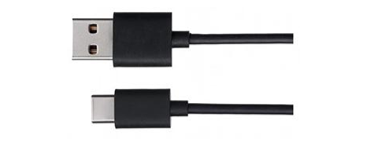
USB cable x1

Chapter01_02

Jumper M/M x2

Chapter01_03

LED x1

Chapter01_04

Resistor 220Ω x1

Chapter01_05

Push button x1

Chapter01_06

1.1.2. Circuit Knowledge

1.1.2.1. Power supply

Power supply provides energy for the circuit, and it is divided into DC power and AC power.

Voltage and current of DC power supply remains the same all the time, such as battery, power adapter.

Alternating Current (AC) describes the flow of charge that changes direction periodically. As a result, the voltage level also reverses along with the current. Its basic form is sinusoidal voltage(current). AC power is suitable for long-distance transmission of electric energy and it is used to supply power to houses.
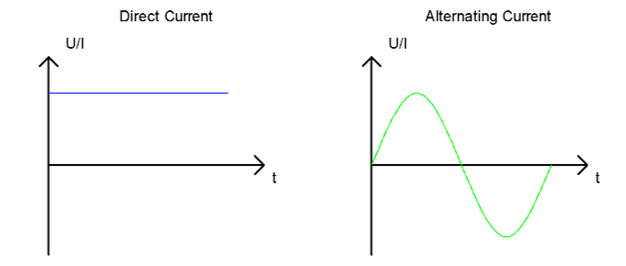
../../../_images/Chapter01_07.png

Generally, electronic circuits use DC. Home appliances have rectifiers to convert AC into DC before they are used.

Battery or battery pack can be represented by the following symbols:
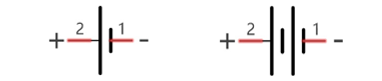
../../../_images/Chapter01_08.png

The positive and negative poles of the power supply must not be directly connected, otherwise it may scald you and cause damage to the battery.

1.1.2.2. Voltage

The unit of voltage(U) is volt(V). 1kV=1000V, 1V=1000mV, 1mV=1000μv.

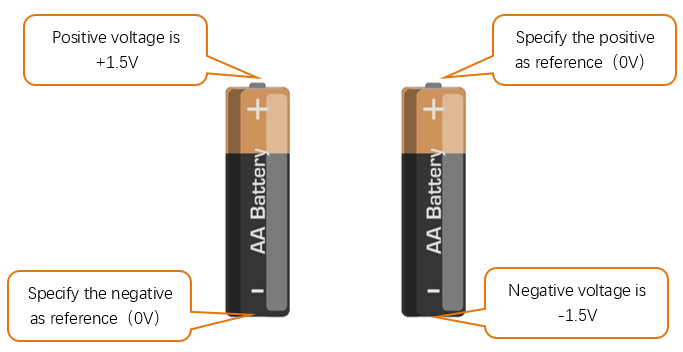
Voltage is relative. As to a dry battery marked with “1.5V”, it’s positive (+) voltage is 1.5V higher than the negative (-) voltage. If you specify the negative as reference(0V), the positive voltage will be +1.5V.
../../../_images/Chapter01_09.png

When two dry batteries are connected in series, the voltage of each point is as follows:
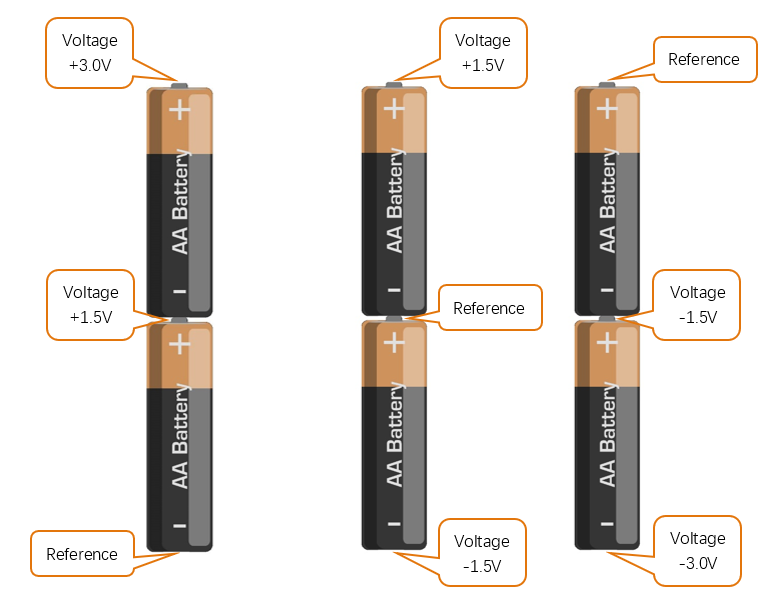
../../../_images/Chapter01_10.png

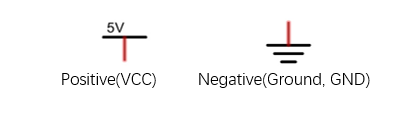
In practical circuits, we usually specify negative as reference voltage (0V), which is called “Ground”. The positive is usually called “VCC”. The positive and negative poles of power supply is usually represented by the following two symbols:
../../../_images/Chapter01_11.png

1.1.2.3. Current

The unit of current(I) is ampere(A). 1A=1000mA, 1mA=1000μA.

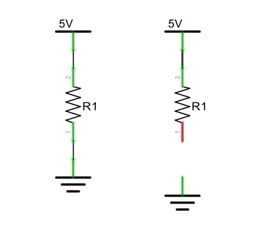
Closed loop consisting of electronic components is necessary for current to flow.

In the figures below: the left one is a loop circuit, so current flows through the circuit. The right one is not a loop circuit, so there is no current.
../../../_images/Chapter01_12.png

1.1.2.4. Resistor

Resistors use Ohms (Ω) as the unit of measurement of their resistance (R). 1MΩ=1000kΩ, 1kΩ=1000Ω.

A resistor is a passive electrical component that limits or regulates the flow of current in an electronic circuit.

On the left, we see a physical representation of a resistor, and the right is the symbol used to represent the presence of a resistor in a circuit diagram or schematic.
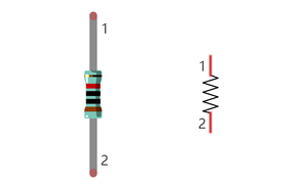
../../../_images/Chapter01_13.png

The bands of color on a resistor is a shorthand code used to identify its resistance value. For more details of resistor color codes, please refer to the card in the kit package.

With a fixed voltage, there will be less current output with greater resistance added to the circuit. The relationship between Current, Voltage and Resistance can be expressed by this formula: I=V/R known as Ohm’s Law where I = Current, V = Voltage and R = Resistance. Knowing the values of any two of these allows you to solve the value of the third.

In the following diagram, the current through R1 is: I=U/R=5V/10kΩ=0.0005A=0.5mA.
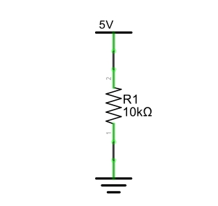
../../../_images/Chapter01_14.png

Warning

Never connect the two poles of a power supply with anything of low resistance value (i.e. a metal object or bare wire) this is a Short and results in high current that may damage the power supply and electronic components.

1.1.3. Component Knowledge

Let us learn about the basic features of components to use them better.

1.1.3.1. Jumper

Jumper is a kind of wire designed to connect the components together with its two terminals by inserting them onto breadboard or control board.

Jumpers have male end (pin) and female end (slot), so jumpers can be divided into the following 3 types.
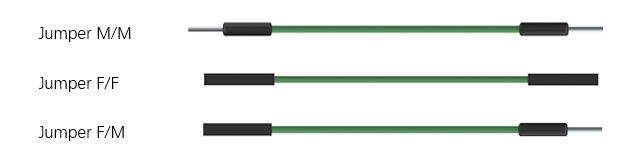
../../../_images/Chapter01_15.png

1.1.3.2. Breadboard

There are many small holes on breadboard to connect Jumpers.

Some small holes are connected inside breadboard. The following figure shows the inner links among those holes.
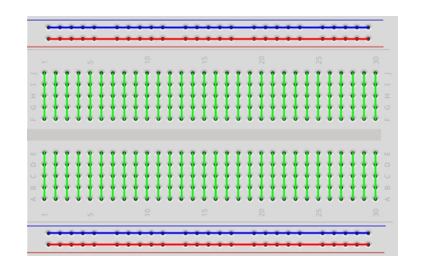
../../../_images/Chapter01_16.png

1.1.3.3. Push Button Switch

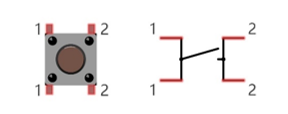
This type of Push Button Switch has 4 pins (2 Pole Switch). Two pins on the left are connected, and both left
../../../_images/Chapter01_17.png

and right sides are the same per the illustration:

When the button on the switch is pressed, the circuit is completed (your project is Powered ON).

1.1.3.4. LED

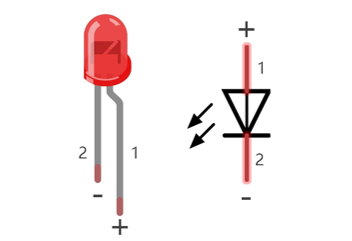
An LED is a type of diode. All diodes only work if current is flowing in the correct direction and have two Poles. An LED will only work (light up) if the longer pin (+) of LED is connected to the positive output from a power source and the shorter pin is connected to the negative (-) negative output also referred to as Ground (GND). This type of component is known as “Polar” (think One-Way Street).

All common 2 lead diodes are the same in this respect. Diodes work only if the voltage of its positive electrode is higher than its negative electrode and there is a narrow range of operating voltage for most all common diodes of 1.9 and 3.4V. If you use much more than 3.3V the LED will be damaged and burn out.
../../../_images/Chapter01_18.png

Note

LEDs cannot be directly connected to a power supply, which usually ends in a damaged component. A resistor with a specified resistance value must be connected in series to the LED you plan to use.

1.1.4. Circuit

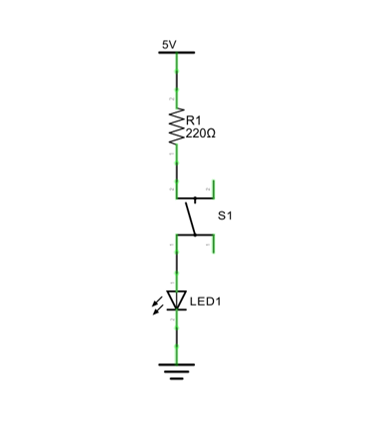
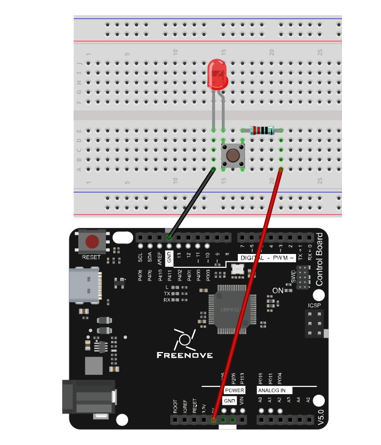
In this project, the LED is controlled by a push button switch, and the control board here only plays the role of power supply in the circuit.

Firstly, connect components with jumpers according to “hardware connection”. Secondly, check the connection to confirm that there are no mistakes. Finally, connect the control board to computer with USB cable to avoid short circuit caused by contacting the wires.

Note

In this book, we use the regular board as an example to make the circuits. The connection is the same on the control board with WiFi function.

Schematic diagram

Hardware connection

Chapter01_19

Chapter01_20

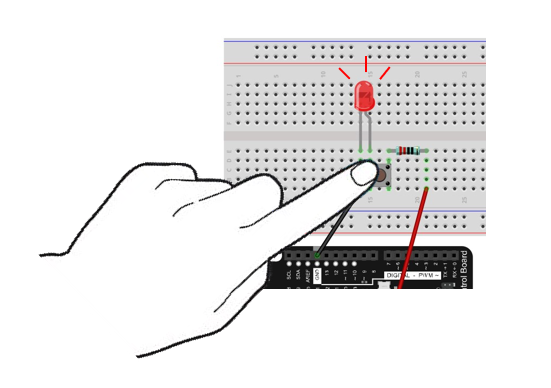
LED lights up when you press the push button switch, and it lights off when you release the button.
../../../_images/Chapter01_21.png

1.2. Project Control LED with Control Board

Now, try using control board to make LED blink through programing.

1.2.1. Component List

Components are basically the same with those in last section. Push button switch is no more needed.

1.2.2. Circuit Knowledge

1.2.2.1. Analog signal and Digital signal

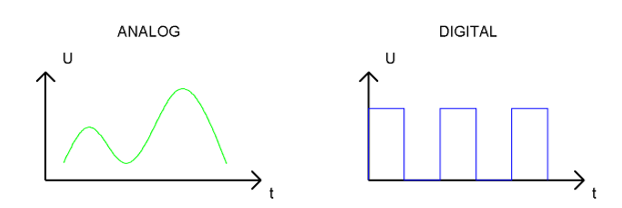
An Analog Signal is a continuous signal in both time and value. On the contrary, a Digital Signal or discrete-time signal is a time series consisting of a sequence of quantities. Most signals in life are analog signals. A familiar example of an Analog Signal would be how the temperature throughout the day is continuously changing and could not suddenly change instantaneously from 0℃ to 10℃.

However, Digital Signals can instantaneously change in value. This change is expressed in numbers as 1 and 0 (the basis of binary code). Their differences can more easily be seen when compared when graphed as below.
../../../_images/Chapter01_22.png

In practical applications, we often use binary as the digital signal, that is a series of 0’s and 1’s. Since a binary signal only has two values (0 or 1) it has great stability and reliability. Lastly, both analog and digital signals can be converted into the other.

1.2.2.2. Low level and high level

In a circuit, the form of binary (0 and 1) is presented as low level and high level.

Low level is generally equal to ground voltage(0V). High level is generally equal to the operating voltage of components.

The low level of the control board is 0V and high level is 5V, as shown below. When IO port on control board outputs high level, components of small power can be directly lit, like LED.
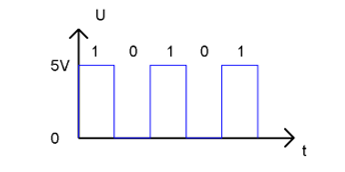
../../../_images/Chapter01_23.png

1.2.3. Code Knowledge

Before start writing code, we should learn about the basic programming knowledge.

1.2.3.1. Comments

Comments are the words used to explain for the sketches, and they won’t affect the running of code.

There are two ways to use comments of sketches.

  1. Symbol “//”

Contents behind “//” comment out the code in a single line.

1// this is a comment area in this line.

The content in front of “//” will not be affected.

1delay(1000);              // wait for a second
  1. Symbol “/”and “/”

Code can also be commented out by the contents starting with a “/” and finishing with a “/” and you can place it anywhere in your code, on the same line or several lines.

1/* this is comment area. */

Or

1/*
2    this is a comment line.
3    this is a comment line.
4*/

1.2.3.2. Data type

When programming, we often use digital, characters and other data. C language has several basic data types as follows:

int: A number that does not have a fractional part, an integer, such as 0, 12, -1;

float: A number that has a fractional part, such as 0.1, -1.2;

char: It means character, such as ‘a’, ‘@’, ‘0’;

For more about date types, please visit the website: https://www.Arduino.cc-Resources-Reference-Data Types.

1.2.3.3. Constant

A constant is a kind of data that cannot be changed, such as int type 0, 1, float type 0.1, -0.1, char type ‘a’, ‘B’.

1.2.3.4. Variable

A variable is a kind of data that can be changed. It consists of a name, a value, and a type. Variables need to be defined before using, such as:

1int i;

“int” indicates the type, “;” indicates the end of the statement. The statement is usually written in one single line; and these statements form the code.

After declaration of the variable, you can use it. The following is an assignment to a variable:

1i = 0;                    // after the execution, the value of i is 0

“=” is used to pass the value of a variable or constant on the right side to the variable on the left.

A certain number of variables can be declared in one statement, and a variable can be assigned multiple times. Also, the value of a variable can be passed to other variables. For example:

1int i, j;
2i = 0;                    // after the execution, the value of i is 0
3i = 1;                    // after the execution, the value of i is 1
4j = i;                    // after the execution, the value of j is 1

1.2.3.5. Function

A function is a collection of statements with a sequence of order, which performs a defined task. Let’s define a function void blink() as follows:

1void blink() {
2    digitalWrite(13, HIGH);
3    delay(1000);
4    digitalWrite(13, LOW);
5    delay(1000);
6}

“void” indicates that the function does not return a value (Chapter 4 will detail the return value of functions);

“()” its inside is parameters of a function (Chapter 2 will detail the parameters of the functions). No content inside it indicates that this function has no parameters;

“{}” contains the entire code of the function.

After the function is defined, it is necessary to be called before it is executed. Let’s call the function void blink(), as shown below.

blink();

When the code is executed to a statement calling the function, the function will be executed. After execution of the function is finished, it will go back to the statement and execute the next statement.
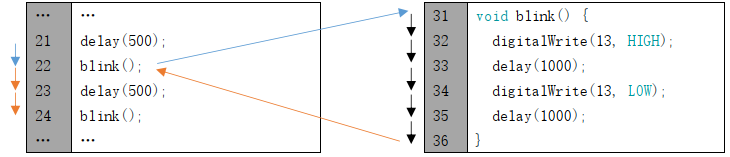
../../../_images/Chapter01_24.png

Some functions have one or more parameters. When you call such functions, you need to write parameters inside “()”:

1digitalWrite(13, HIGH);   // turn the LED on (HIGH is the voltage level)
2delay(1000);              // wait for a second

1.2.4. Circuit

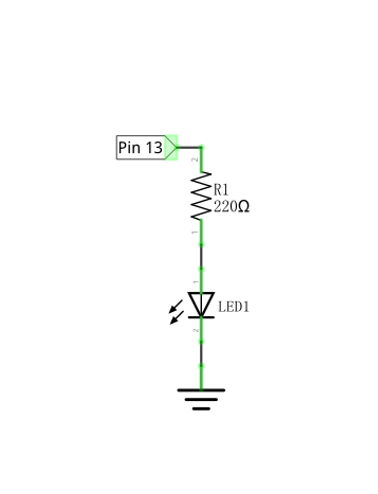
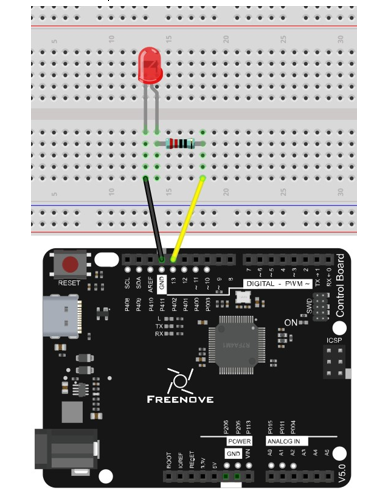
Now, we will use IO port of control board to provide power for the LED. Pin 13 of the control board is the digital pin. It can output high level or low level. In this way, control board can control the state of LED.

Schematic diagram

Hardware connection

Chapter01_25

Chapter01_26

1.2.5. Sketch

1.2.5.1. Sketch Control_LED_by_Control_Board

In order to make the LED blink, we need to make pin 13 of the control board output high and low level alternately.

We highly recommend you type the code manually instead of copying and pasting, so that you can develop your coding skills and get more knowledge.

 1/**********************************************************************
 2  Filename    : Sketch_1.2.1_Control_LED_by_Control_Board
 3  Description : Control LED by Control Board
 4  Auther      : www.freenove.com
 5  Modification: 2024/08/05
 6**********************************************************************/
 7
 8// the setup function runs once when you press reset or power the board
 9void setup() {
10  // initialize digital pin 13 as an output
11  pinMode(13, OUTPUT);
12}
13
14// the loop function runs over and over again forever
15void loop() {
16  digitalWrite(13, HIGH);   // turn the LED on (HIGH is the voltage level)
17  delay(1000);              // wait for a second
18  digitalWrite(13, LOW);    // turn the LED off by making the voltage LOW
19  delay(1000);              // wait for a second
20}

The code usually contains two basic functions: void setup() and void loop().

After control board is reset , the setup() function will be executed first, and then the loop() function will be executed.

setup() function is generally used to write code to initialize the hardware. And loop() function is used to write code to achieve certain functions. loop() function is executed repeatedly. When the execution reaches the end of loop(), it will jump to the beginning of loop() to run again.

Reset()

Reset operation will lead the code to be executed from the beginning. Switching on the power, finishing uploading the code and pressing the reset button will trigger reset operation.
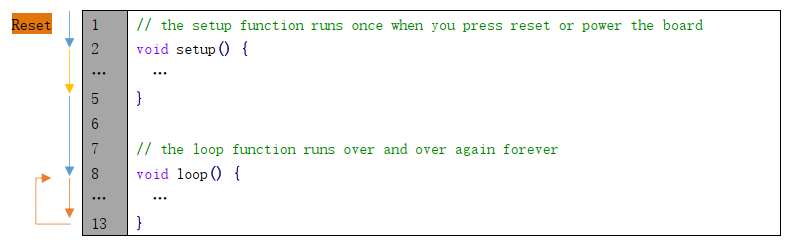
../../../_images/Chapter01_27.png

In the setup () function, first, we set pin 13 of the control board as output mode, which can make the port output high level or low level.

1// initialize digital pin 13 as an output
2pinMode(13, OUTPUT);

Then, in the loop () function, set pin 13 of the control board to output high level to make LED light up.

1digitalWrite(13, HIGH);   // turn the LED on (HIGH is the voltage level)

Wait for 1000ms, which is 1s. delay() function is used to make control board wait for a moment before executing the next statement. The parameter indicates the number of milliseconds to wait for.

1delay(1000);              // wait for a second

Then set the 13 pint to output low level, and LED light off. One second later, the execution of loop () function will be completed.

1digitalWrite(13, LOW);    // turn the LED off by making the voltage LOW
2delay(1000);              // wait for a second

The loop() function is constantly being executed, so LED will keep blinking.

The functions called above are standard functions of the Arduino IDE, which have been defined in the Arduino IDE, and they can be called directly. We will introduce more common standard functions in later chapters.

For more standard functions and the specific use method, please visit https://www.arduino.cc-Resources-Reference-Functions.

Verify and upload the code, then the LED starts blinking.
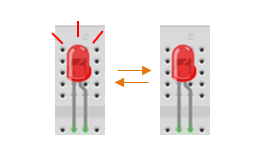
../../../_images/Chapter01_28.png

1.3. How to Use the Expanding GPIO Pins

In this section, we will learn to use the expanding GPIO pins. If you are working on the board with Bluetooth and WiFi functions, you can skip this section.

The board used in this section is as shown below:
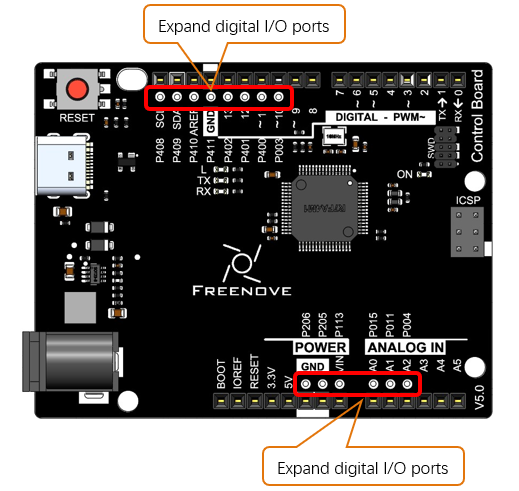
../../../_images/Chapter01_29.png

Before using the expanding GPIO pins, please complete the following configuration first.

Copy “pins_arduino.h” and “variant.cpp” under the file path “/Libraries/Expanding_GPIO_Pins” to the file path “C:\Users\Freenove\AppData\Local\Arduino15\pa ckages\arduino\hardware\renesas_uno\1.1.0\variants\MINIMA “.
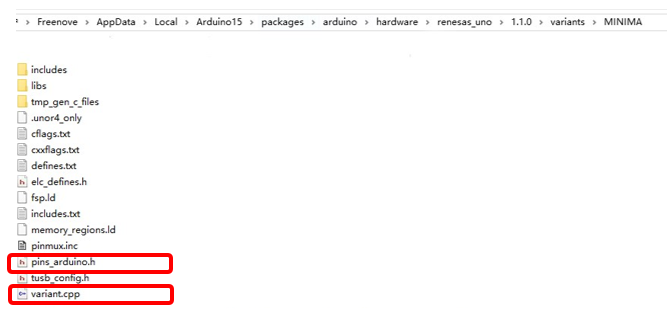
../../../_images/Chapter01_30.png

The path may vary due to different versions of board package installed.

The configuration is completed onve the files are copied the files to the above path. The definition of the expanding GPIOs is as shown in the table below.

GPIOs on the control board

Definition of Arduino GPIO

P003

D27

P400

D28

P401

D29

P402

D30

P411

D31

P410

D32

P409

D33

P408

D34

P004

D35

P011

D36

P015

D37

P113

D38

P205

D39

P206

D40

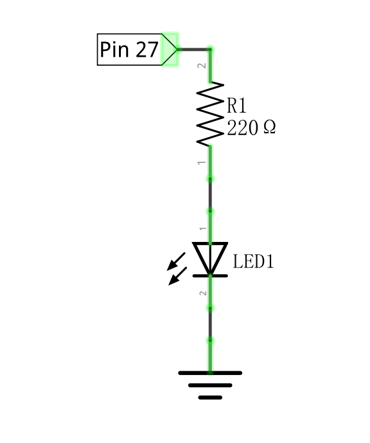
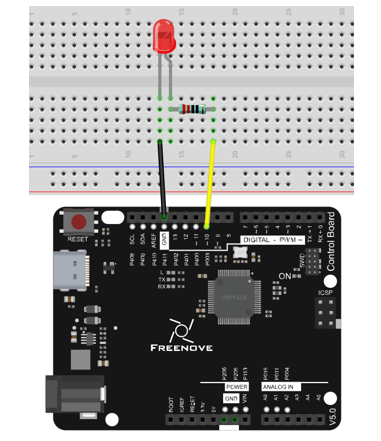
Now, let’s try to use the expanding GPIO pins to light up an LED. Open the Blinking sketch, modify the control pin according to the pin definition shown in the above table. Here we take P003 on the control board as an example, so we modify the control pin of the LED to 27.

Build the circuit as below, and upload the sketch to the board.

Schematic diagram

Hardware connection

Chapter01_31

Chapter01_32

 1// the setup function runs once when you press reset or power the board
 2void setup() {
 3    // initialize digital pin 13 as an output
 4    pinMode(27, OUTPUT);
 5}
 6
 7// the loop function runs over and over again forever
 8void loop() {
 9    digitalWrite(27, HIGH);   // turn the LED on (HIGH is the voltage level)
10    delay(1000);              // wait for a second
11    digitalWrite(27, LOW);    // turn the LED off by making the voltage LOW
12    delay(1000);              // wait for a second
13}

In this way, you can use more GPIOs to design more interesting projects. It is worth noting that all the expansion GPIOs are uniformly defined as ordinary digital I/O interfaces. We do not solder male or female headers to them. When you need to use these pins, you can solder headers yourself.

Previous Next