Chapter 3 Buttons & LEDs

Usually, there are three essential parts in a complete automatic control device: INPUT, OUTPUT, and CONTROL. In last section, the LED module was the output part and RPI was the control part. In practical applications, we not only make LEDs flash, but also make a device sense the surrounding environment, receive instructions and then take the appropriate action such as turn on LEDs, make a buzzer beep and so on.
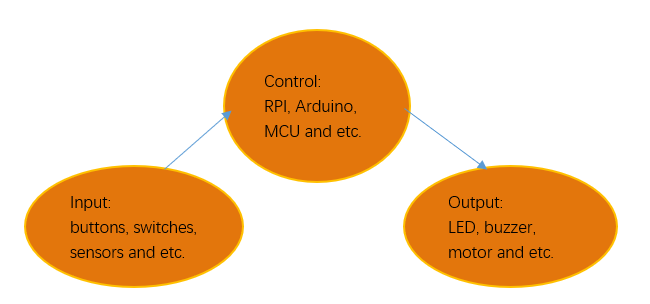
../../../_images/Chapter03_00.png

Next, we will build a simple control system to control an LED through a push button switch.

Project 3.1 Push Button Switch & LED

In the project, we will control the LED state through a Push Button Switch. When the button is pressed, our LED will turn ON, and when it is released, the LED will turn OFF. This describes a Momentary Switch.

Component knowledge

Push Button Switch

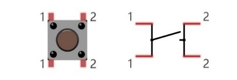
This type of Push Button Switch has 4 pins (2 Pole Switch). Two pins on the left are connected, and both left and right sides are the same as per the illustration:
../../../_images/Chapter03_01.png

When the button on the switch is pressed, the circuit is completed (your project is Powered ON).

Component List

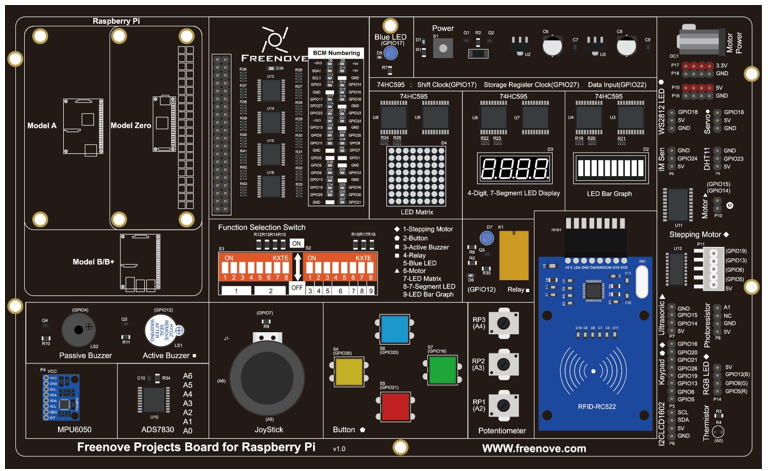
Freenove Projects Board for Raspberry Pi

Chapter01_04

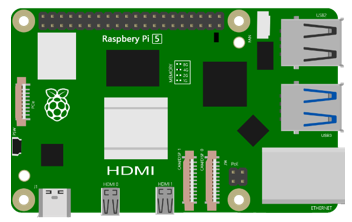
Raspberry Pi

Chapter01_05

GPIO Ribbon Cable

Chapter01_06

Circuit

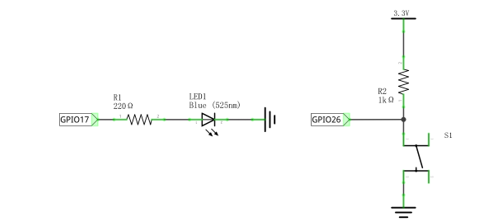
Schematic diagram

Chapter03_02

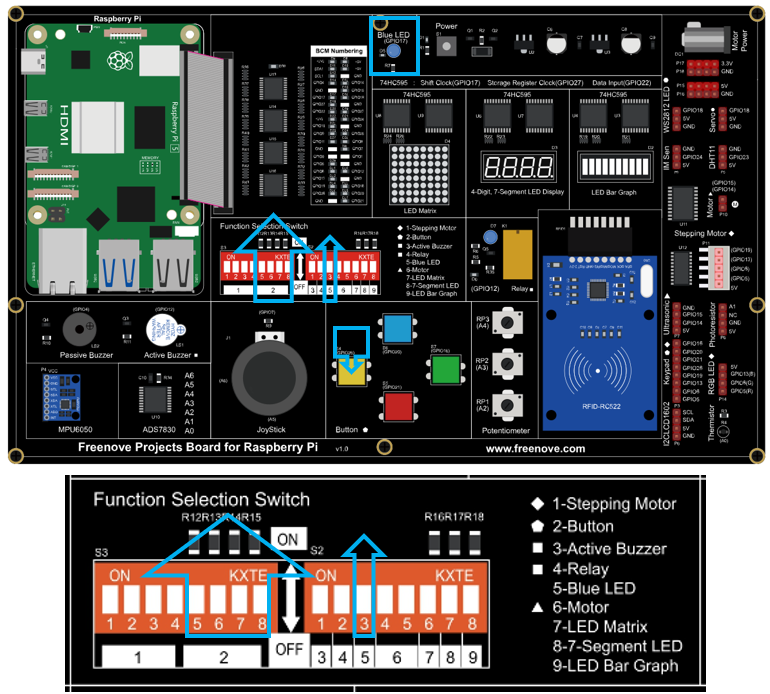
Hardware connection:

Switch ON NO.5 switch and the four switches of NO.2.

Chapter03_03

Note

If you have any concerns, please send an email to: support@freenove.com

Code

This project is designed for learning how to use Push Button Switch to control an LED. We first need to read the state of switch, and then determine whether to turn the LED ON in accordance to the state of the switch.

C Code 3.1 ButtonLED

First, observe the project result, then learn about the code in detail.

Note

If you have any concerns, please send an email to: support@freenove.com

  1. Use cd command to enter 3_ButtonLED directory of C code.

$ cd ~/Freenove_Kit/Code/C_Code/3_ButtonLED
  1. Use the following command to compile the code “ButtonLED.c” and generate executable file “ButtonLED”

$ gcc ButtonLED.c -o ButtonLED -lwiringPi
  1. Then run the generated file “ButtonLED”.

$ ./ButtonLED

Later, the terminal window continues to print out the characters “led off…”. Press the S4 button, then LED is turned on and then terminal window prints out the “led on…”. Release the button, then LED is turned off and then terminal window prints out the “led off…”. You can press “Ctrl+C” to terminate the program.

The following is the program code:

 1/**********************************************************************
 2* Filename    : ButtonLED.c
 3* Description : Control led by button.
 4* Author      : www.freenove.com
 5* modification: 2024/07/29
 6**********************************************************************/
 7#include <wiringPi.h>
 8#include <stdio.h>
 9
10#define ledPin    17  	//define the ledPin
11#define buttonPin 26    //define the buttonPin
12
13void  main(void)
14{
15	printf("Program is starting ... \n");
16
17	wiringPiSetupGpio();//Initialize wiringPi. Use BCM Number.
18
19	pinMode(ledPin, OUTPUT); //Set ledPin to output
20	pinMode(buttonPin, INPUT);//Set buttonPin to input
21
22	pullUpDnControl(buttonPin, PUD_UP);  //pull up to HIGH level
23	while(1){
24		if(digitalRead(buttonPin) == LOW){ //button is pressed 
25			digitalWrite(ledPin, HIGH);  //Make GPIO output HIGH level
26			printf("Button is pressed, led turned on >>>\n");		//Output information on terminal
27		}
28		else {							//button is released 
29			digitalWrite(ledPin, LOW);  //Make GPIO output LOW level
30			printf("Button is released, led turned off <<<\n");		//Output information on terminal
31		}
32	}
33}
34

Define ledPin and buttonPin as 17 and 26 respectively.

1#define ledPin    17        //define the ledPin
2#define buttonPin 26  //define the buttonPin

In the while loop of main function, use digitalRead(buttonPin) to determine the state of Button. When the button is pressed, the function returns low level, the result of “if” is true, and then turn on LED. Or, turn off LED.

1if(digitalRead(buttonPin) == LOW){ //button is pressed 
2	digitalWrite(ledPin, HIGH);  //Make GPIO output HIGH level
3	printf("Button is pressed, led turned on >>>\n");		//Output information on terminal
4}
5else {							//button is released 
6	digitalWrite(ledPin, LOW);  //Make GPIO output LOW level
7	printf("Button is released, led turned off <<<\n");		//Output information on terminal
8}
Reference
int digitalRead(int pin);

This function returns the value read at the given pin. It will be “HIGH” or “LOW”(1 or 0) depending on the logic level at the pin.

Python Code 3.1 ButtonLED

First, observe the project result, then learn about the code in detail. Remember in code “button” = switch function

Note

If you have any concerns, please send an email to: support@freenove.com

  1. Use cd command to enter 3_ButtonLED directory of Python code.

$ cd ~/Freenove_Kit/Code/Python_GPIOZero_Code/3_ButtonLED
  1. Use Python command to execute btnLED.py.

$ python ButtonLED.py

Then the Terminal window continues to show the characters “led off…”, press the switch button and the LED turns ON and then Terminal window shows “led on…”. Release the button, then LED turns OFF and then the terminal window text “led off…” appears. You can press “Ctrl+C” at any time to terminate the program.

The following is the program code:

 1#!/usr/bin/env python3
 2########################################################################
 3# Filename    : ButtonLED.py
 4# Description : Control led with button.
 5# Author      : www.freenove.com
 6# modification: 2024/07/29
 7########################################################################
 8from gpiozero import LED, Button
 9
10led = LED(17)       # define LED pin according to BCM Numbering
11button = Button(26) # define Button pin according to BCM Numbering
12
13def loop():
14    key_state = 0
15    while True:
16        if button.is_pressed==True and key_state == 0:  # if button is pressed
17            led.on()        # turn on led
18            key_state = 1
19            print("Button is pressed, led turned on >>>") # print information on terminal 
20        elif button.is_pressed==False and key_state == 1:
21            led.off() # turn off led 
22            key_state = 0
23            print("Button is released, led turned off <<<")    
24
25if __name__ == '__main__':     # Program entrance
26    print ('Program is starting...')
27    try:
28        loop()
29    except KeyboardInterrupt:  # Press ctrl-c to end the program.
30        print("Ending program")
31    finally:
32        led.close()
33        button.close()

Apply for an led module to control the LED, apply for a Button module to read the status of the button.

1led = LED(17)       # define LED pin according to BCM Numbering
2button = Button(26) # define Button pin according to BCM Numbering

The loop continues endlessly to judge whether the key is pressed. When the button is detected to be pressed, let the LED light up and set the key status value to 1 to ensure that it does not trigger again. When the button release is detected, let the LED go off and set the key status value to 0 to ensure that it does not trigger again.

 1def loop():
 2    key_state = 0
 3    while True:
 4        if button.is_pressed==True and key_state == 0:  # if button is pressed
 5            led.on()        # turn on led
 6            key_state = 1
 7            print("Button is pressed, led turned on >>>") # print information on terminal 
 8        elif button.is_pressed==False and key_state == 1:
 9            led.off() # turn off led 
10            key_state = 0
11            print("Button is released, led turned off <<<")    

Release the GPIO resource each time you use Ctrl+C to exit the code.

1finally:
2    led.close()
3    button.close()